The parameter is used to dynamically control data displayed in the data entry form. For example, the list of organizations is selected as a parameter for registry data entry form, on changing selection in the parameter, the working area of data entry form will display registry data corresponding to the required organization.
On adding a parameter, the control is automatically created on the sheets that were selected on determining parameter properties.
To set up form parameters, follow the steps:
Create a parameter.
Determine parameter properties.
Create a link with another parameter to manage available values of parameter.
Change control size.
Edit parameter.
After the form parameters are set, if required, follow the step:
To set up data entry/output form parameters, use the Parameters dialog box, open the dialog box by clicking the
Parameter Editor button on the Designer ribbon tab:
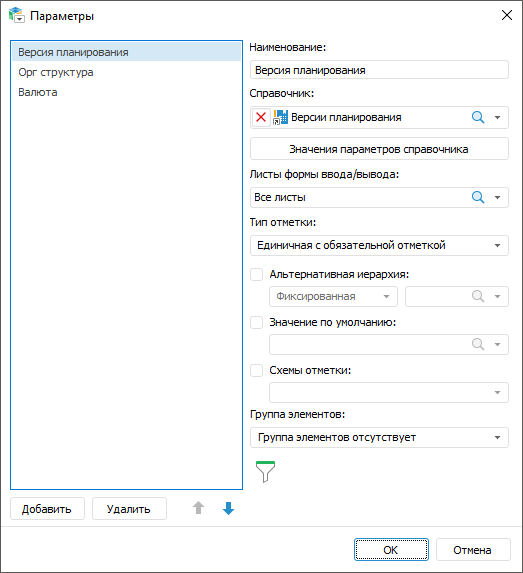
The dialog box consists of the form parameter list and property setup panel.
Create a parameter by clicking the Add button of the Parameters dialog box.

Determine parameter properties
Determine parameter properties by using the properties panel of the Parameters dialog box:
Name. Determine parameter name.
Dictionary. Determine a dictionary, to which the parameter will be linked. To do it select a dictionary from the drop-down list or click the search button
and start entering the dictionary name
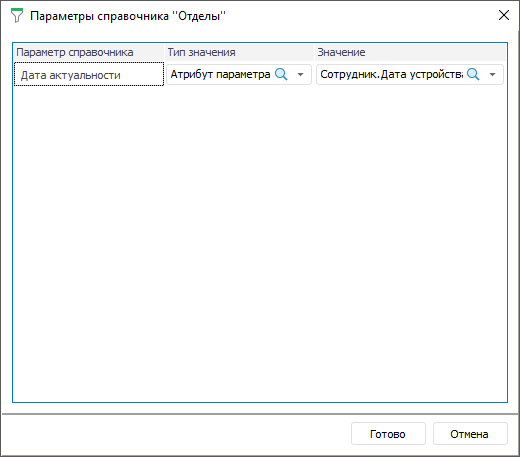
Dictionary Parameters Values. Set dictionary parameters . To do it, click the Dictionary Parameters Values button, the <Dictionary Name> Dictionary Parameters dialog box opens:

Set:
Parameter. The list displays all dictionary parameters. If the dictionary that is a source for form parameter has no parameters, the list will be empty
Value Type. Select the value type. Available options: not selected, value, parameter attribute
Value. It depends on selected value type. The field is active, if the Value type or Parameter Attribute type is selected:
If the Value type is selected then a specific value corresponding to attribute type of the dictionary used for dictionary parameter building is to be specified in the box
If the Parameter Attribute type is selected, the attribute for the box is selected in the drop-down list representing a tree of available form parameters with attributes
If the parameter is deleted in the dictionary that is a source for the parameter, the parameter is also deleted from dialog box with control rule.
NOTE. The setup is available only in desktop application.
Data Entry/Output Form Sheets. Select sheets where the parameter will be displayed on the Controls panel. To do it select a sheet in the drop-down list or click the search button
and start entering the sheet name
Selection Type. Determine a possible number of selected elements. To do it, select one of the drop-down list options: single with mandatory selection, multiple selection, single with optional selection.
Alternative Hierarchy. Select alternative hierarchy to display elements of alternative dictionary, instead of the elements of the dictionary that is used to build a parameter or set up dynamic selection of alternative hierarchy depending on the attribute of other parameter. To do it, select the Alternative Hierarchy checkbox. Set:
Alternative Hierarchy Type. Select one of the options in the drop-down list: fixed or dynamic. By default fixed alternative hierarchy is selected
Alternative Hierarchy Source. It depends on selected type of alternative hierarchy:
If the Fixed type is selected, the alternative hierarchy source is a dictionary. Select a dictionary from the drop-down list or click the
search button and start entering the dictionary name. Only one dictionary can be selected:
If the dictionary is not selected, then after parameter setup, the message prompting select an alternative hierarchy for parameter, displays. If the default value was selected for parameter and the element is absent on selecting an alternative hierarchy, then default value will be reset. If selection schema was selected for parameter, then on selecting alternative hierarchy, the previous selection schema will be reset and a new one will be selected from the list for alternative hierarchy
If the Dynamic type was selected, the parameter is the source of alternative hierarchy. Select a parameter attribute of data entry form from the drop-down list or click the
search button and start entering the parameter name:
If parameter attribute is not selected for alternative hierarchy, then after parameter is set up, the message prompting select an alternative hierarchy for parameter displays. On selecting the Default Value setup parameter as alternative hierarchy source, Selection Schema and Group of Elements will be unavailable.
If the attribute that was a set alternative hierarchy key for parameter was deleted, the parameter value in data entry form control will be empty. Set another parameter attribute as alternative hierarchy key.
NOTE. The setup is available only in desktop application.
Default Value. Determine value that will be displayed before the element is selected. To do it, select the Default Value checkbox and select the drop-down item or click the
search button and start printing the element name. If parameter is selected as a source of alternative hierarchy, the checkbox is not active
Selection Schemas. Select selection schema to automate element selection by specified parameters in the drop-down list. To do it, select the Selection Schemas checkbox and select the schema from the drop-down list. If the dictionary has no selection schemas, only one option will be in the list, that is, selection schema is absent. If dictionary is selected as alternative hierarchy source, then the drop-down list will contain selection schemas of alternative dictionary. If parameter is selected as a source of alternative hierarchy, the checkbox is not active
Group of Elements. Determine a group of elements to limit the list of available elements. If the dictionary does not have any groups of elements, the list will contain only one option, that is, the group of elements is absent. If dictionary is selected as alternative hierarchy source, then the drop-down list will contain a group of elements of alternative dictionary. If parameter is selected as a source of alternative hierarchy, the checkbox is not active. The setup is available, if the advanced filter setting is absent.
The order of alternative hierarchy, group of elements, selection schemas and advanced filter application is described below.
Finish the selection by clicking the OK button.

Limit available parameter values using filter
To limit available parameter values of form, set up links with another form parameters using advanced filter.
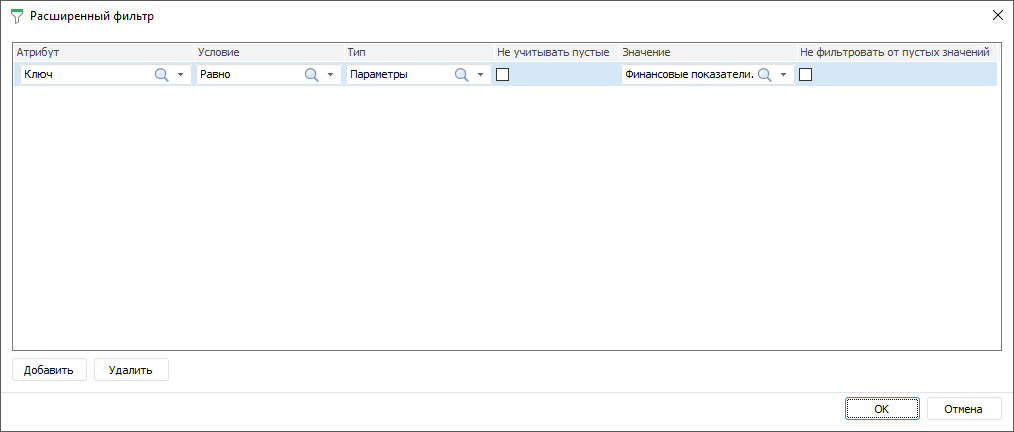
To open an advanced filter dialog box, click the
button:

The advanced filter setting is available when there is no group of elements setting.The order of alternative hierarchy, group of elements, selection schemas and advanced filter application is described below.
Determine advanced filter:
Добавить. Нажмите кнопку «Добавить» для создания правила;
Атрибут. Выберите атрибут из раскрывающегося списка;
Условие. Задайте условие фильтрации. Возможные варианты: равно, не равно, больше, меньше, больше или равно, меньше или равно, входит, не входит;
Тип. Выберите тип фильтра. Возможные варианты: значение, параметр;
Не учитывать пустые. Пустые значения атрибута не будут учитываться, если установить флажок. Доступно только для типа «Параметр»;
Значение. Зависит от выбранного атрибута и типа:
если выбран тип «Значение», то в поле указывается конкретное значение, соответствующее типу атрибута;
если выбран тип «Параметр», то в поле выбирается атрибут из раскрывающегося списка, представляющего собой дерево из доступных параметров с атрибутами;
если атрибут связанный и выбран тип «Значение», то в поле появляется выпадающее меню с доступными значениями справочника;
Не фильтровать от пустых значений. Значения атрибута не будут фильтроваться при пустом значении параметра, если установить флажок;
Удалить. Нажмите кнопку «Удалить» для удаления правила.
Finish the selection by clicking the OK button.
Add parameters to data entry form:
Enterprise Group. The parameter is linked to the Enterprise Group table MDM dictionary where corporate groups are listed. Each group has its own value of the Key attribute.
Organization. The parameter is linked to the Registry of Organizations table MDM dictionary where organizations belonging to corporate groups are listed. The Corporate Group attribute is added to the dictionary where value of enterprise group, to which belongs organization is specified.
In order that on selecting element in the Enterprise Group parameter available value of the Enterprise parameter will be limited to organizations belonging to the selected group, add the advanced filter:
Add a rule and select the Enterprise Group attribute.
Select the Equal condition.
Select the Parameter type.
Select the Enterprise Group.Key parameter.
Finish filter setup.
As a result, available values of the Enterprise parameter will change depending on the selected value of the Enterprise Group parameter.
If on setting up parameter, the alternative hierarchy, group of elements or advanced filter and selection schema are selected, then they will be applied in the following order:
Alternative hierarchy.
Group of elements or advanced filter. Either group of element or advanced filter can be selected.
Selection schema.
To resize control, determine width by stretching or shrinking the control from the right edge on the Controls panel.
To edit parameter, open the Parameters dialog box by clicking the
Parameter Editor button on the Designer ribbon tab.
To delete parameter, click the Delete button of the Parameters dialog box.
If parameter controls another parameter, then to delete controlling parameter, remove dependency with controlled parameter.
If parameter attribute is set as alternative hierarchy for another parameter, then to delete the parameter used for alternative hierarchy, it is required to change the source type or alternative hierarchy source or to not use alternative hierarchy.
See also:
Building Data Entry Form | Working with Ready Data Entry Form