Setting Up Stage Steps Execution Conditions
After creating stage steps, steps execution conditions can be set up using the gateway. The gateway is used to automatically merge stage steps to groups consisting of one or more steps and to set up links between them. By default the group steps are executed successively. If the stage contains only one step, the gateway cannot be used. For one step only one gateway type can be selected.
To set up stage steps execution conditions, execute the operations:
Divide steps into groups. To select a separate stage group or move the step from one group to another, use the  Move Up/
 Move Down buttons on the Process ribbon tab in the Business Process Setup dialog box or in the step context menu.
Set gateway type.
Add execution conditions for step group.
Adding a Gateway
To use gateway, select the process step in the working area or process tree of the Setting Up Business Process dialog box and execute one of the operations:
On selecting the gateway, the group of steps looks as follows:
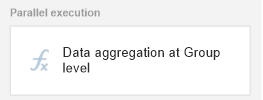
If condition is met, then only one group of steps is executed and the process goes to the next step.
If condition is not respected, then the condition of the next group of steps is verified.
If none of group of steps conditions is met, then default group of steps is executed. If group of default steps is not set, the process execution goes to the next stage.
On selecting a gateway, the condition for group of steps is not selected. The group of steps looks as follows:
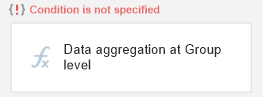
On selecting a gateway, the condition for group of steps is not selected. The group of steps looks as follows:
On creating the Exclusive Gateway or Inclusive Gateway gateway, add conditions for each group of steps. Available options of conditions statuses:
 . Condition Is Not Specified. It is used on setting up a business process. The conditions is not set, the process cannot be started, because on saving the process the error message appears.
 . Condition is Specified. It is used on setting up a business process. The condition is set, on starting the process, the selected condition for group of steps is verified.
 . Condition is Met. It is used on process monitoring. The condition is met, the execution process goes to checking condition of the next group of steps or stage.
 . Condition Is Not Met. It is used on process monitoring. The condition is not met, the execution process goes to checking condition of the next group of steps or stage.
 . Default. it is used on setting up business process and on process monitoring. The group of steps is executed only in case, if none of other stage groups of stage steps were met. If condition is added for group of steps, then it is not taken into account on using the Default status.
Adding Conditions for Groups of Steps
To add a condition of group of steps:
Open the Change Condition for Group of Steps dialog box:
As a result, the Change Condition for Group of Steps dialog box opens:
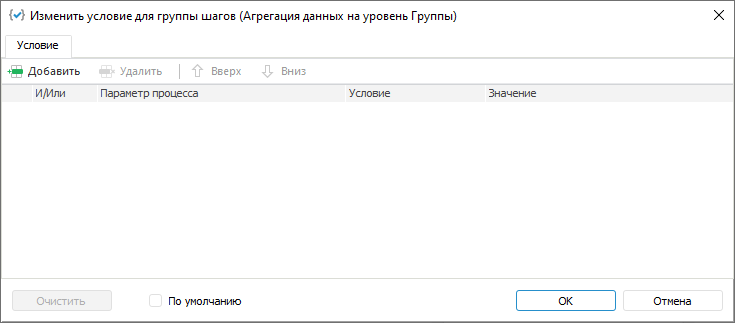
Click the  Add toolbar button:
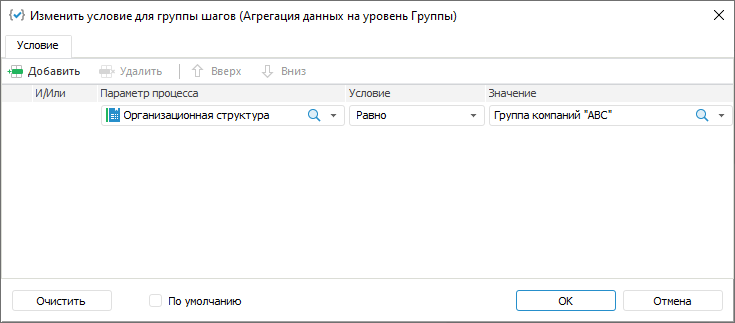
Specify parameters:
Process Parameters. Select a dictionary or dictionary attribute that will participate in condition.
Condition. Select a condition in the drop-down list:
Equal.
Not equal.
Contains.
Does not contain.
Is contained in.
Is not contained in.
Is crossed with.
Value. Specify the value that will be compared with process parameter value.
And/Or. Select one of the logical operators in the drop-down list, if several conditions are added:
AND. If all conditions are met, then group of steps is executed.
Or. It is used by default. If at least one condition is met, the group of steps is executed.
Use the Default condition status if required:
The Default group of steps is executed, if none of other groups of stage steps conditions is met. If condition is added for group of steps, then it is not taken into account on using the Default status.
To delete one of conditions, select the condition and click the  Delete button on toolbar.
To change order of conditions execution, select the Up/ Down toolbar buttons.
To delete all conditions, click the Clear button.
After stage steps conditions are set, go to simulation of steps execution.
See also:
Building Process | Creating Stage Steps
 Gateway button on the Process ribbon tab and select the gateway type in the drop-down list:
 Exclusive Gateway
 Inclusive Gateway
 No Gateway