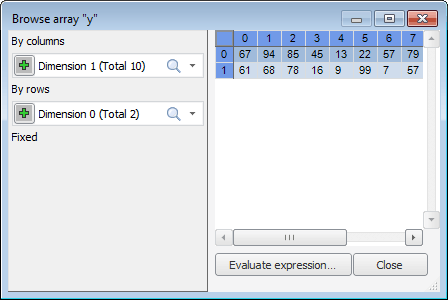
At the program runtime it is available to view values of arrays, matrices and collections inherited from the IList and IDictionary interfaces. To do this, use the special Browse Array dialog box. This dialog box can be opened for selected variable in the same way as the Evaluate Expression dialog box.
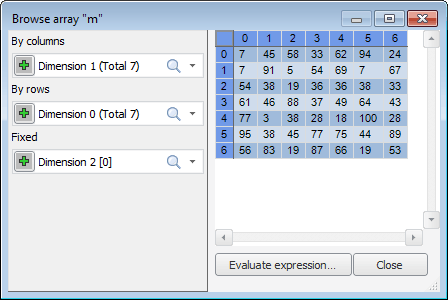
There is a list of all array dimensions in the left part of the window. By default, all elements of dimensions arranged by rows and columns are selected. Fixed dimensions have the first elements selected.
To change dimension location, hold down the main mouse button while hovering over the + sign and drag the dimension to the required location.
The View Expression button opens the Evaluate Expression dialog box where array information can be viewed.
Calculated values can be copied in the dialog box. To do this, select the required range of values and:
Select the Copy context menu item, which is called in the value area.
Press CTRL+C.
Copied values are contained in the clipboard as a two-dimensional array and later can be inserted into any platform tables(regular and express reports, the TabSheetBox development environment component, etc.) and in third-party applications (for example, Microsoft Excel).
Data can be edited in the array value browse window. To switch to the edit mode, execute any of the following operations:
Double-click the value to be edited.
Select the value to be edited and press F2.
Select the value to be edited and select the Edit context menu item.
Press the ENTER key to save a new value. Press the ESC key to restore previous value.
To rotate a table, select the Rotate Table context menu item. This context menu is available from anywhere in the browse array window. When a table is rotated, dimensions arranged by columns and dimensions arranged by rows are swapped.
See also: