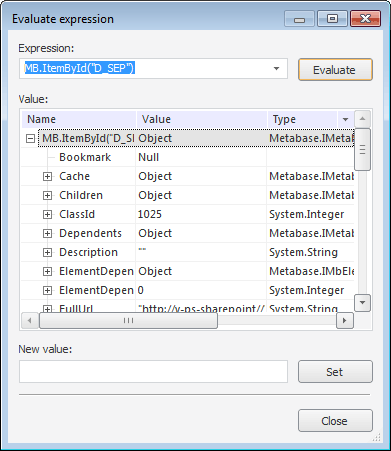
The special Evaluate Expression dialog box is used to monitor the step-by-step process of program execution and to calculate values of variables, arrays, expressions:
To open the dialog box, select the element, and execute one of the following operations:
Select the Debug > Evaluate Expression main menu item.
Press CTRL+F7.
Select the Evaluate Expression context menu item.
Click the  Evaluate Expression button on the toolbar.
The Expression box shows the text of a evaluated expression. The drop-down list contains the last twenty calculated expressions. When the dialog box opens, this box displays the variable, over which the cursor is held in the macro window or the expression selected in the macro window. In other cases the box displays the last calculated expression from the list.
Opening the dialog box for the first time automatically calculates the specified expression. The calculation result is displayed as a tree view containing all object properties and their values. The calculation hierarchy depth of any property is seven levels. On changing the text in the Expression box to calculate new values, click the Evaluate button.
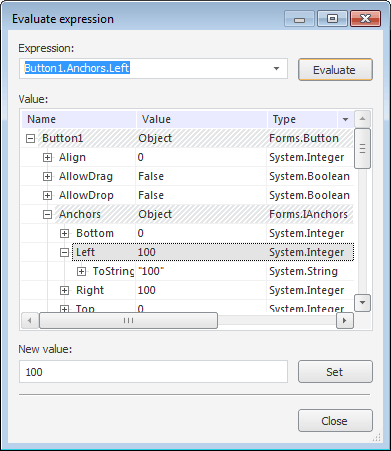
Values of the object properties available for changing can be modified. To do this, enter appropriate values in the New Value box and click the Set button. Double-clicking any property in the Value area automatically substitutes its value in the New Value box.
To view information on an object, select the required variable (or code block) in the program text and open the Evaluate Expression dialog box using one of the aforementioned methods or enter the object name in the edit box of the opened Evaluate Expression dialog box and click the Evaluate button or the ENTER key on the keyboard:
To view information on arrays, matrices and collections inherited from the IList and IDictionary interfaces, select corresponding variable in the program text and open the Evaluate Expression dialog box; or open the Evaluate Expression dialog box, type in name of the corresponding variable in the edit box and click the Evaluate button. The dialog box for viewing array values opens.
Clicking the View Expression button in the browse array values dialog box opens a dialog box with array parameters:
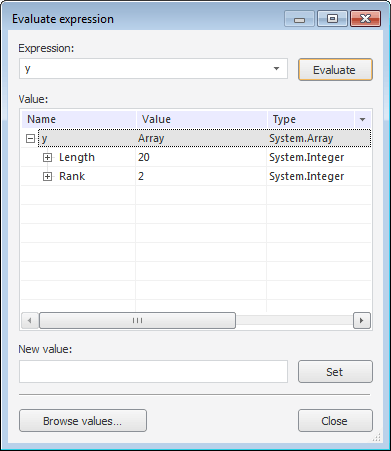
The Browse Values button enables the user to return to viewing array values.
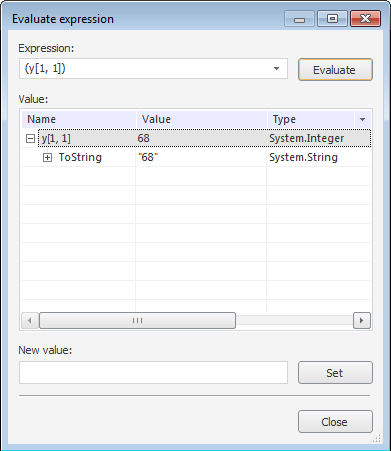
To view the value of an array element, select the required array element in the program text and open the Evaluate Expression dialog box using one of the aforementioned methods or enter the name of the array element in the edit box of the opened Evaluate Expression dialog box and click the Evaluate button or press the ENTER key:
See also:
Running and Debugging Development Environment Objects | Browse Array Window