Setting Up Two-Factor Authentication
Two-factor authentication is intended to enhance information security using a user authentication verification on logon. As the first factor, any available authentication type is used. The second factor is a client certificate fingerprint saved in Foresight Analytics Platform.
The client certificate is a part of security certificate which includes a set of generated certificates:
Root certificate. It is used to generate and sign server certificate an client certificate.
Server certificate. It is used by DBMS in the desktop application and web application server to sign client certificate.
Client certificate. It is a personal digital signature and it is used to verify its authentication during authorization.
By default, if user authentication is successful, the linked client certificate for system logon is requested.
To set up two-factor authentication:
Generate and install security certificate using specific crypto software, for example, OpenSSL.
NOTE. In the desktop application it is sufficient to link certificate to user to use two-factor authentication with default settings, if standard configuration of Foresight Analytics Platform is used.
Set up web service connection, if one of configurations of Foresight Analytics Platform is used:
Standard configuration with desktop and web applications use.
Standard configuration with web application use.
Configuration with security server.
If required, change two-factor authentication application. By default, two-factor authentication is used for the users with a bound client certificate.
After executing the actions, the result of two-factor authentication depends on the specified application. If two-factor authorization application was not changed then bound client certificate will be requested for system logon if the user authentication is successful.
For details about two-factor authentication setup for web application, see the Example of Setting Up Two-Factor Authentication or Example of Setting Up Two-Factor Authentication in Linux OS sections.
Binding a Client Certificate to User
The client certificate must be linked to each user individually.
To bind certificate to user:
Select one of the actions in the Users section:
In the desktop application:
Select a user and select the Properties context menu item.
Select a user and select the User > Properties main menu item.
Double click the selected user.
In the web application:
Select a user.
After executing one of the actions, the User Properties dialog box opens in the desktop application or the Properties side panel opens in web application:
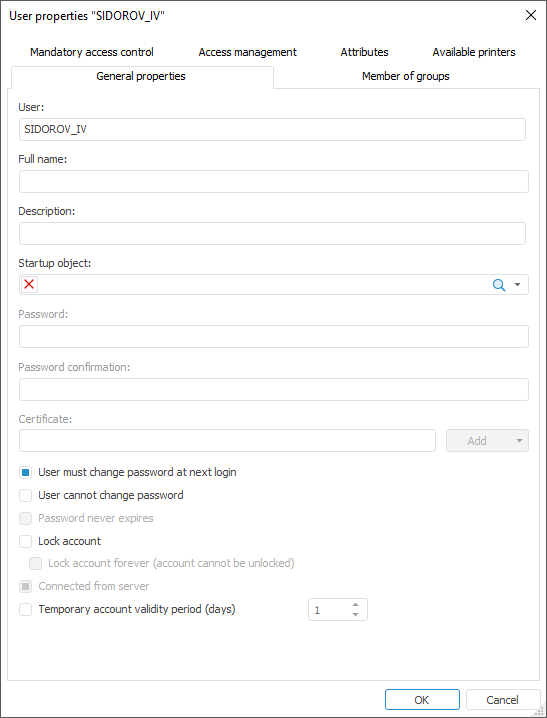
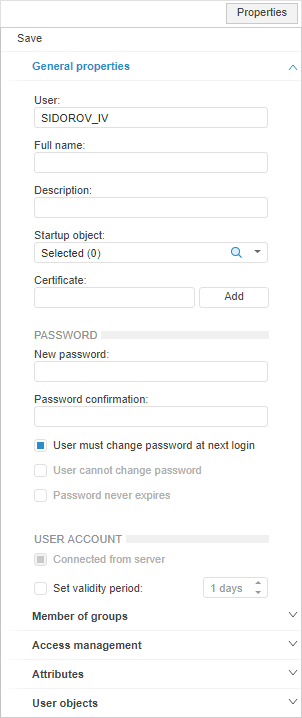
Click the Add button next to the Certificate field on the General Properties tab and select the client certificate option in the button drop-down menu:
From file. A standard file selection dialog box opens. Select a file with *.cer or *.crt extension and click the Open button.
From Windows storage. A standard Windows certificate selection dialog box opens. Select a certificate and click OK.
NOTE. In the web application it is only available to add certificate from file.
After executing the actions, in Certificate field will contain a fingerprint of selected client certificate.
Click OK in the desktop application or Save in the web application.
After executing the actions, the client certificate will be bound to the selected user.
NOTE. In the desktop application it is sufficient to link a client certificate to user to use two-factor authentication with default settings.
Setting Up Web Service Connection
Web service connection settings depend on operating system and configuration of Foresight. Analytics Platform in use:
To set up web service connection:
Activate SSL parameters for web application. Open a SSL settings setup page in the IIS service manager by clicking the
 SSL Settings button.After that the SSL Settings page opens. Select the Require SSL checkbox and the Require radio button for client certificates.
If configuration with security server is in use, then set up user connection to security server taking into account security protocol:
https://<workstation>/fpSS_App_v9.2x64/axis2/services/PP.SOM.SomSec
To set up web service connection:
Apply settings in Linux OS:

 Ubuntu
If configuration with security server is in use, then set up user connection to security server taking into account security protocol:
https://<workstation>:80/axis2/services/PP.SOM.SomSec
NOTE. If the security server is used along with the web application (BI server), certificates are checked by BI server.
After executing the operations on two-factor authentication, the HTTPS protocol will be used for web service connection. User authorization will be executed by client certificates.
Changing Two-Factor Authentication Application
By default, two-factor authentication is used for the users with a bound client certificate.
To change two-factor-authentication application:
Create a Strategy_check string parameter and set its value in the HKEY_LOCAL_MACHINE\Software\Foresight\Foresight Analytics Platform\9.0\Manager\Certificate registry section on local computers of all users.
NOTE. On using security server the registry will contain security server folder: ...\Foresight\Foresight Analytics Platform Security Server\...
Available parameter values:
User. Default. Two-factor authentication is used if the user has a bound client certificate.
Always. Two-factor authentication is used for all users. The users who do not have a bound client certificate are denied access.
Never. Two-factor authentication is not used if the user has a bound client certificate.
Create a Strategy_check string parameter and set its value in the configuration filesettings.xml:
<...>
    <Key Name="Manager">
        <Certificate Strategy_check="Always"/>
    </Key>
</...>
Available parameter values:
User. Default. Two-factor authentication is used if the user has a bound client certificate
Always. Two-factor authentication is used for all users. The users who do not have a bound client certificate are denied access.
Never. Two-factor authentication is not used if the user has a bound client certificate.