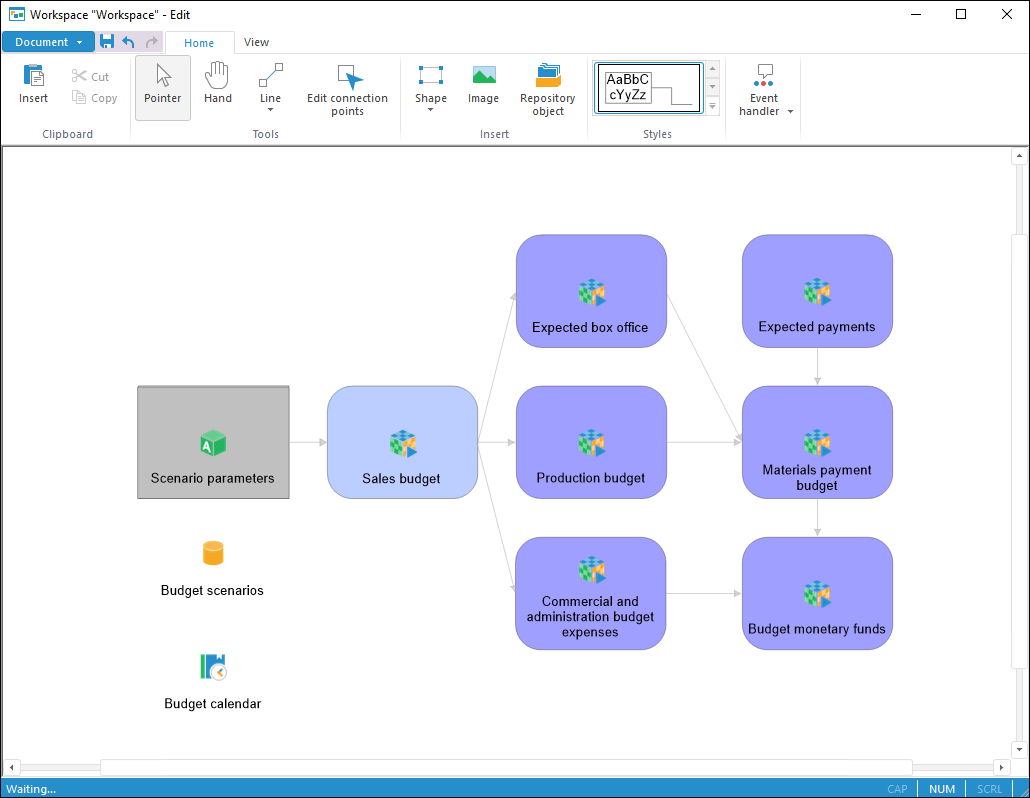
To get started with the tool, create a new or open the ready workspace.
Create a new workspace
To create a new workspace in the object navigator:
Click the New Object > Other > Workspace button in the Create group of the Home ribbon tab.
Select the Create > Other > Workspace item in the object navigator context menu.
NOTE. It is available to create a new workspace only in the desktop application.
Open ready workspace
To open a ready workspace for edit:
In the object navigator select a workspace and execute one of the operations:
Click the Edit button in the Open group of the Home ribbon tab.
Select the Edit item in the workspace context menu.
Press F4.
NOTE. The workspace can be opened for editing only in the desktop application.
To open a ready workspace for view:
Click the Open button in the Open group of the Home ribbon tab.
Select the Open item in the workspace context menu.
Double-click the workspace.
To build a workspace, see the Building a Workspace article.
To work with ready workspace, see the Working with Ready Workspace article.
The Workspace main menu window:
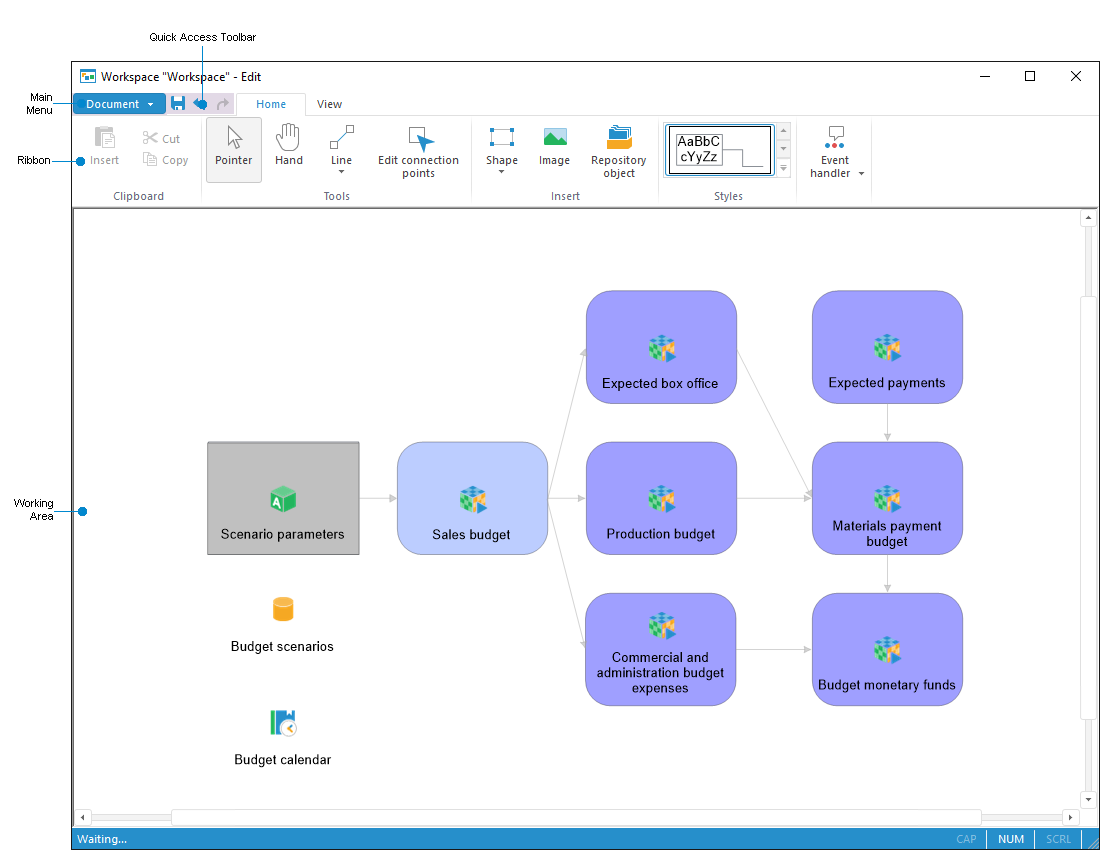
Workspace in view mode
Workspace window elements
Main Menu. It contains a list of commands, which are used to execute various operations with workspace objects.
Ribbon. It contains buttons to set up objects and workspace.
Quick Access Toolbar. It contains frequently used commands.
Working Area. It is used to build workspace.
See also:
Creating a Workspace