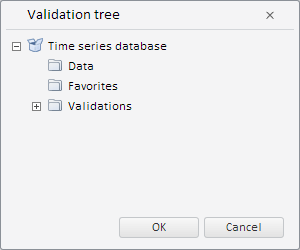
To execute the example, the HTML page must contain the WorkbookBox component named workbookBox (see Example of Creating the WorkbookBox Component). Create the WbkValidationTree component and display it in the dialog:
// Get workbook model
var source = workbookBox.getSource();
// Create a validation tree
validationTree = new PP.TS.Ui.WbkValidationTree({
    Source: source, // Data source
    // Process metadata request event
    RequestMetadata: function () {
        console.log("Request metadata...");
    },
    // Workbook service
    Service: source ? source.getPPService() : null,
    Class: "Item ValidationTreeList", // List of CSS classes
    ShowRootFolder: True, // Enable displaying of the root folder
    // Display only validation rules and groups of rules
    Filter: [PP.Mb.MetabaseObjectClass.KE_CLASS_VALIDATIONFILTER, PP.Mb.MetabaseObjectClass.KE_CLASS_VALIDATIONGROUP],
    Metabase: source ? source.getMetabase() : null, // Repository
    // Tree root folder key
    RootKey: source && source.hasRubrs() ? source.getWbkMetadata().rubrs.def.k : 0,
    Width: 230,
    Height: 180,
});
// Create the created tree to the dialog
var dialog = new PP.Ui.Dialog({
    Caption: "Validation Tree", // Dialog title
    Content: validationTree,
    Width: 300, // Dialog width
    Height: 250 // Dialog height
});
// Display this dialog
dialog.show();
The WbkValidationTree component is created and shown in the dialog box as the result of example execution:
As the result of processing the RequestMetadata event, on each metadata request the browser console also will show an appropriate message.
See also: