getSelectedKey ();
The getSelectedKey method returns key of selected element.
To execute the example, the page must contain the WorkbookBox component named workbookBox (see Example of Creating the WorkbookBox Component), and also add the following code in the handler, that processes document opening event:
	var rubKey = wbk.getWbkMetadata().rubrs.def.k;
	tsService.openRub(wbk, rubKey, onOpenRub); //Open time series database
	// Time series database open event handler
	function onOpenRub(sender, args)
	{
		tsService.openDLDim(wbk, onOpenDLDim); //Open calendar level dimension
	}
	// Calendar level dimension open event handler
	function onOpenDLDim(sender, args)
	{
		var openChooseFrequencyDialogButt = new PP.Ui.Button({
		ParentNode: document.body, //DOM parent node
		Content: "Open Dialog", //Text
		Click: PP.Delegate(onClickOpenChooseFrequencyDialog)
		});
	}
	function onClickOpenChooseFrequencyDialog (){
	var lvlElements = wbk.getDimLvlsEls(); //calendar dimension elements
	// Create an instance of the ChooseFrequencyDialog dialog
	var chooseFrequencyDialog = new PP.TS.Ui.ChooseFrequencyDialog({
		ResourceKey: "ChooseFrequencyDialogTitle", //resource key
		Width: 250, //width
		Height: 200, //height
		ParentNode: document.body, //DOM parent node
		OkButtonClicked: onChooseFrequencyDialogOkButtonClick, //OK button click event
		Els: lvlElements //calendar dimension elements
		});
		chooseFrequencyDialog.show(); //Display dialog
	}
	// OK button click event handler
	function onChooseFrequencyDialogOkButtonClick(sender, args)
	{
		var newDlg = sender; //instance of ChooseFrequencyDialog
		var selKey = newDlg.getSelectedKey();
		//Display selected element key
		alert('Selected element key: ' + selKey);
	}
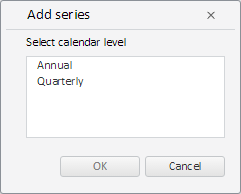
After executing the example the HTML page will contain the button named Open Dialog. Clicking this button opens the Add Series dialog box that looks as follows:
After selecting period type in the list, the message will show index of the selected item.
See also: