To execute the example, in the HEAD tag of the HTML page add links to the following JS and CSS files:
PP.js.
PP.Metabase.js.
PP.Navigator.css.
PP.Navigator.js.
resources file (such as resources.en)
PP.css.
In the SCRIPT tag add the following script:
        var navbox;
        function onLoad()
        {
            PP.resourceManager.setRootResourcesFolder("Scripts/resources/");
            PP.setCurrentCulture(PP.Cultures.ru);
            mb = new PP.Mb.Metabase(
            {
                PPServiceUrl: "PPService.axd?action=proxy",
                Id: "prognozplatform",
                UserCreds: {
                    UserName: "user",
                    Password: "password"
                }
            });
            mb.open();
            navbox = new PP.Mb.Ui.NavigatorBox(
            {
                Metabase: mb,
                ParentNode: document.getElementById("div1"),
                Width: 700,
                Height: 400,
                //Multiple selection in the list of objects is enabled
                ObjectListMultiSelect: true,
                //Path to images folder
                ImagePath: "PP_img/",
                //On opening the context menu for element from tree of folders, a message with selected folder key appears
                FolderTreeContextMenu: function (sender, args)
                {
                    alert(navbox.getSelectedFolderTreeObject()[0].getKey())
                },
                //filter for container objects is set: only folders are displayed in the folder tree
                FolderTreeFilter: [0],
                //object name contains its name and identifier
                ObjectListDisplayMode: PP.Mb.Ui.MetabaseDisplayMode.Both,
                //list of objects contains objects of the following types: standard cubes, workbooks, express reports and regular reports
                ObjectListFilters: [1281, 2827, 2561, 2562],
                //menu for columns is hidden, that is, it is not available to hide columns
                HideObjectListColumnsMenu: true,
                //on loading a list of objects columns are fit to contents
                ObjectListObjectsLoaded: function (sender, args)
                {
                    navbox.adjustColumnsWidthByContent()
                },
                ObjectListSelectionChanged: function (sender, args)
                {
                     console.debug("Selection of element is changed")
                 }
            });
        }
In the BODY tag add:
<body onload="onLoad();">
<div id = "div1"></div>
</body>
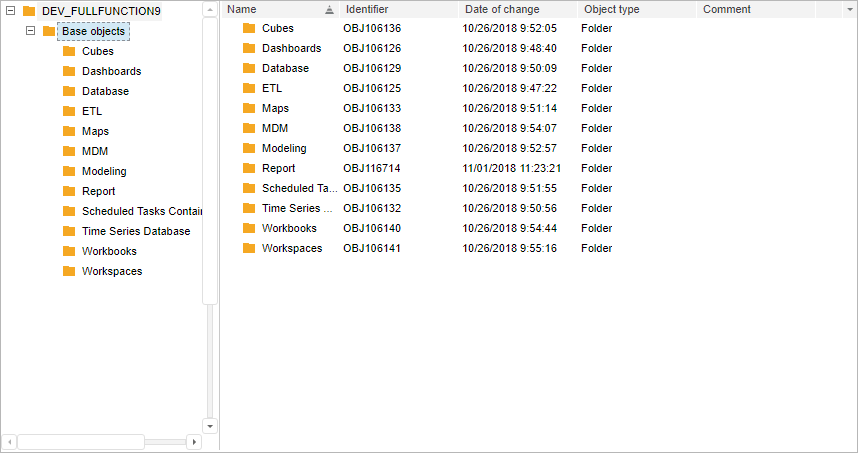
After executing the example the NavigatorBox component is located on the HTML page:
See also: