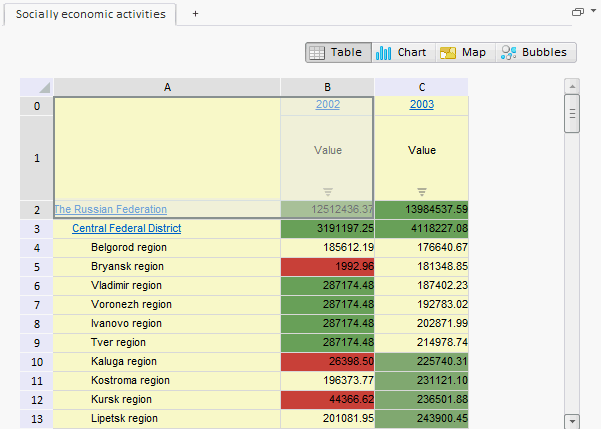
To execute the example, create an HTML page and execute the following operations:
1. Add links to the following files: PP.css, PP.Express.css.
Also add links to the following JS files: PP.js, PP.Metabase.js, PP.Express.js and resources.ru.js.
2. In the <head> tag specify style for the elements:
<style type="text/css">
    body, html {
        height: 100%;
        width: 100%;
        overflow: hidden;
    }
</style>
3. Then in the <head> tag add a script that creates a container for the express report data area EaxDataBox:
<script type="text/javascript">
    PP.setCurrentCulture(PP.Cultures.ru);
    var metabase, eaxAnalyzer, eaxMbService, eaxDataBox;
    function Ready() {
        // Create repository connection
        metabase = new PP.Mb.Metabase({
            ExportUrl: "PPService.axd?action=export",
            ImportUrl: "PPService.axd?action=import",
            PPServiceUrl: "PPService.axd?action=proxy",
            Id: "prognozplatform",
            UserCreds: {
                UserName: "user",
                Password: "password"
            }
        });
        // Open repository connection
        metabase.open();
        // Create a service for working with express reports
        eaxMbService = new PP.Exp.EaxMdService({
            Metabase: metabase
        });
        eaxAnalyzer = eaxMbService.editDocument(109);
        // Create a container for express report data area
        eaxDataBox = new PP.Exp.Ui.EaxDataBox({
            ParentNode: "ExpressBox",
            Source: eaxAnalyzer, // Set data source
            Service: eaxMbService, // Set service
            Width: 600,
            Height: 600,
            ImagePath: "../Debug/img/", // Specify path to icons folder
            // Set visibility of the button used to select data view display mode
            EaxModeSelectorViewIsVisible: true,
            // Set visibility of a group of buttons used to select data view option
            EaxToolBarViewIsVisible: true,
            // Set view mode for container with title and  buttons used to select
            // data view option
            HeaderContainerVisibility: PP.Exp.Ui.HeaderContainerVisibility.ShowAll,
            // Set visibility of tab panel in container for express report data area
            TabControl: {IsVisible: false},
            // Create DataChanged event handler
            DataChanged: function (sender, args) {
                   alert("Data is changed");
            },
            // Set ActiveSheetChanged event handler
            ActiveSheetChanged: function (sender, args) {
                alert("Active sheet is changed");
            },
            // Set DocDataChanged event handler
            DocDataChanged: function (sender, args) {
                alert("Document data is changed");
            },
            // Set DimSelectionChanged event handler
            DimSelectionChanged: function (sender, args) {
                alert("Report dimension selection is changed");
            },
            // Set ObjSizeChanged event handler
            ObjSizeChanged: function (sender, args) {
                alert("Object is resized");
            },
            // Set RequestMetadata event handler
            RequestMetadata: function (sender, args) {
               alert("Metadata query");
            },
            // Set SheetClick event handler
            SheetClick: function (sender, args) {
               alert("SheetClick");
            }

        });
        window.onresize(); // Resize EaxDataBox container
        // Refresh all contents of express report data area
        eaxDataBox.refreshAll();
    };
    var idTime;
    // Function for resizing EaxDataBox container on resizing window
    window.onresize = function updateSize() {
        if (idTime) clearTimeout(idTime);
        idTime = setTimeout(function () {
            if (eaxDataBox) {
                // Set new size for EaxDataBox container
                eaxDataBox.setWidth(document.body.offsetWidth - 30);
                eaxDataBox.setHeight(document.body.offsetHeight - 30);
            }
            idTime = null;
        }, 100);
    };
</script>
4. In the <body> tag specify name of the function that creates express report working area, as the value of the attribute onLoad, and position a block with the ExpressBox identifier:
<body onselectstart="return false" onload="Ready()">
    <div id="ExpressBox" style="height: 860px;"></div>
</body>
After executing the example the HTML page contains the EaxDataBox component that looks as follows:
See also: