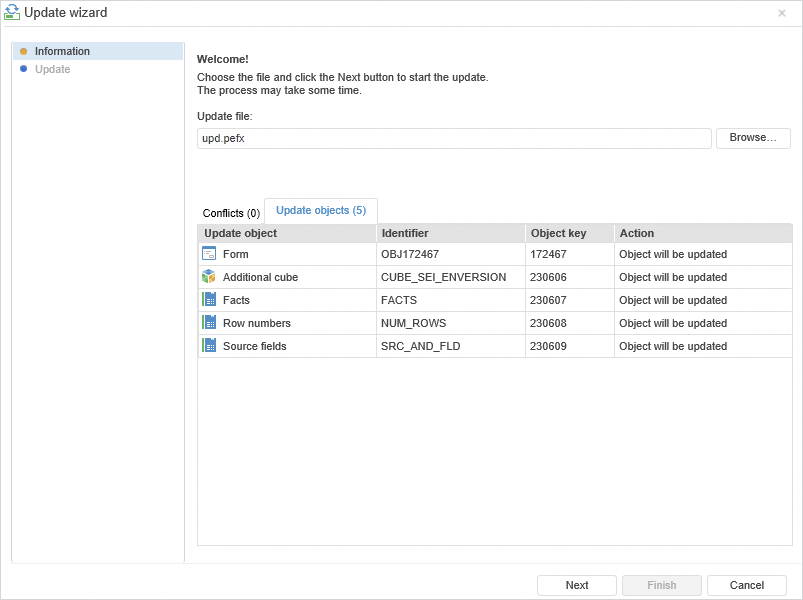
To start update process, use the update wizard after selecting the update file when executing the update installation command.

Installing an update via an *.updpack file may include installation of updates from files listed on the side panel of the update wizard. Before installing each update the Update Objects tab displays the objects to be updated at the current stage.
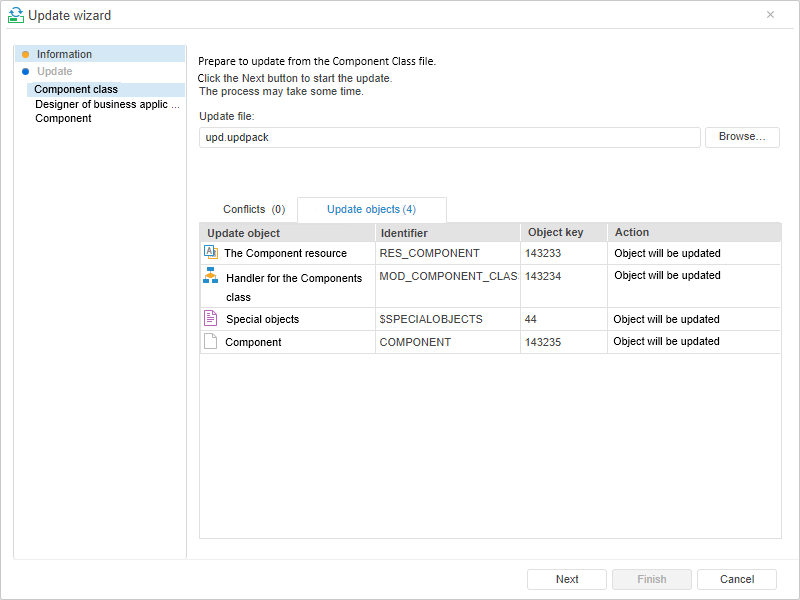
NOTE. The Information page is displayed at the stage of preparing update from the first file.
The Update File box of the Information wizard page displays path to the selected file. The update file can be replaced. The path can be entered manually or by clicking the Browse button and using a standard dialog box of file search.
The page displays a number of tabs depending on security manager settings:
Conflicts. The tab displays various conflicts (except mandatory access control conflicts), which appear during the update check.
Update Objects. The Update Objects tab displays the update elements list.
Click the Next button to start the update. On an attempt to start the update with unresolved conflicts, the setup start confirmation appears.
See also:
Installing Update | System Update Recommendations | Update Installation Features