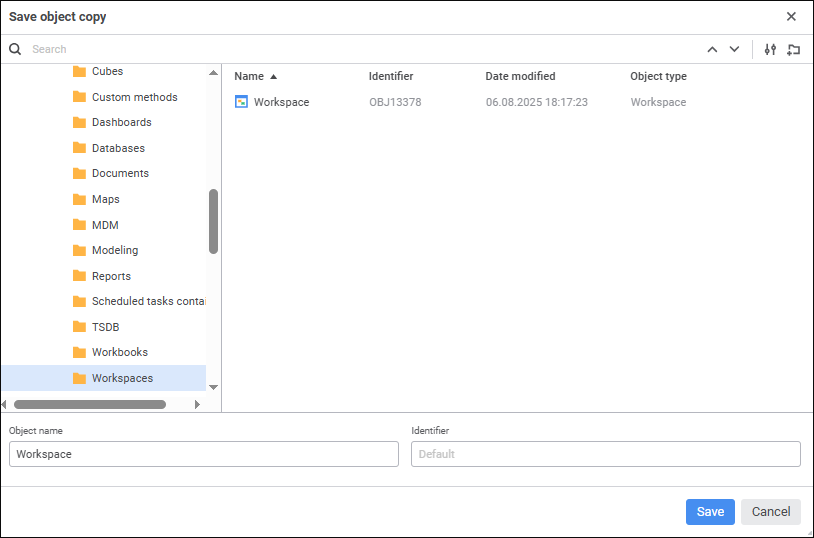
To create a copy of workspace opened for edit:
Select the Save As item in the drop-down menu of the Save button in the main menu. The Save Object Copy dialog box opens:
Select location of the saved workspace in the object tree. Advanced features:
Create a new folder. To create a new folder, click the  Create Folder button, after which the Folder object is created. Set folder name.
Find the existing workspace to select where to save the copy or to copy its name. To quickly select the existing workspace, enter its name in the search box and press the ENTER key. The search string will display the number of search result and the general number of search results. To go through search results line by line, use the  Find Previous button, the
  Find Next buttons or press the ENTER key.
To set up search, click the  Search Options button and select the option in the drop-down menu:
Object search option:
Find by Names. Default option.
Find by Identifiers.
Find by Keys.
Match Case.
Match Whole Word.
NOTE. If the search did not return such substring and repository objects, the corresponding message is displayed.
Set object name and identifier.
Click the Save button.
When creating a copy of workspace, a new workspace is created in the repository, which is immediately opened for edit. If an object with the identifier specified in the Save Object Copy dialog box already exists, an attempt to create an information panel copy returns the action confirmation dialog box. Confirm replacing of the existing object with the workspace copy.
See also: