
 To open the dialog box
To limit available parameter value sets when viewing the report, set up parameter filtering by dictionary attributes.
To set up parameter filtering, use the Parameter Filters dialog box.
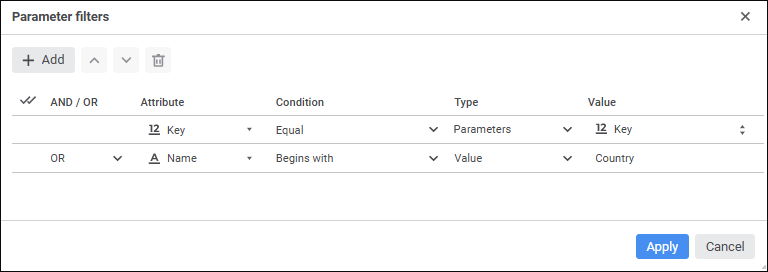
Click the  Add button to add a filter. A new line to set up filter will be added to the table. One can add several filters.
Set up filter rules:
AND/OR. A logical condition for filtering when several rules are being added. Select a logical operator in the drop-down list:
AND. Dimension element will be filtered when all filtering rules are satisfied.
OR. Default value. Dimension elements will be filtered if one of the filtering rules is satisfied. Rules are checked sequentially.
Attribute. The list of dimension attributes. Select the dimension attribute, which filtering rules will be checked.
Condition. Filtering condition type. Select one of the types:
Equal. The condition checks whether the attribute value selected in the Attribute column is equal to the value specified in the Value column.
Not Equal. The condition checks whether the attribute value selected in the Attribute column is not equal to the value specified in the Value column.
Less Than or Equal. The condition checks whether the attribute value selected in the Attribute column is less or equal to the value specified in the Value column.
Less Than. The condition checks whether the attribute value selected in the Attribute column is less than the value specified in the Value column.
Greater Than or Equal. The condition checks whether the attribute value selected in the Attribute column is greater or equal to the value specified in the Value column.
Greater Than. The condition checks whether the attribute value selected in the Attribute column is greater than the value specified in the Value column.
Does not Contain. The condition checks whether the attribute value selected in the Attribute column does not contain the value specified in the Value column.
Not Contained In. The condition checks whether the attribute value selected in the Attribute column is not contained in the value specified in the Value column.
Contains. The condition checks whether the attribute value selected in the Attribute column contains the value specified in the Value column.
Contained In. The condition checks whether the attribute value selected in the Attribute column is not contained in the value specified in the Value column.
Do not Intersect. The condition checks whether the attribute value selected in the Attribute column does not intersect with the value specified in the Value column.
Begins With. The condition checks whether the attribute selected in the Attribute column begins with the value specified in the Value column.
Ends With. The condition checks whether the attribute selected in the Attribute column end with the value specified in the Value column.
Displayed condition types depend on the data type of attribute:
For the String data type: Equal, Not Equal, Does not Contain, Not Contained In, Contains, Contained In, Do not Intersect, Begins With, Ends With.
For the Integer, Decimal, Real, Date and Time, Date data types: Equal, Not Equal, Less Than or Equal, Less Than, Greater Than or Equal, Greater Than.
For the Binary and Boolean data types: Equal, Not Equal.
Type. Type of compared value. Select one of the types:
Value. Attribute value is set directly using a specific value.
Parameter. Attribute value is set dynamically via a dimension attribute contained in the parameter.
Value. The value, with which the value of the attribute selected in the Attribute column is compared. It depends on the selected type:
If the Value type is selected, specify enter the specific value corresponding to attribute's data type.
If the Parameter type is selected, select in the drop-down list the attribute of the dimension that determines this value.
After executing the operations, parameter value filtering is set up depending on the set value of another parameter.
To change the order, in which filters are applied, use the  Move Filter Up/
 Move Filter Down buttons.
To delete the filtering condition, select the checkbox next to the condition in the first column and click the  Delete button.
See also:
 Filter by Parameter button next to the parameter in the