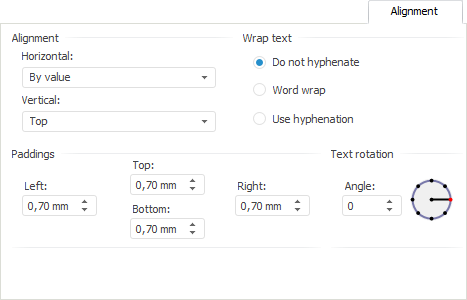
The Alignment tab is used to determine value position in the cell. Cell value can be aligned horizontally and vertically with selected rotation angle and paddings from the cell borders. Wrap method can also be selected for string values.
Set the parameters:
In the Alignment group set the value alignment method:
Horizontal. Available options:
By Value. Alignment depends on the cell(s) contents. If a cell contains only numbers (including thousands separators, decimal separators, and the percent sign), it is right-aligned; otherwise, it is left-aligned. Default value.
Left. The value is aligned to the left border of the cell.
Center. The value is aligned at the same distance from the left and right cell border taking into account defined margins.
Right. The value is aligned to the right border of the cell.
By Width. The value is aligned to fit cell width.
Vertical. Available options:
Top. The value is aligned to the top border.
Center. The value is aligned at the same distance from the top and bottom border taking into account defined margins.
Bottom. The value is aligned to the bottom border. Default value.
Options of the Wrap Text group of elements are used to determine the cell text wrap option:
Do not Hyphenate. The text is not wrapped. The entire text is displayed as a single line.
Word Wrap. Cell text is wrapped by words. Cell width determines where line breaks occur.
Use Hyphenation. Cell text is wrapped by syllables. Cell width determines where line breaks occur.
When setting cell text wrap option take into account the following:
If cell height has not been changed manually, it is selected automatically after the following text wrap options are set: Word Wrap and Use Hyphenation.
If the Word Wrap or Use Hyphenation option is set for cells of regular report opened for edit in the desktop application, text in these cells will be wrapped by words in the web application.
Text in the Chinese language is wrapped by hieroglyphs.
In the Margins group set margins of element from cell borders: set margin size from the corresponding cell border in each box. The values can be entered in different measurement units, however, the edit box stores the value using measurement system defined in regional settings of the operating system.
The Text Rotation group is used to set up text position in a cell.
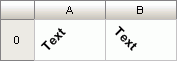
Select text rotation angle in the Angle box (in degrees). To set the angle value, use values between -180° and 180°. Text is always rotated from the standard text position in the cell (rotation angle is 0°), regardless of its actual position at the moment of rotation. If the angle value is positive, text is rotated counter-clockwise (left image); if the value is negative, it is rotated clockwise (right image):
To the right of the Angle box, there is an element displaying the specified rotation angle.
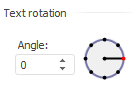
To determine rotation angle value using this element, execute one of the following operations:
Hover the cursor over the element and move the cursor while holding down the mouse button. Angle change is also displayed in the Angle box.
Click the circle border in the required position.
When a report is exported, text rotation angle is exported only to the following formats:
XLS. The XLS format does not support rotation angle values greater than 90° and less than -90°. During export, the angle value changes as follows:
If the rotation angle value is greater than 90°, it changes to 90°.
If the angle value is less than -90°, it changes to -90°.
RTF. The RTF format supports three rotation angle values: -90°, 0°, and 90°. During export, the angle value changes as follows:
If the angle value is between -180° and -46°, the value changes to -90°.
If the angle value is between -45° and 45°, the value changes to 0°.
If the angle value is between 46° and 180°, the value changes to 90°.
See also:
Working with Formatting Dialog Box

 Alignment