Use the ordinary least squares method to estimate the coefficients of linear regression.
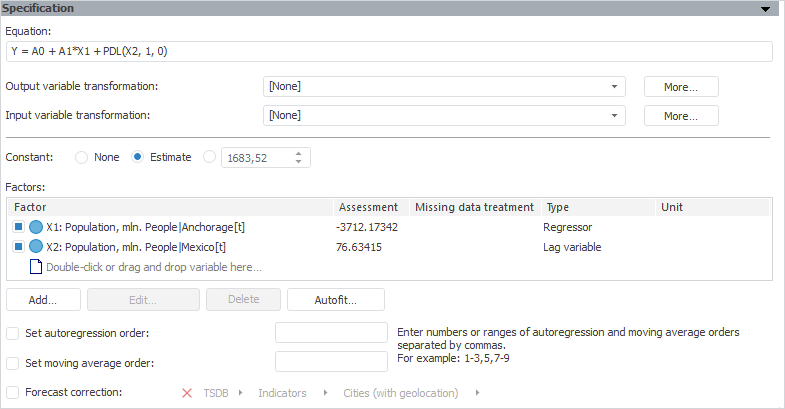
The Specification panel for this method looks as follows:

The Equation line shows a model equation that displays in a short form transformation of the output variable and method parameters.

To transform output or input variable
By default, output or input variables are not additionally transformed before model calculation.
To set additional transformation of output or input variable before model calculation, use the Output/Input Variable Transformation drop-down list. By default, input variable transformation matches that of output variable.
To select a mode of setting constant in a model, use radio buttons in the Constant group:
None. No constant is used in a model.
Estimate. The constant value is estimated automatically during the method calculation. The value is displayed in the input box to the right.
Specifying Value of a Constant. The value of constant is specified by the user in the corresponding box that becomes available after this radio button has been selected.
To determine a set of factors (input variables) that affect the output variable, use the Factors table.
TIP. To get a model of estimated coefficient value of factor after calculation, use the Estimation column in the Factors table or the Identified Equation panel.
Basic principles of working with factors are given in the Working with Factors (Input Variables) section.

To treat missing data of factor
By default, the method of missing data treatment selected for the model is also applied to the factor.
To edit missing data treatment method in factor data:
Deselect the Apply Model's Method of Missing Data Treatment checkbox in the factor's context menu. The used data treatment method is displayed in the Factors table in the Missing Data Treatment column.
Go to the Advanced Parameters panel and set the required missing data treatment method in factor data.
The selected missing data treatment method is used for the factor.
To apply the missing data treatment method selected for the model to the factor, select the Apply Model's Method of Missing Data Treatment checkbox.
Autofit of factors is available if a model contains more than two factors.
To autofit factors:
Click the Autofit button.
The Autofit of Factors dialog box opens, in which set autofit parameters.
After the autofit is finished, checkboxes of the factors that provide the best model value by the specified criteria are selected in the Factors table.

To transform factor to lag variable
The linear regression model enables the use of distributed lags.
To transform factor to lag variable:
Select the factor that is used as a distributed lag.
Open the context menu of the factor and select the Convert to Lag Variable checkbox.
The Create Lag Variable dialog box opens, in which set lag variable parameters.
The selected factor is converted to lag variable.
To convert a lag variable back to the factor, deselect the Convert to Lag Variable checkbox.
The current factor type is shown in the Factors table in the Type column.
To use autoregression coefficients in the model:
Select the Set Autoregression Order checkbox.
In the corresponding box enter numbers or ranges of autoregression order, separating them with commas. The range of autoregression order is specified using the character "-".
The autoregression order is specified for the model, the upper and lower confidence limits of the forecast series are also calculated.
To exclude autoregression coefficients from the model, deselect the Set Autoregression Order checkbox.
To use moving average in the model:
Select the Set Moving Average Order checkbox.
In the appropriate box enter numbers or ranges of moving average order, separating them with commas. Use the character "-" to specify the range of a moving average order.
The moving average order is set for the model.
To exclude moving average coefficients from the model, deselect the Set Moving Average Order checkbox.
Select the Forecast Correction checkbox.
Set a variable used for forecast correction. This variable is not included into the identified equation of the model.
Forecast correction is applied in the model.
On working of modeling and forecasting in the mode on variables consider the following:
On selecting a variable, the number of dimensions of which does not match the number of output variable dimensions, the Change Dimension dialog box opens. Fix the dimensions that are missing in the output variable in this dialog box.
The following buttons for working with forecast correction variable are available:
Create. A variable (without data) is created that is used to correct the forecast. The variable frequency corresponds with the model frequency. The created variable is located in the root folder of modeling container. It is named Forecast Correction Factor and automatically opens for edit.
Fix. It fixes a variable. It opens the Change Dimension dialog box. If the forecast correction factor and output variable have matching dimensions, the button is not available.
Diagnostic tests are used to estimate quality of obtained model.
To execute diagnostic tests, select the Analysis > Diagnostic Tests main menu item. The Diagnostic Tests tab opens for executing tests.
See also:
Diagnostic Tests | Least-Squares Method | Time Series Analysis: Linear Regression | IModelling.Ols