Text (txt, csv)
The Text (txt, csv) connector is an object that is used to export data to text files (*.txt, *.csv).
After adding a connector to an ETL task working area set export options and edit connector input and output.
Export Options
On the properties panel one can select an option for saving the output export file and set data export options.

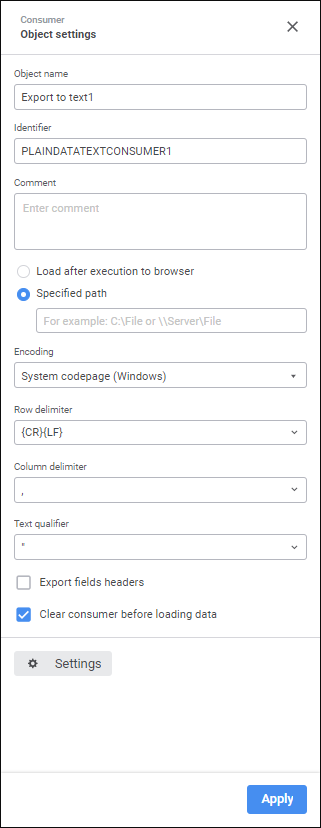
The following parameters can be set up:
Object Name. If required, change connector name.
Identifier. If required, change object identifier. Identifier should be unique with the ETL task. Usage of Latin letters, numbers and the "_" character is allowed. The identifier should start with a letter.
NOTE. If required, add a note to an object. The note can contain any information.
Operation with Ready File. Select where a file will be sent after data export:
Load After Execution to Browser. The radio button is deselected by default. Select the radio button to open the file in the browser after export is finished.
Specified Path. The radio button is selected by default. Set path and name of the file, to which data will be exported, in the corresponding box.
Encoding. Specify encoding to be used on file creation.
Row Delimiter. Select a row delimiter in the list or specify a custom one in the source file.
Column Delimiter. Each line of the consumer file shows a collection of fields separated with a special character. In the appropriate combobox select or enter a column delimiter.
Text Qualifier. Text start and end of each field in the data consumer row is marked with a qualifier character. In the appropriate combobox select or enter text qualifier.
Export Fields Headers. The checkbox is deselected by default. Column headers are not displayed in the text file. To display the text file with column headers to the first row, select the checkbox.
Clear Consumer Before Loading Data. The checkbox is selected by default. All information is deleted from the data consumer before loading.
Settings. The button can be used to edit connector input and output.
Editing Input
To set a list of fields and link to input, go to the Input Editor tab.
 To display the Input Editor tab
 Settings button.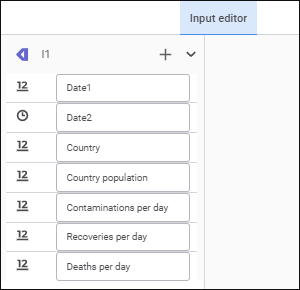
The following settings are available on the page:
 Create Link button and select an object output. If the list of provider and consumer fields fully matches, all fields will be linked automatically. A link between fields can also be set up in the
  Actions button and select the Fill from Consumer item.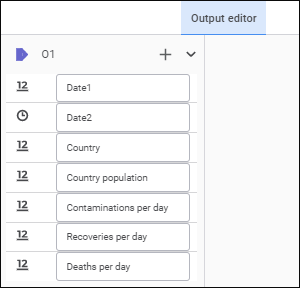
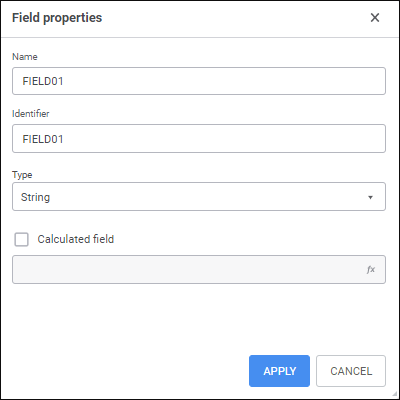
 Add button. The Field Properties dialog box opens: