XML
The XML connector is an object that is used to get data from XML files (*.xml).
After adding the connector to the ETL task working area, set import options, edit connector output.
Import Options
The properties panel is used to specify a file with imported data and parameters that are used to determine a data range.

 To display the properties panel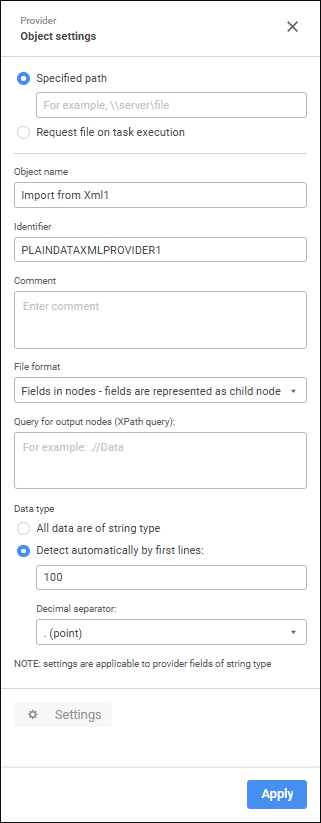
The following settings are available on the properties panel:
File Import Method. Select method for getting file:
Specified Path. The radio button is selected by default, and the file path box is active. After the path is entered, the file is imported, and one can continue set up using file structure. When executing ETL task, the file is also searched at the specified path.
Request File on Task Execution. Select this checkbox if it is required to select file on each ETL task execution. To execute primary setup of the data provider, click the
 Add button in the Setup File box:
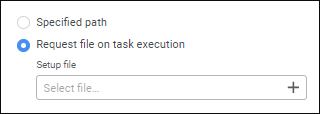
The local file selection dialog box opens. Working with the dialog box order depends on the browser in use. After the file is selected, it is saved to the folder with user operating system. The file will be used only during the current wok with the ETL task instance. After the task is closed, the file is deleted from the temporary folder.
When executing ETL task, the file selection dialog box opens. If structure of the selected file does not correspond to the file used during the setup, an exception is thrown.
Object Name. If required, change connector name.
Identifier. If required, change object identifier. Identifier should be unique with the ETL task. Usage of Latin letters, numbers and the "_" character is allowed. The identifier should start with a letter.
NOTE. If required, add a note to an object. The note can contain any information.
File Format. The group contains radio buttons that determine input file format:
Fields in Nodes. Fields are regarded as child nodes.
Fields in Attributes. Fields are regarded as attributes.
Query for Output Nodes. Enter text of the query, which will be used for data sampling.
NOTE. The query format depends on the structure of the file in use. For details on how to create XPath queries see additional guides, such as MSDN.
- Data Type. Select a method to determine a field data type:
All Data are of String Type. The radio button is deselected by default. Select the radio button to convert all data to string type and import data to string fields.
Detect Automatically by First Lines. The radio button is selected by default. A data type will be determined automatically by the first 100 lines. If required, change the number of lines, by which data type will be determined.
Decimal Separator. To detect real numbers, specify a decimal separator. The point is used by default.
Settings. The button is used to edit connector output.
To save the changes, click the Apply button.
To close the connector properties panel without saving, click the  Close button.
 Settings button.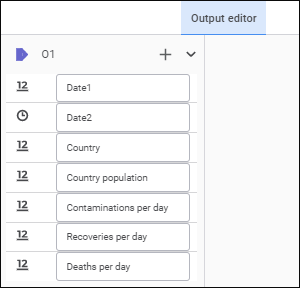
 Create Link button and select an object output. If the list of provider and consumer fields fully matches, all fields will be linked automatically. A link between fields can also be set up in the
  Actions button and select the Fill from Provider item.