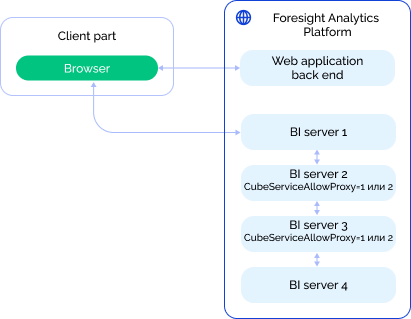
To work with cubes, one can set up a chain of BI servers, cube data will be taken from the BI server that is the last in the chain.
To set up a remote BI server:
Set up location of a remote BI server in the settings.xml file or in the system registry on the BI server. To do this, fill in the Service section: specify actual addresses or remote BI servers for the address string parameter in the Epts section and fill in repository settings in the Mbs section.
Set up a chain of remote BI servers by specifying the CubeServiceAllowProxy parameter in the Cubes section of the settings.xml file or in the system registry on the remote and intermediate BI servers.
In this case:
Dimensions, segments permissions, attachments, comments, version history are taken from the first BI server in the chain.
The data saving process handler configured on the Event Handler page of the standard cube wizard will be executed at the last remote BI server in the chain.
The example of the settings.xml file on the intermediate BI server with the Cubes and Service sections.
<...>
  <Key Name="Cubes">
    <Key Name="CubeServiceAllowProxy" Value="1" />
  </Key>
  <Key Name="Service">
    <Epts>
      <Key Name="s0" address="https://bi-server0.sample.com/FPBI_App_v10.x64/axis2/services/PP.SOM.Som" />
      <Key Name="s1" address="https://bi-server1.sample.com/FPBI_App_v10.x64/axis2/services/PP.SOM.Som" />
      <Key Name="s2" address="https://bi-server2.sample.com/FPBI_App_v10.x64/axis2/services/PP.SOM.Som" />
    </Epts>
    <Mbs>
      <Key Name="FPRepository1">
        <Cubes>
          <Key Name="k1" Keys="5" endpoint="s2" />
          <Key Name="k2" Keys="59,13837" endpoint="s0" />
        </Cubes>
      </Key>
      <Key Name="FPRepository2">
        <Cubes>
          <Key Name="k1" Keys="18933,115978" endpoint="s1" />
        </Cubes>
      </Key>
    </Mbs>
    ...
  </Key>
</...>
The example of system configuration with the use of a chain of BI servers:
In this example:
Interaction is displayed between the browser and the BI server 1 by means of bypassing web application back end.
The chain of BI servers consists of:
Remote BI server that is the BI server 2.
Intermediate BI server that is the BI server 3.
Final BI server that is the BI server 4. Cube data will be taken from this BI server.
See also:
Advanced Web Application Settings