getTableCondFormatButton();
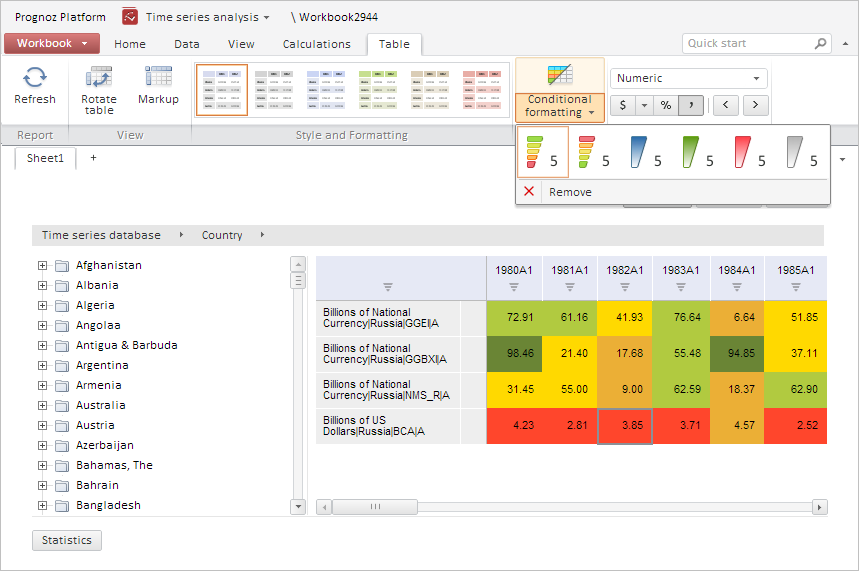
The getTableCondFormatButton method returns the Conditional Formatting button on the workbook ribbon.
This method returns an object of the PP.Ui.SplitButton type.
To execute the example, the HTML page must contain the WorkbookBox component named workbookBox (see Example of Creating the WorkbookBox Component),and the Table tab must be open in workbook ribbon. For the Conditional Formatting button in this tab select the first menu item that means coloring cells by scaling their values with colors from red to green:
// Get ribbon
var ribbon = workbookBox.getRibbonView();
// Get the Table tab
var tableCatView = ribbon.getTableCategory();
// Create all tab elements
tableCatView.renderContent();
// Get the Conditional Formatting button
var cFormatButton = tableCatView.getTableCondFormatButton();
// Get the button menu
var menu = cFormatButton.getMenu();
// Get the first item of the conditional formatting
var redGreenItem = menu.getItems()[1].getContent().getItems(0)[0];
if (redGreenItem.getValue() == PP.Exp.Ui.TabTablePredefinedScale.RedGreen){
    /* Select menu item corresponding to the cell fill
    by scaling their values with colors from red to green */
    redGreenItem.setSelected(true);
    // Display the button as hovered
    redGreenItem.setIsHovered(true);
    // Display menu of the button in the required position
    var offset = PP.calculateOffset(cFormatButton.getDomNode());
    menu.show();
    menu.setCoords(offset.X, offset.Y + cFormatButton.getHeight());
};
After executing the example the menu item that corresponds to coloring cells by scaling their values with colors from red to green is selected for the Conditional Formatting button:
See also: