To execute the example, create an HTML page and execute the following operations:
1. Add links to the following files: PP.css, PP.Express.css.
Also add links to the following JS files: PP.js, PP.Metabase.js, PP.Express.js, and resources.ru.js.
2. In the <head> tag specify style for the elements:
<style type="text/css">
body, html
{
    height: 100%;
    width: 100%;
    margin: 0;
    padding: 0;
    overflow: hidden;
}
</style>
3.Then in the <head> tag add a script that creates the XLS Export Parameters dialog box:
<script type="text/javascript">
var metabase, eaxAnalyzer, eaxMbService, waiter, xlsExportDialog;
var IMAGE_PATH = "../Debug/img/";
var info, eax;
function Ready() {
    // Determine language settings for resources
    PP.setCurrentCulture(PP.Cultures.ru)
    // Specify path to the root folder containing resources files
    PP.resourceManager.setRootResourcesFolder("../resources/");
    waiter = new PP.Ui.Waiter();
    // Create repository connection
    metabase = new PP.Mb.Metabase({
        ExportUrl: "PPService.axd?action=export",
        ImportUrl: "PPService.axd?action=import",
        PPServiceUrl: "PPService.axd?action=proxy",
        Id: "WAREHOUSE",
        UserCreds: { UserName: "user", Password: "password" },
        StartRequest: function () {
            // On requesting metadata show component of the PP.Ui.Waiter type
            waiter.show();
        },
        EndRequest: function () {
            // After requesting metadata hide component of the PP.Ui.Waiter type
            waiter.hide();
        },
        Error: function (sender, args) {
            // In case of error display error description
            alert(args.ResponseText);
        }
    });
    // Open repository connection
    metabase.open();
    // Create a service for working with express reports
    eaxMbService = new PP.Exp.EaxMdService({ Metabase: metabase });
    // Open express report with the 108 key
    eaxAnalyzer = eaxMbService.editDocument(108);
}
// Function for creating the Options of Export to XLS dialog box
function showExpDialog(){
    //Create a dialog box for export to Excel file
    xlsExportDialog = new PP.Exp.Ui.XlsExportDialog({
        CaptionIcon: "html.png"
    });
    // Handle OK button click event
    xlsExportDialog.OkButtonClicked.add(showExpDialogOkClick);
    // Show dialog box
    xlsExportDialog.show();
}
// OK button click event handler
function showExpDialogOkClick(sender, args){
    alert('Export to XLS (chart as image - '+ args.exportData.chartAsImage+ ')');
    // Export to XLS
    eaxMbService.Export(eaxAnalyzer, args);
}
</script>
4. In the <body> tag as the value of the onLoad attribute specify name of the function that loads an express report document, inside the tag place a button clicking which creates the XLS Export Parameters dialog box:
<body onselectstart="return false" class="PPNoSelect" onload="Ready()">
<!-- Button clicking which creates the dialog box  XLS Export Parameters-->
<input type="button" value="Call export dialog box" onclick="showExpDialog()" />
</body>
5. At the end of the document insert a code that sets styles corresponding to client's operating system, to the document.body node:
<script type="text/javascript">
    PP.initOS(document.body);
</script>
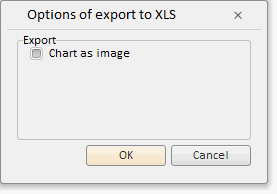
After executing the example on clicking the Show Export Dialog button the XlsExportDialog component is added to the HTML page:
Clicking the OK button shows a dialog box that saves the file exported to XLS.
See also: