Select the object and use the  Move Up and
  Move Down buttons in the calculation tree.
Use the Move Up and Move Down items in the object's context menu.
Select the object and drag it to the required position.
Calculation algorithm objects will be calculated in the order, in which they are positioned in the calculation tree.
To change object order:
Select the object and use the Move Up and Move Down buttons in the calculation tree.
Use the Move Up and Move Down items in the object's context menu.
Select the object and drag it to the required position.
Several objects can be reordered at the same time. To do this, select several objects while holding down the CTRL or SHIFT key.
IMPORTANT. Take into account order of formulas set for calculation blocks and control blocks in the algorithm calculation order. A block with formulas, which result is used in other formulas, must be placed before blocks where formulas use this calculation result.
To group objects:
Click the  Add Folder button in the calculation tree. After this the folder is added to the end of the list of objects or to the current folder/branch.
Drag the objects to the folder. To select several objects, hold down the CTRL or SHIFT key.
After executing the operations the objects are grouped in the folder.
To rename the folder, select the Rename item in the folder's context menu.
To delete the folder:
Select the folder and click the  Delete button on the toolbar.
Select the Delete item in the folder's context menu.
After executing the operations the folder is deleted with all objects contained in it.
Separate data loading reduces overall algorithm calculation time due to combining database requests. If several calculation algorithm objects are based on the same data sources/consumers with equal dimension element selection, one can combine objects to a loading group. A loading group can be used to create a uniform database request at the data loading stage during algorithm calculation.
NOTE. Separate data loading setup is available only in the calculation algorithm edit mode.
To execute separate data loading:
Add loading groups in the Separate Loading Groups dialog box.
Add objects to loading groups by selecting the Separate Loading > <loading group name> item in the object's context menu in the calculation tree. The object can be contained only in one loading group. When an object is added to the loading group, the  icon us displayed next to the object in the calculation tree. Hovering the mouse cursor on the icon displays a tooltip with the name of the group, in which the object is included.
If a ready calculation algorithm is added to the loading group, the calculation objects contains in it will be automatically added to the group.
Several objects can be added to the loading group. To do this, select several objects while holding down the CTRL or SHIFT key.
Repeat the steps to add a set of loading groups with different objects.
After executing the operations, separate data loading is executed according to the selected loading groups during algorithm calculation. Data is loaded by groups before object calculation and depends on the order of objects in the calculation tree.
The Separate Loading Groups dialog box:
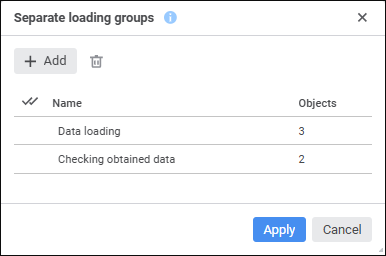
The dialog box displays the list of loading groups and the number of objects included in the groups. The number of objects does not take into account the nested objects of the ready calculation algorithm.
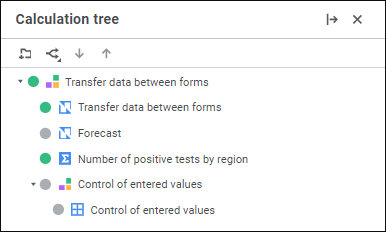
To exclude single blocks, ready calculation algorithms, and branchings from calculation, select the Exclude from Calculation item in the object's context menu in the calculation tree or in the working area. The icon of the excluded object turns from green to grey in the calculation tree:
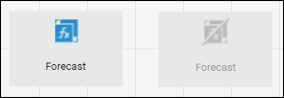
The excluded object also changes its appearance in the working area: its icon turns grey and is struckthrough. For example, the right part displays the block that is used in calculation, and the left part displays the block that is excluded from calculation:
To include single blocks, ready calculation algorithms, and branchings to calculation, select the Include in Calculation item in the object's context menu in the calculation tree or in the working area.
Excluding or including of several objects with equal state to or from the calculation algorithm.
See also:
Building Calculation Algorithm

 To open the dialog box
 Add button. After executing the operation the Group group is added.