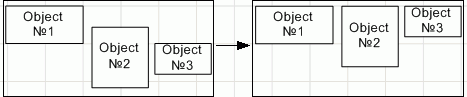
The following operations are available for managing calculation algorithm elements:
To rename algorithm block:
Select the Rename item in the context menu of the block located in the calculation tree.
Open the block for edit using the Edit item in the block's context menu and change its name.
After executing one of the operations the block is renamed.
To resize an element in the working area:
Using the mouse:
Hover the cursor to the point located at the element border. The cursor will change to a two-headed arrow.
Hold down the mouse button and stretch or shrink the element to the required size.
Using the keyboard:
Press CTRL+SHIFT.
Resize the element by 1 pixel using the UP, DOWN, LEFT, RIGHT keys.
After executing the operations the element is resized.
To change element order in the working area, use the
Bring to Front and
Send to Back items in the element's context menu.
To select one element in the calculation tree or in the working area:
Click on the element.
Press the TAB key to select element from left to right and from top to bottom.
Press SHIFT+TAB to select element from bottom to top and from right to left.
NOTE. The object will be selected within the visible working area.
To select all elements in the working area, press CTRL+A.
To select several elements in the working area:
Hold down the CTRL key and click each selected element one by one.
Select the
Cursor mode on the toolbar and use a frame to select elements:
Determine a group of elements to be selected.
Click and hold down the mouse button outside the group of selected elements.
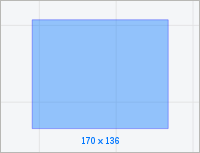
Start dragging the mouse cursor. A rectangular frame appears:

Move the cursor until all required elements are within the frame.
Release the mouse cursor. All elements fully or partially located within the frame are selected.
To align elements relative to each other:
Select several elements.
Execute one of the operations:
Select the Align item in the object's context menu.
Click the
Align button on the toolbar.
Select an alignment option in the drop-down menu of the command/button:
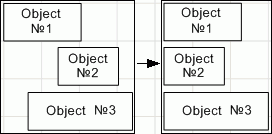
Align Left. The selected elements are aligned left relative to the leftmost element:

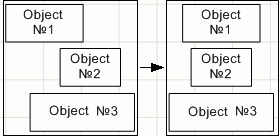
Align Center. The selected elements are aligned center. Center is selected based on positions of the leftmost and rightmost elements among the selected elements and based on element size:

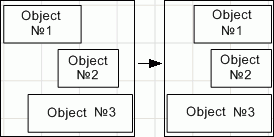
Align Right. The selected element are aligned right relative to the rightmost element:

Align Top. The selected elements are aligned top relative to the topmost element:

Align Middle. The selected elements are aligned middle. Middle part is selected based on the positions of the topmost and bottommost elements among the selected elements and based on element size:

Align Bottom. The selected elements are aligned bottom relative to the bottommost element:


Connect element with other elements
There are five basic points for an element that are used to connect with other elements in the working area:

A line is a shape that determines correspondence between objects by connection points. A line connected to such a point remains anchored to this point regardless of the object position. Central connection point is floating, that is, the link is anchored to one of the perimeter points depending on the element position.
To connect an element with other elements:
Hover the cursor to one of the element connection points and hold down the mouse button.
Keep holding down the mouse button and drag the cursor to the connection point of other element.
Release the mouse button.
After executing the operations, a line connecting points of elements is added.

Element search in the working area
To search for an element in the working area, execute one of the operations:
Click the
Search button on the toolbar.
Press CTRL+F.
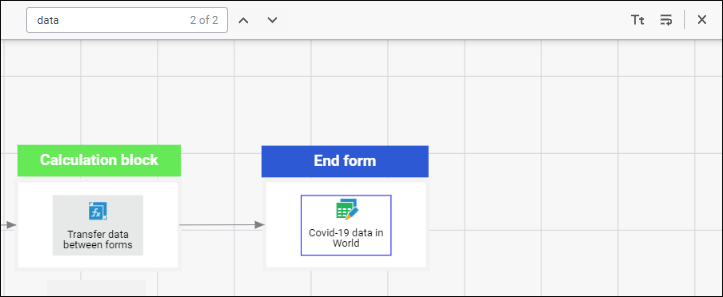
After executing the operation the search panel is displayed:

Enter partial or full element name in the search string and press the ENTER key. If required, use advanced search options:
Click the
Match Case button. The case of the specified letters will be taken into account during search.
Click the
Match Whole Word button. The whole element name will be taken into account during search.
After the ENTER key is pressed, the first found element satisfying the search criteria gets focused:

To navigate through the found elements, use the
Find Previous and
Find Next buttons.
To hide the search panel, execute one of the operations:
Click the
Close button.
Release the
Search button on the toolbar.
After executing the operation the search panel is hidden.

Move elements in the working area
To move one or several selected elements in the working area:
Use the UP, LEFT, DOWN, RIGHT keys to move elements by one pixel.
Use SHIFT+UP, SHIFT+LEFT, SHIFT+DOWN, SHIFT+RIGHT to move elements by 10 pixels.
Use CTRL+UP, CTRL+LEFT, CTRL+DOWN, CTRL+RIGHT to move elements by 100 pixels.

Rotate elements in the working area
To rotate one or several selected elements in the working area, select the Rotation item in the element's context menu and select one of the methods:
Rotate 90o Clockwise.
Rotate 90o Counterclockwise.
The following operations for working with clipboard are available in the working area:
To copy an element to clipboard:
Select the
Copy item in the element's context menu.
Select the element and press CTRL+C.
After executing one of the operations the element is copied to clipboard.
NOTE. Elements can be copied by the users who have the Access to Update Manager privilege.
To cut an element to clipboard:
Select the
Cut item in the element's context menu.
Select the element and press CTRL+X.
After executing one of the operations the element is cut to clipboard.
To paste an element from clipboard:
Select the
Paste item in the working area's context menu.
Press CTRL+V.
After executing one of the operations the element is pasted from clipboard to the calculation tree or to the working area.
To delete elements:
Select one or several elements.
Execute one of the operations:
Select the Delete item in the element's context menu.
Click the
Delete button on the toolbar.
Press the DELETE key.
Press the BACKSPACE key.
After executing the operations the selected elements are deleted.
See also:
Building Calculation Algorithm