The ADOMD Catalog object is used to connect to Microsoft Analysis Services in the repository. Structure of data sources used in Microsoft Analysis Services is similar to structure of the cubes used in Foresight Analytics Platform.
NOTE. Creating an ADOMD catalog is available only in the desktop application. To ensure effective work with the selected database, one should install a driver in the operating system of the computer used for connection.
An ADOMD catalog is a container where, after connection, cubes and dimensions are created reflecting multidimensional sources stored on the multidimensional database server. After connection the catalog gets metadata of the server objects and creates their analogs in the repository: ADOMD dictionaries and ADOMD cubes. If source cubes use variables, parameters are created to manage values of these variables in the ADOMD cubes. The working order and parameter settings depend on the variables settings in use.
One can access data of source objects via objects created in the ADOMD catalog. ADOMD catalog executes all operations required to create and run MDX queries used on working with multidimensional data sources.
By default, the required driver for connection to multidimensional databases based on Microsoft Analysis Services is already installed in Windows OS. The updated driver version can be installed with the Microsoft SQL Server (Native Client) front end.
To create a connection to Microsoft Analysis Services, follow the steps:
In the object navigator select the Other > ADOMD Catalog button in the New Object button's drop-down menu on the Home ribbon tab or the Create > Other > ADOMD Catalog item in the object navigator's context menu.
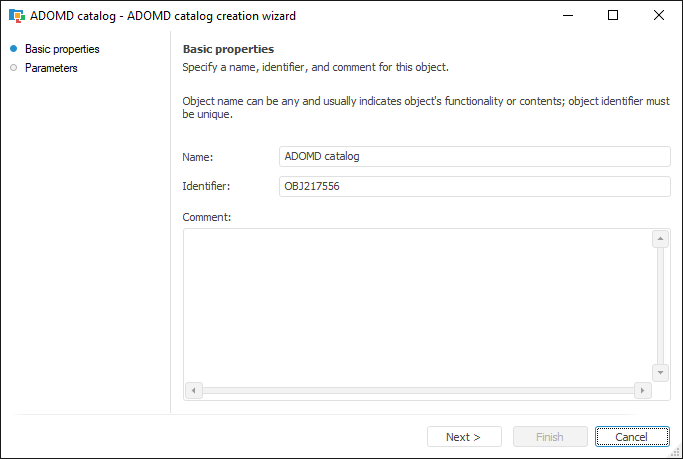
If required, change name and identifier of the created object on the Basic Properties page of the wizard:
Click the Next button to go to the Parameters wizard page.
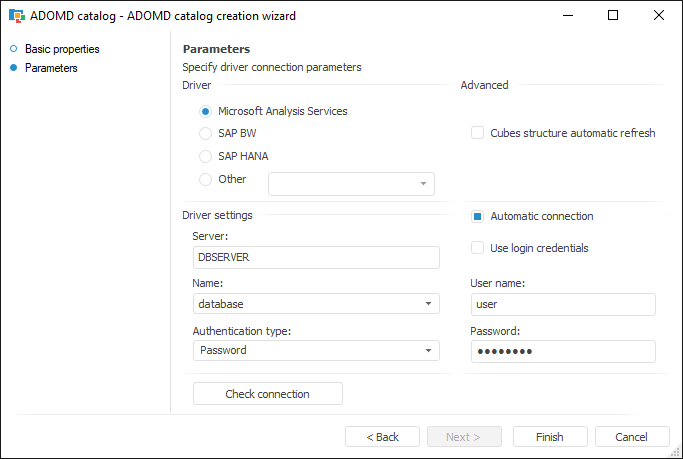
Select the Analysis Services driver, in the Server box determine IP address or the server name. To connect, determine user authentication method, if required, select the Automatic Connection checkbox and determine user name and password. If the Automatic Connection checkbox is deselected, the user name and password will be requested on first connection to catalog or its objects inside the current repository connection. Click the Check Connection button. After the successful connection, in the Name drop-down list select the multidimensional database, according to its contents the required objects will be created in repository. If the Cubes Structure Automatic Refresh checkbox is selected, then on opening any cube its structure will be synchronized with structure of the cube on server. The checkbox is deselected by default, the synchronization is executed only on refreshing catalog contents.
Click the Finish button.
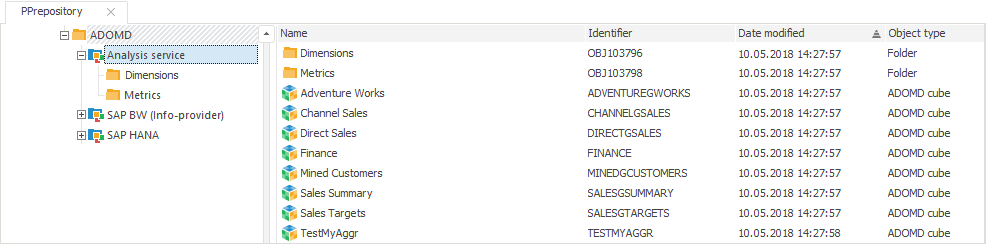
For the ADOMD catalog created in the repository select the Refresh context menu item. Wait until Foresight Analytics Platform, based on metadata obtained from server, creates all required objects - ADOMD dictionaries and ADOMD cubes:
NOTE. If due to any reason sources metadata could not be read via ADOMD during catalog refresh, for example, the sources used calculations not supported in ADOMD, such sources are not added to the catalog. A message is displayed with a list of skipped sources and ADOMD errors text.
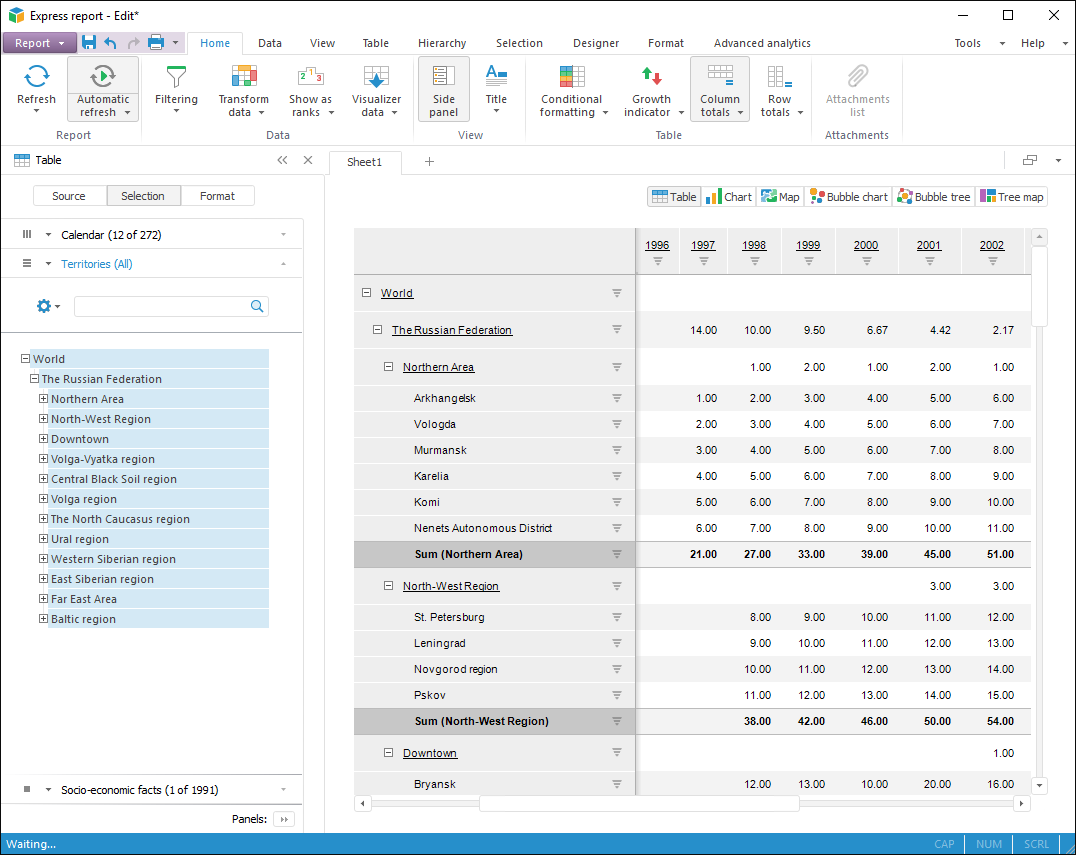
Objects created in an ADOMD catalog can be used in various tools of Foresight Analytics Platform: Dashboards, Analytical Queries (OLAP), Reports.
See also:
Connection to ADOMD Multidimensional Databases