To check BI server performance:
Add the WSFCPP_WSDL_ENABLED environment variable with the 1 value. In Linux OS, the environment variable is specified in the /opt/foresight/fp10.x-biserver/etc/envvars file. In Windows OS, the variable is specified in system variables or user environment variables located in advanced system settings.
Copy BI server URL:
http[s]://<BI server>:<port number>/FPBI_App_v10.x/axis2/services/PP.SOM.Som
Where:
<BI server>. IP address or name of the DNS server, on which BI server is installed.
<port number>. Number of the port, at which the BI server is available. The following ports are used by default:
8810 in Linux OS, 80 in Windows OS when the HTTP protocol is used.
443 when the HTTPS protocol is used.
Create two URLs and open them in the browser:
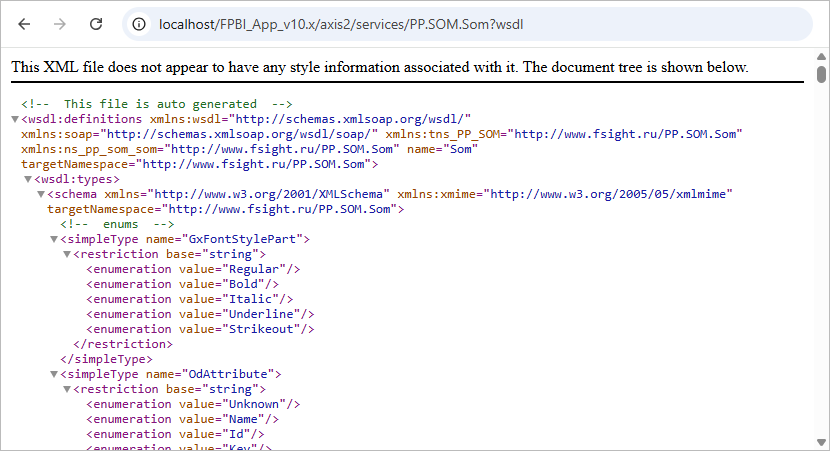
Add ?wsdl to the URL, for example:
http://localhost:8810/FPBI_App_v10.x/axis2/services/PP.SOM.Som?wsdl.
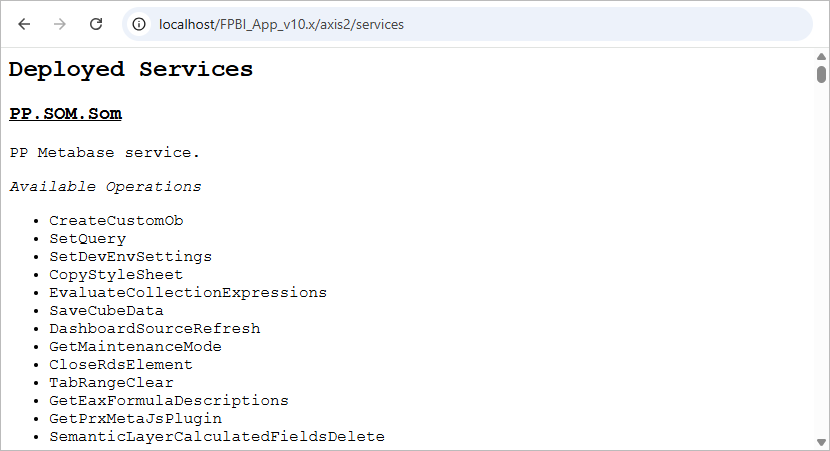
Delete PP.SOM.Som from the URL, for example:
http://localhost:8810/FPBI_App_v10.x/axis2/services.
IMPORTANT. The URL parts services and PP.SOM.Som?wsdl are case-sensitive and should be specified accordingly.
After executing the operations, when an error occurs in the browser, check BI server settings and restart it.
If the BI server works correctly:
In the first URL, the response will be in the XML format:
In the second URL, the response will contain a list of web service operations:
See also:
BI Server | Restarting BI Server