Guardant License Server and Features of Its Use
License server is used to activate Foresight Analytics Platform using a network license. License server controls the number of simultaneously working users, ensures flexible and easy administration. A license is sent as a serial number. Only one license server can be installed per computer.
For details about Guardant see the official documentation.
Installing License Server
To install a Guardant-based license server:
Install Guardant Control Center.
NOTE. To get Guardant Control Center distribution file for Linux/Windows OS, contact technical support by sending a request to support@fsight.ru or technical support services, which are available after registration at the website.
Guardant Control Center installation depends on the operating system.
To install Guardant Control Center in Linux OS:
Copy the obtained distribution to the home directory: /home/<user name>:
grdcontrol*.deb for Debian-based distributions.
grdcontrol*.rpm for RedHat-based distributions and ALT Linux.
Install the copied distribution of Guardant Control Center:
Astra Linux:
sudo dpkg -i grdcontrol*.deb
Rocky Linux:
sudo yum localinstall grdcontrol*.rpm
RED OS:
sudo dnf install grdcontrol*.rpm
ALT Linux:
sudo apt-get install -y grdcontrol*.rpm
NOTE. Distributions can be installed using another utility.
After executing the operations, the following is created:
/opt/guardant/grdcontrol. Main files of Guardant Control Center, Guardant license wizard.
/etc/systemd/system/grdcontrol.service. The grdcontrol.service service to manage Guardant Control Center. The service is started right after distribution installation and works in the background mode.
To work with the grdcontrol.service service and to manage Guardant Control Center, execute the command:
sudo systemctl start/restart/stop grdcontrol.service
To install Guardant Control Center in Window OS, open the obtained distribution grdcontrol.msi. If required, change the Guardant Control Center installation folder. By default, Guardant Control Center is installed to the folder: C:\Program Files (x86)\Guardant\Guardant Control Center.
Specify Guardant Control Center address in the browser address bar:
http://<IP address or DNS name of server>:3189/
By default, Guardant Control Center is available at:
http://localhost:3189/
After executing the operation, Guardant Control Center opens:
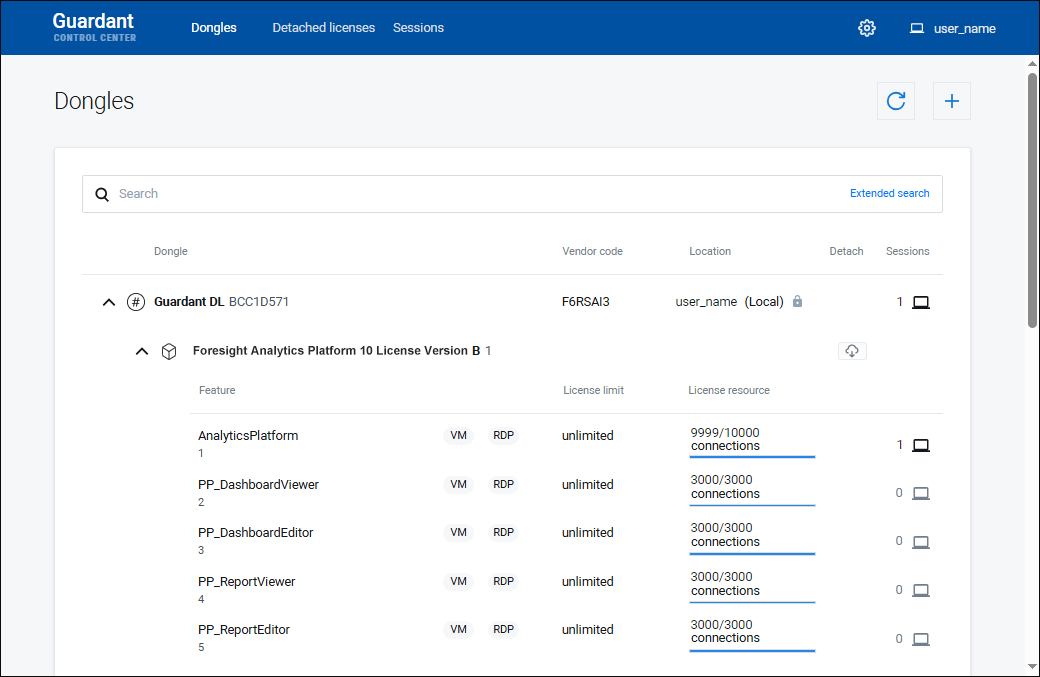
Click the
 Settings button at the top right corner.
Enter the "admin" password and click the Login button:
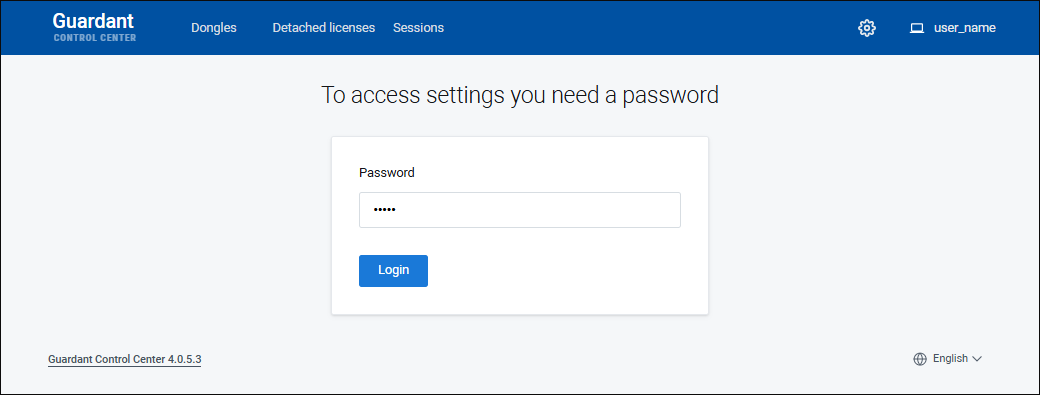
NOTE. If required, change password to access license server settings in the Password section.
Change settings in the following sections:
General. Specify activation service URL:
https://guardantstation.fsight.ru:9000/
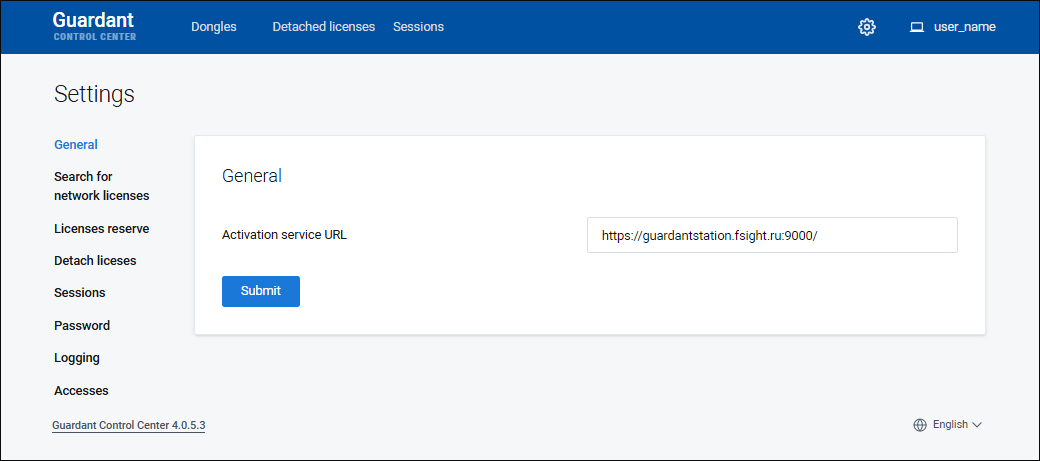
To save changes, click the Submit button.
Search for Network Licenses. Toggle the Network Licenses from Other Servers on the Local Network and Broadcast Search switches to inactive state:
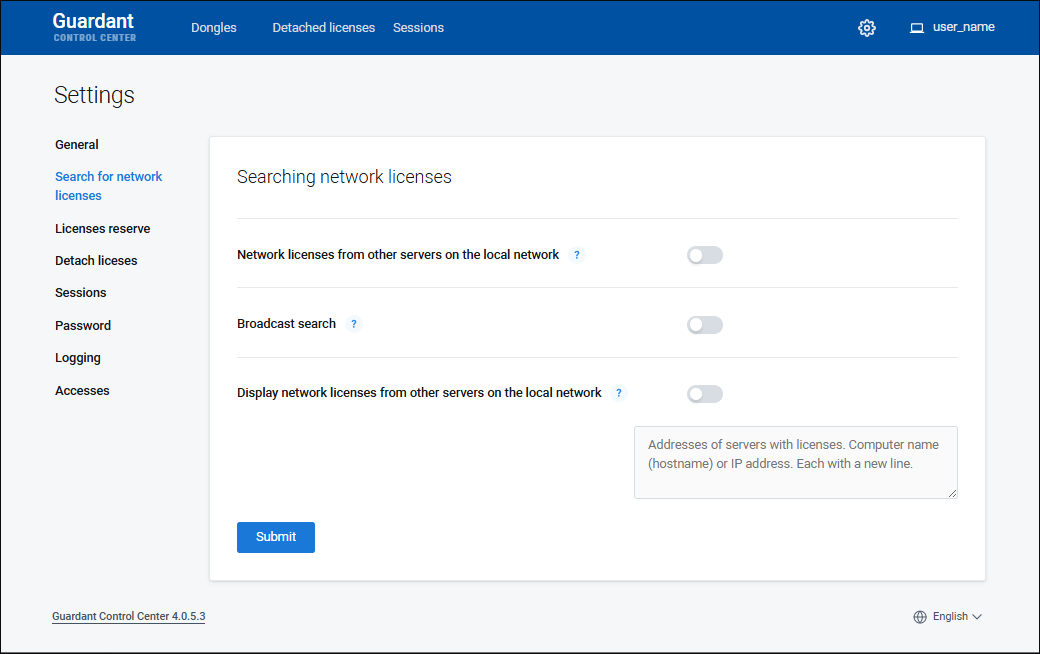
To save changes, click the Submit button.
Logging. Toggle the Technical Events and Business Logic Events switches to active state:
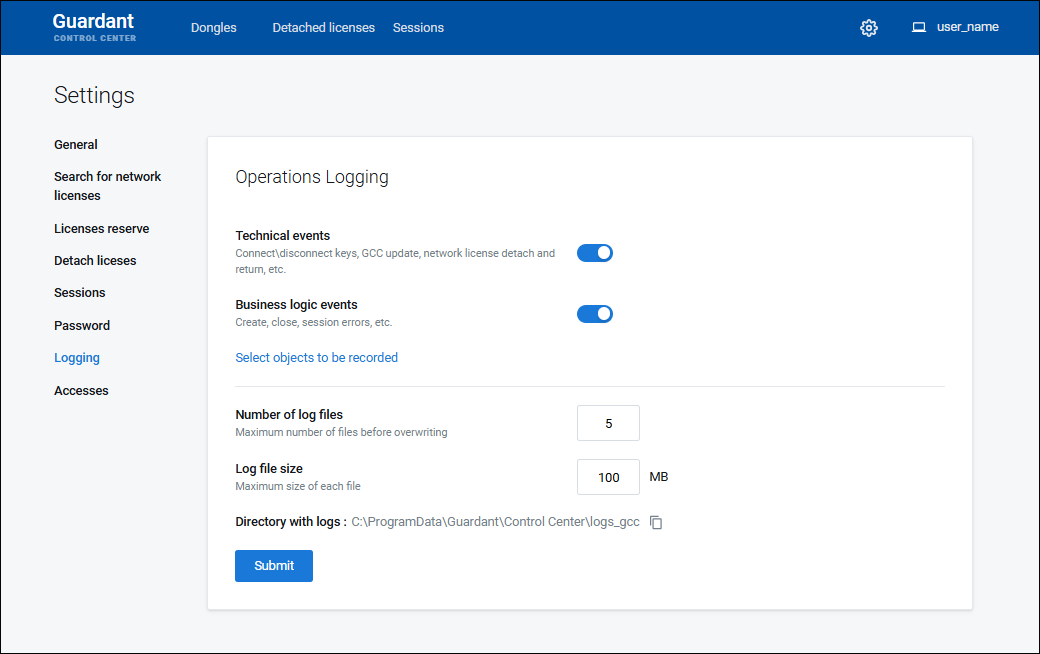
Log files are saved by default in the folder:
/var/log/guardant/gcc/logs_gcc in Linux OS.
C:\ProgramData\Guardant\Control Center\logs_gcc in Windows OS.
After executing the operations the Guardant-based license server is installed and set up. Next, proceed to licensing service installation.
Reserving Features
Reserving specific features is required if a license with a limit on the number of users is in use on the license server.
Reserving features guarantees access to functionality for specific users. The users will always be provided with free concurrent sessions for the specified features.
To reserve features on the license server:
Open the Licenses Reserve section:
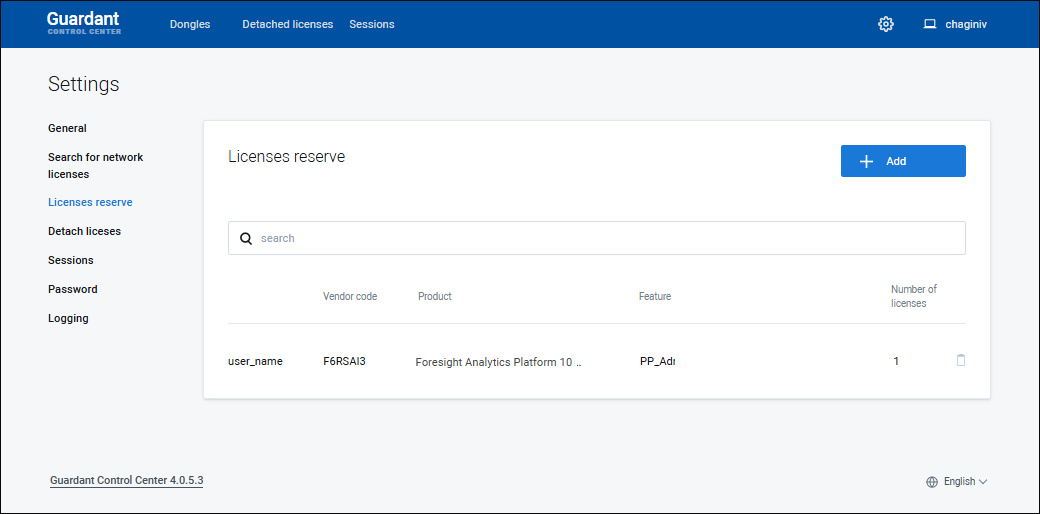
Click the
 Add button. The Use Access to Network Licenses dialog box opens:
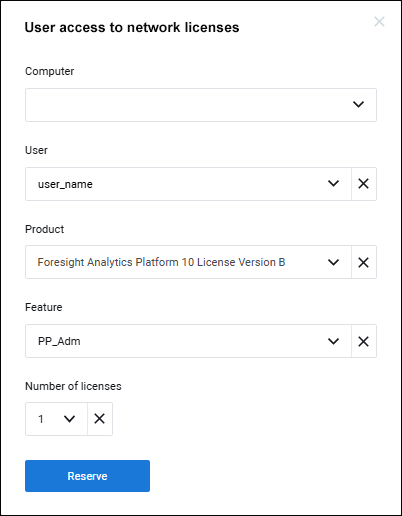
Set the parameters:
User. In the drop-down list select the user name, for whom the feature will be reserved.
Product. Select the license in the drop-down list.
Feature. Select the feature in the drop-down list.
Number of Licenses. Select the number of reserved concurrent sessions for the feature for the user. The reserved number is contracted from the total number of available sessions.
Click the Reserve button.
Repeat Steps 2-4 to reserve several features.
After executing the operations the user gets the guaranteed access to the functionality using the reserved feature.
To reserve a feature in the console mode, see the Guardant documentation.
To remove the reserve from the feature, click the  Delete button.
Working with License
To work with a license, use the Dongles section. The section displays the licenses activated in Guardant License Wizard containing a set of features (components):
To ensure the unlimited number of available sessions, the License Resource column displays the 65535 value because of technical limitation of the license server.

 Refresh list of licenses
 Refresh Dongles List button. As a result, a new license is added in the list of licenses or the existing license is updated, for example, in terms of the number of allowed connections or features.
 Active Sessions button. After this the Sessions dialog box opens: