The Flutter framework is used for cross-platform development of mobile applications. Flutter is a cross-platform framework used for implementing a single code for mobile applications that works across different operating systems. To transfer data between the single code and methods of the Android and iOS frameworks, use ready-to use bridges. A bridge is a glue code developed in a programming language of the corresponding operating system between the native libraries and the single code.
The bridges for mobile application development based on the Flutter framework are available when the following frameworks are connected:
To connect the FMP framework and prepare a cross-platform mobile application for development using the Flutter framework:
Download the flutter-android*.zip cross-platform bridge archive.
NOTE. To get a ready cross-platform bridge, contact technical support by sending a request to support@fsight.ru or via technical support services that are available after registration at the website.
Add contents of the flutter folder to the cross-platform part of the mobile application development project.
Add the FMPBridge.kt file to the mobile application development project's native part. If required, open the file for edit and change the package parameter according to project name.
Copy cross-platform bridge contents from the MainActivity.kt file to the mobile application development project's native part.
After executing the operations the FMP framework is connected, and the cross-platform mobile application is prepared for development.
To connect the FMPKit framework and prepare a cross-platform mobile application for development using the Flutter framework:
Download the flutter-ios*.zip cross-platform bridge archive.
NOTE. To get a ready cross-platform bridge, contact technical support by sending a request to support@fsight.ru or via technical support services that are available after registration at the website.
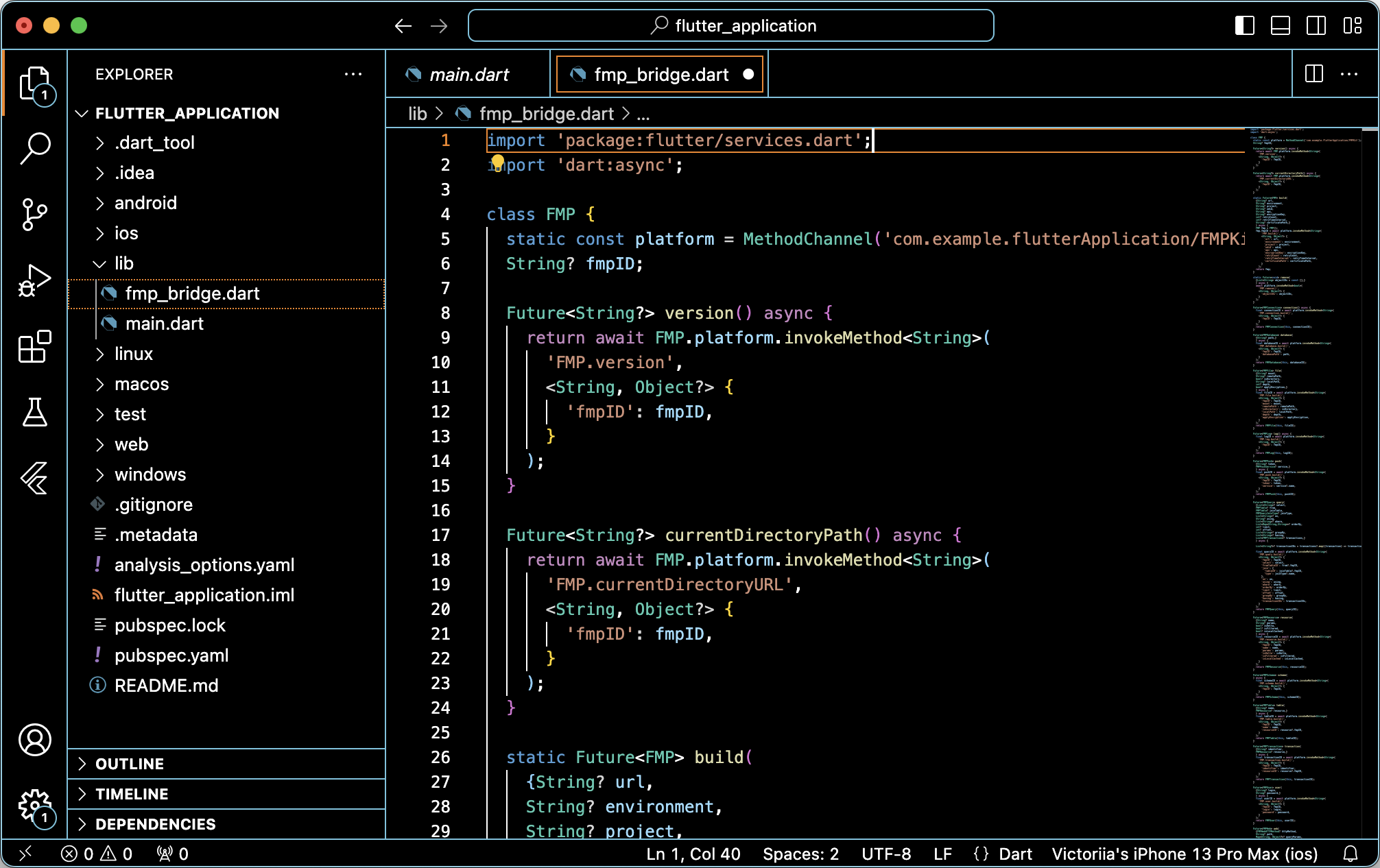
Add the fmp_bridge.dart file from the lib folder to the cross-platform part of the mobile application development project:
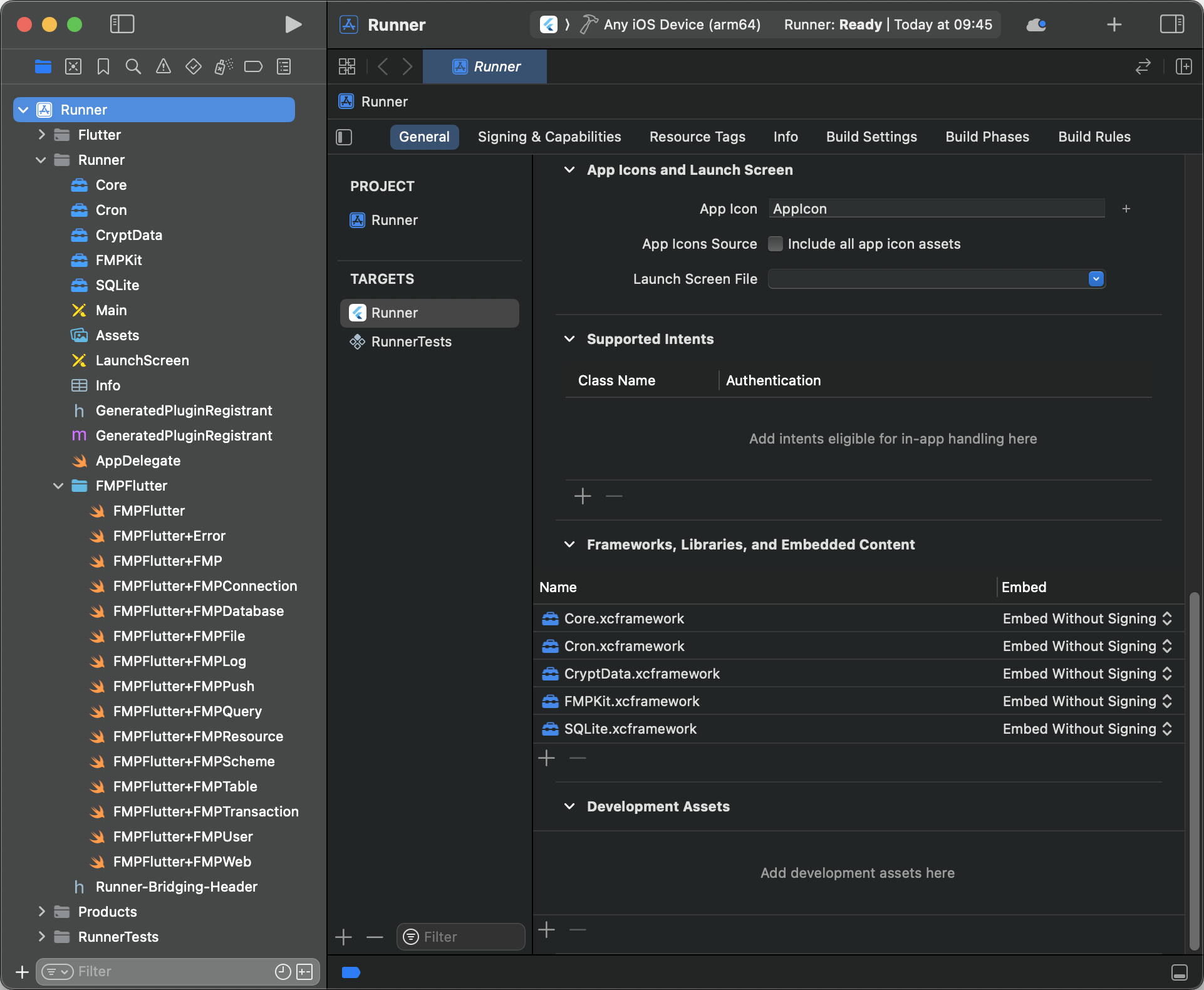
Add contents of the FMPFlutter folder from the ios\Runner folder hierarchy to the native part of the Runner.xcworkspace mobile development project:
Create a link to the FMPFlutter object in the AppDelegate.swift file.
Initiate the FMPFlutter object inside the application(_:didFinishLaunchingWithOptions:) method by means of the FlutterMethodChannel mechanism and specify channel name, for example, com.example.flutterApplication/FMPKit.
Set call handlers by means of the setMethodCallHandler() method:
import UIKit

@UIApplicationMain
@objc class AppDelegate: FlutterAppDelegate {
    var fmpFlutter: FMPFlutter!
    override func application(_ application: UIApplication, didFinishLaunchingWithOptions launchOptions: [UIApplication.LaunchOptionsKey: Any]?) -> Bool {
        let controller : FlutterViewController = window?.rootViewController as! FlutterViewController

        // FMP Channel
        fmpFlutter = FMPFlutter(methodChannel: FlutterMethodChannel(
            name: "com.example.flutterApplication/FMPKit",
            binaryMessenger: controller.binaryMessenger)
        )
        fmpFlutter.setMethodCallHandler()

        GeneratedPluginRegistrant.register(with: self)
        return super.application(application, didFinishLaunchingWithOptions: launchOptions)
    }
}
Open the fmp_bridge.dart file in the cross-platform part of the mobile application development project and specify channel name (com.example.flutterApplication/FMPKit) that was specified at Step 3 for the project's native part in the platform static property of the FMP class:
import 'package:flutter/services.dart';
import 'dart:async';

class FMP {
static const platform = MethodChannel('com.example.flutterApplication/FMPKit');
Import fmp_bridge.dart to the mobile application development project:
import 'package:flutter_application/fmp_bridge.dart';
After executing the operations the cross-platform mobile application is prepared for development using properties and methods of the FMPKit framework. The example of creating the FMP object:
try {
    final fmp = await FMP.build(
        url: 'https://url/',
        environment: 'environment',
        project: 'project',
        udid: 'deviceID'
    );

    print('fmpId: ${fmp.fmpID}');

} on PlatformException catch (error) {
    print('Failed to build FMP: ${error.message}');
}
See also: