Creating the Subprocess Call Step
To create a step for starting one or several nested subprocesses with specific parameters, open the subprocess step wizard.

 Add Step button on the Process ribbon tab and select the type of created step in the dialog box that opens.
After the basic step properties have been determined, click the Next button on the first page of the wizard.
Step Description
The next wizard page is Step Description:
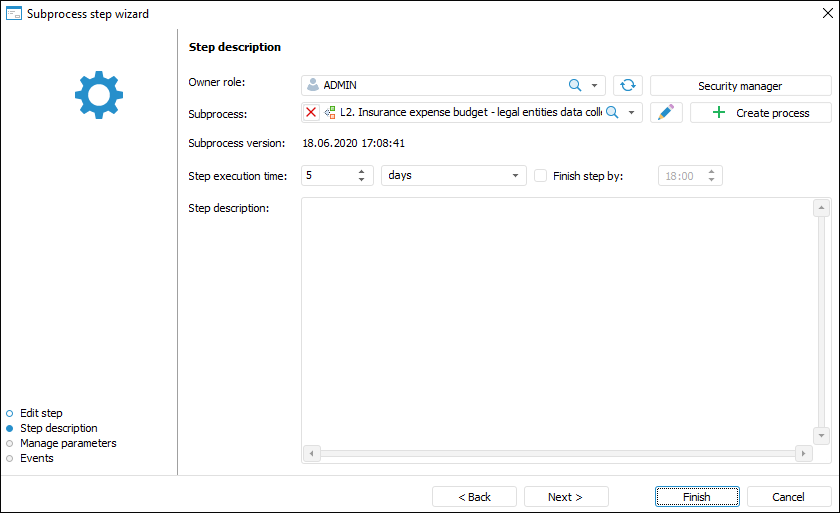
Determine the following for the Subprocess Call step on the Step Description page:
Owner Role. The box is mandatory. In the drop-down list select the owner role. The list contains roles of users specified in the authorization object.
If there is no required group of users in the list, click the Open Security Manager button. The dialog box of security manager of Foresight Analytics Platform opens, which enables the user to create the required group of users.
- Subprocess. The box is mandatory. Select the start subprocess in the drop-down list, when selecting you can use search. The list contains repository objects tree where processes and folders containing them are only displayed.
To edit the selected subprocess, click the  button. The Set Up Business Process dialog box opens to edit a subprocess.
If the required subprocess is absent in the list, click the  Create Process button. A new process creation dialog box opens.
- Subprocess Version. Creation date and time of subprocess version is displayed.
- Step Execution Time. The time, in which a step must be executed on process execution.
Enter a numeric value of step execution time and select a time measurement unit in the list:
Minute.
Hour.
Day (default).
Week.
Month.
Quarter.
Half-year.
Year.
To determine time by which step must be finished, select the Finish Step By checkbox. On selecting the "minutes" or "hours" time measurement units, this box is hidden.
If the step is not finished by the scheduled execution period, the step status becomes Expired.
The step execution period impacts the whole process execution period, which is determined on starting process for execution.
Step Description. The box is optional. A text box for entering a comment for a step.
After the parameters have been determined on the Step Description page, click the Next button.
Managing Parameters
The next wizard page is Manage Parameters:
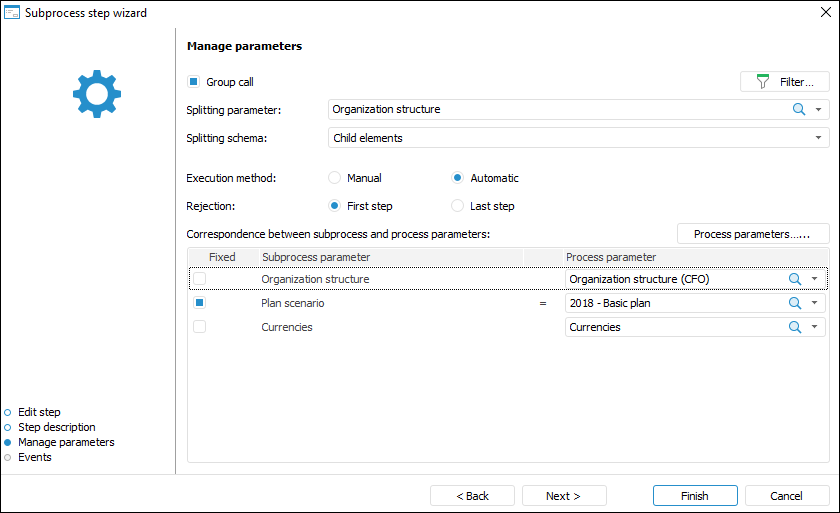
Determine the following for the Subprocess Call step on the Manage Parameters page:
Group Call. Select the Group Call checkbox to start several subprocesses for all elements of the dictionary selected in the Splitting Parameter list on step execution.
NOTE. The subprocess parameter is available to be used as splitting parameter.
Set the splitting schema of elements in the Splitting Schema list:
Source. The source selection by parameter or parameter attribute of the main process is split by dictionary elements. For each dictionary element selected as splitting parameter, the subprocess is started regardless the child elements.
Child Elements. The selection by parameter or parameter attribute of the main process is split by dictionary child elements.
NOTE. If none of the source selection elements has child elements, then parent elements are used.
 Example of splitting schema use
The Group Call checkbox is selected by default with unselected parameter value that is required to be filled. If during process execution there is not necessity to divide a subprocess by a parameter, deselect the checkbox.
If the Group Call checkbox is selected, at least one process parameter can be linked to the specified subprocess division parameter in the Correspondence Between Data Subprocess and Process Parameters area.
Execution Option. Select the Manual or Automatic radio button:
Manual. The step is started manually.
Automatic. The step is started automatically after the previous step was executed.
By default, automatic execution is selected for the step. The steps of the process with automatic execution are marked with the  sign at the top right corner of the block.
It is possible to change execution option after step setup. To do this, select the step in the workspace on business process setup and select the Automatic Step Execution context menu item.
Rejection. Select the First Step or Last Step radio button:
First Step. After the Call Subprocess finished step is rejected, subprocesses are restarted from the first step.
Example of restarting subprocess from the first step
Last Step. After the Call Subprocess finished step is rejected, subprocesses are restarted from the last step.
Example of restarting subprocess from the last step
NOTE. To restart specific subprocess instances on rejecting the current step for the Call Subprocess finished step, select the Selective Rejection of Subprocesses checkbox and manually start the subprocess with required start parameters.
Correspondence Between Subprocess and Process Parameters. Determine:
Fixed. Select the Fixed dialog box to limit a list with parameters values used in nested subprocess start.
Subprocess Parameter. The list of subprocess parameters that is automatically filled in.
Process Parameter. In the Process Parameter drop-down list select values. If the Group Call checkbox is selected, select a dictionary corresponding to subprocess parameter in the drop-down list. The dictionaries selected as a process and subprocess must have identical structure. If one dictionary is a division parameter by several process parameters, add it several times in the Process Settings and Parameters dialog box for each parameter.
If the drop-down list of process parameters does not contain the required value, click the Process Parameters button. The Process Settings and Parameters dialog box opens, in which a process parameter can be added.
After the parameters have been determined on the Manage Parameters page, click the Next button.
Events
The next wizard page is Events:
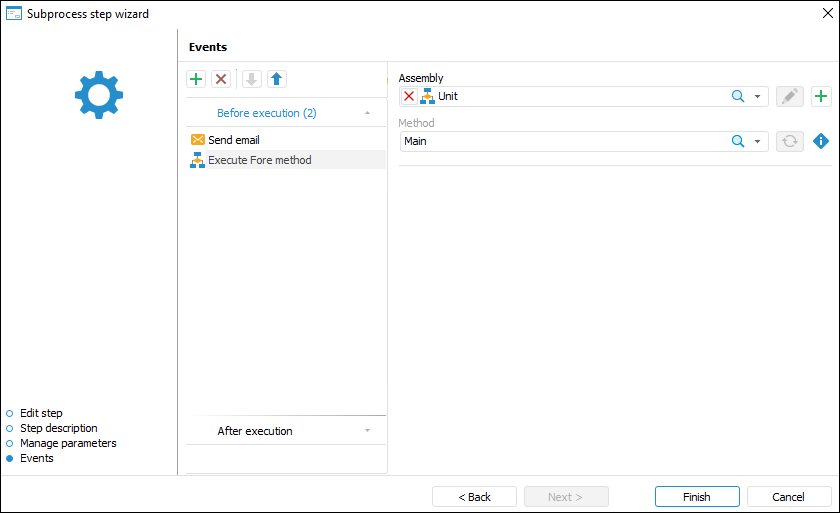
Set up automatically executed actions launched on step execution start or end.
On generating a list of executed actions, select a tab with event first:
Before Execution. The list of actions will be started before executing the current step in the specified order.
After Execution. The list of actions will be started after executing the current step in the specified order.
On Rejection. The list of actions will be started on the current step rejection. The list is available for steps with manual execution. If the step is executed automatically, the tab is not displayed.
On Failures. The list of actions will be started on failure to execute the current step in the specified order. To execute the actions:
When the server execution of processes is selected, select the Check Steps Execution Failures checkbox on the Scheduler page of the Parameters Setup and Business Process Management dialog box and set check frequency.
When the client execution of processes is selected, select the Check Failures item on the Administration page of the Parameters Setup and Business Process Management dialog box.
To add an event, click the button on the ribbon. The number of added actions is unlimited.
Actions to be added:
 . Execute Fore method. In the right part of the window select:
Unit. In the drop-down list select a unit written in the Fore language, the list contains all repository units and folders containing units. Search by unit name is available.
To edit the selected unit, click the button.
To create a unit, click the button.
Method. In the drop-down list select a method. The list contains all unit methods corresponding to the signature:
Sub <Fore-method name>(Sender: IBProcessInstance; Args: IBProcessStepStateEventArgs);
Parameter:
Sender. Process instance.
Args. Event information: step, step old state, new state.
To refresh the methods list, click the  button.
To copy method signature, click the  button.
 . Send Email. In the right part of the window select:
To; Copy; Bcc. The recipient email is entered manually, using option of copy/paste from clipboard.
Subject. The email subject is entered manually, using option of copy/paste from clipboard.
Contents. The contents is entered manually using the option of variables values substitution with step parameters, links to step objects to view in the web application, file attachment.
To change order of operations execution, use the  /
/  buttons on the toolbar, to delete use the
  button.
The list of automatically executed actions can be empty.
Click the Finish button to exit the wizard.
After creating the process steps, set up process steps execution conditions.