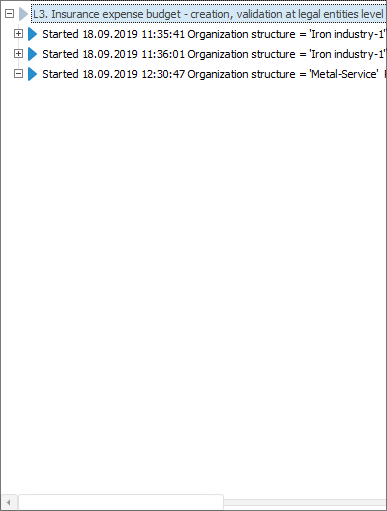
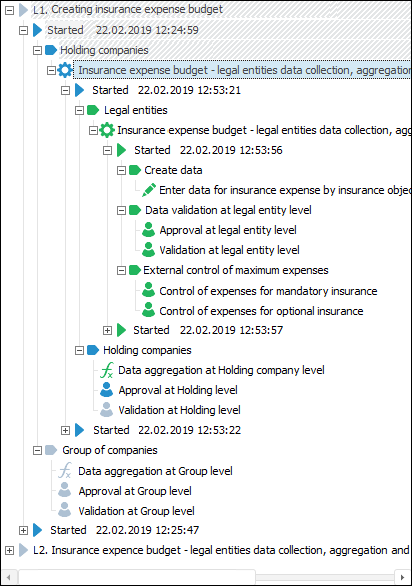
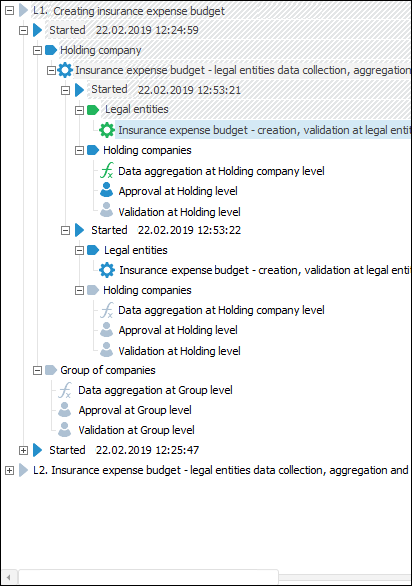
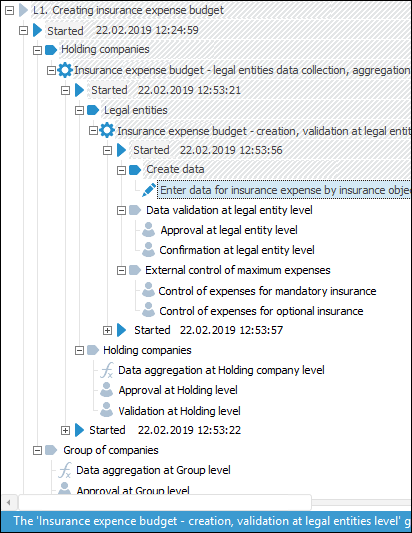
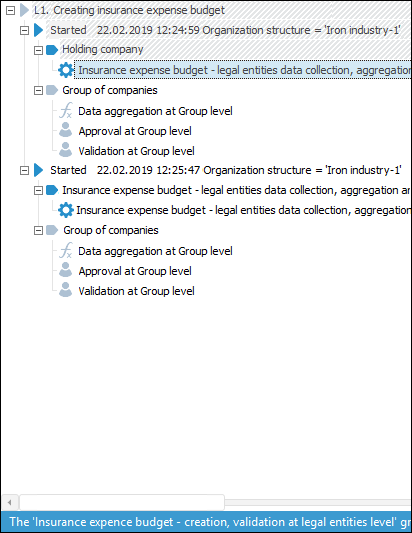
Examples of displaying start parameters
Business processes parameters are set up on the Parameters page in the Setting Up Parameters and Administrating Business Processes dialog box:
Specify parameters:
Sending Parameters. Fill out the fields to set up email notifications sending:
SMTP server.
Port.
Login.
Password.
Domain.
Sender address.
Sender name.
NOTE. Mandatory fields are highlighted with red.
Monitoring Options. Select corresponding checkboxes to set up whether start parameters, subprocesses steps and executed steps of process tree subprocesses are showed or hidden:
Show Process Instance Parameters Values. The checkbox is selected by default, parameters of started process instances are displayed in the process tree. If the checkbox is deselected, the parameters are not shown.
Show Finished Instances of Processes that are Subprocesses. The checkbox is selected by default, executed steps of subprocesses instances are shown in the process tree. If the checkbox is deselected, the executed subprocesses steps are hidden to the step with subprocess.
Show Subprocesses As Separate Processes. The checkbox is selected by default, subprocesses are shown as separate processes with all steps and navigation is available. If the checkbox is deselected, the subprocesses are shown without attached steps in the process tree.
Examples of displaying start parameters
.
Web Application URL. Web application URL is entered manually by copying/pasting values from clipboard.
Unit. Select Fore unit in the drop-down list. The list contains all units in the repository and folders containing units. Search by unit name is available.
To edit selected unit, click the  button.
To create a unit, click the  button.
Method. Select a method in the drop-down list. The list contains all unit methods corresponding to the signature:
Function <function name>(Sender: IBProcessInstance; Args: IBProcessStepOpsCallbackArgs): BProcessStepOperations;
Parameters:
Sender. Instance process.
Args. Event information.
To copy method signature, click the  button.
After parameters are set up, click the Apply button.
See also:
Setting Up Parameters and Administrating Business Processes | Setting Up Business Processes Scheduler | Setting Up Business Processes Debug | Administrating Business Processes