PP.Ufe.Ui.WbkTransformDialog(settings);
settings. JSON object that contains values of class properties.
The WbkTransformDialog constructor creates an instance of the WbkTransformDialog class.
To execute the example, the HTML page must contain the WorkbookBox component named workbookBox (see Example of Creating the WorkbookBox Component). Create and display a dialog box for editing a formula of workbook dimension element:
function prepareDialog() {
    // Load scenarios and styles for formula editor
    PP.resourceManager.addToResourceList(["Ufe"], True);
    var sp = PP.CSSPath;
    PP.scriptManager.loadStyles([sp + "PP.Ufe.css"]);
    sp = PP.ScriptPath;
    PP.ScriptManager.loadScripts([sp + "PP.Ufe.js"], PP.Delegate(this.createDialog, null));
}
// Create a formula editor for workbook
function createWbkTransformDialog() {
    // Create a dialog box for creating and editing a formula of workbook dimension element
    var dialog = new PP.Ufe.Ui.WbkTransformDialog({
        Data: PP.TS.Ui.FormulaTypeEnum.Calculator,
        // Set repository connection
        Metabase: metabase,
        // Set data source
        WbkSource: source,
        Series: source.getSelectedSeries(),
        Mode: PP.TS.CalculatorMode.Add
    });
    // Set a data series
    dialog._Series = source.getSelectedSeries();
    return dialog;
}
function createDialog() {
    var dialog = createWbkTransformDialog();
    // Display the dialog box
    dialog.show();
    // Process the MetadataChanged event
    workbookBox.MetadataChanged.add(function(sender, args) {
        if (args.getPropertyName() == "Formulas") {
           // Set a default data series
           dialog.onTempSerieCreated(args);
        }
    });
    // Process the CreateTempSerie event
    dialog.CreateTempSerie.add(function(sender, args) {
        // Get the Calculations tab of workbook tool ribbon
        var formulasCategory = workbookBox.getRibbonView().getFormulasCategory();
        var dlgRes = args.DialogResult;
        var metaSettings = dlgRes || {};
        metaSettings.formulaType = dialog.getData();
        formulasCategory._launchSerieProcessing(metaSettings, dialog.getTag(), True);
    });
    // Process the ApplyFormula event
    dialog.ApplyFormula.add(function(sender, args) {
       console.log("Formula is successfully applied");
    });
}
// Load required scenarios and styles for creating a workbook formula editor
prepareDialog();
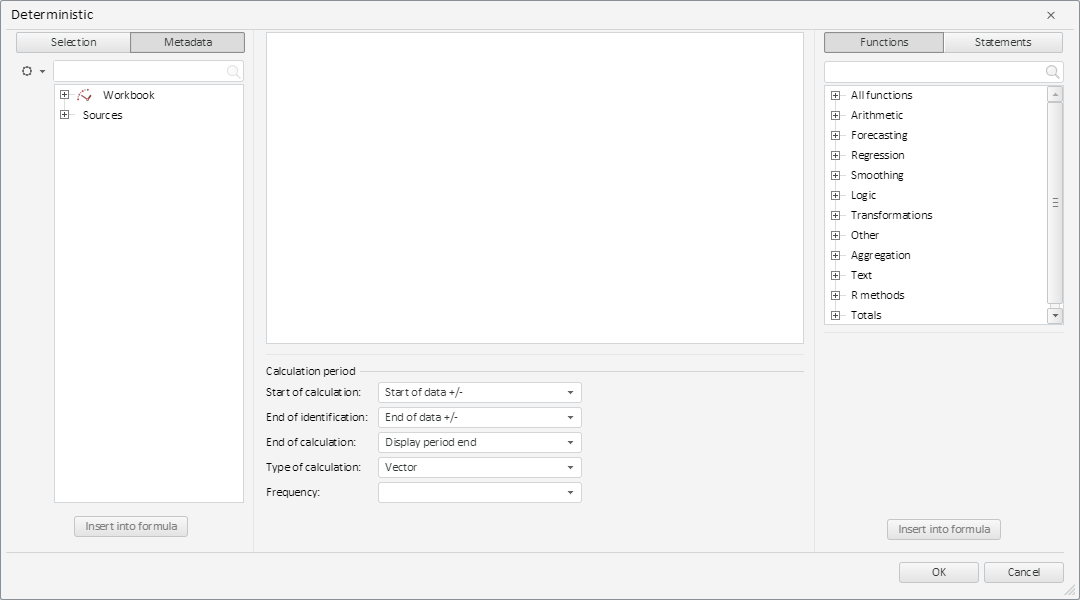
After executing the example a dialog box for editing a formula of workbook dimension element is created and displayed:
Select a data series in this dialog box and click the OK button. After this the dialog box closes, and the browser console displays a warning about successful application of the formula.
See also: