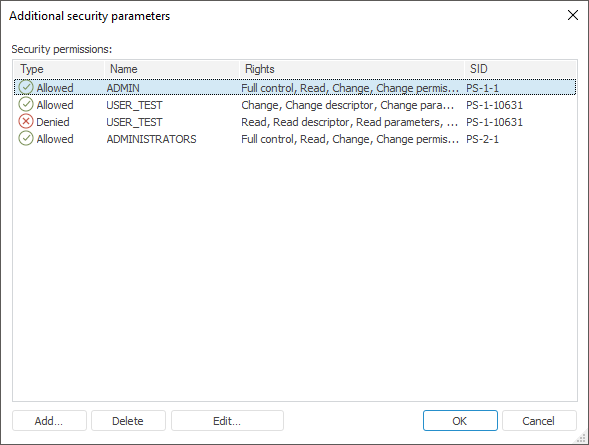
To determine detailed permissions:
In the desktop application:
Click the Advanced button on the Discretionary Access Control tab.
The Additional Security Parameters dialog box opens.
In the web application:
Click the security subject in the Groups and Users box.
Click the Show Full List of Operations button to display additional operations.
Set permissions for operations that must be allowed or denied in the Permissions for Selected list.
The Additional Security Parameters dialog box in the desktop application:
Add, delete or edit object access permissions.
The following parameters are displayed for the list element:
Type. It indicates, which operation is used: Allowed or Denied.
Name. Name of the security subject, which is assigned permissions to access objects.
Rights. A list of permissions specified for this security subject.
SID. Unique identifier of the security subject.
To add a permission, click the Add button, which opens the Select Users and Groups dialog box.
After a security subject is selected, the Permission Element dialog box opens:
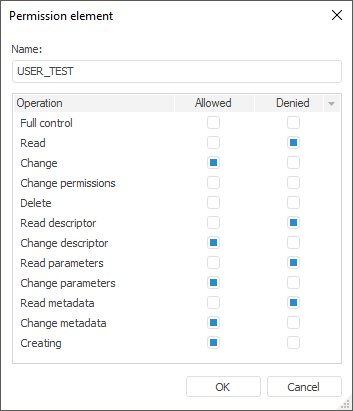
This dialog box displays the name of the selected security subject and a list of detailed permissions for this type of objects. To allow or deny executing specific operations with an object, select corresponding checkboxes next to the required operations.
IMPORTANT. Deny operation has a higher priority.
Access permissions can be changed for the selected subject in the Permission Element dialog box that can be opened by clicking the Edit button or by double-clicking the subject.
See also:
Access Control Settings | Setting Up Discretionary Access Control Parameters | Access Permissions to Time Series Database Data