A consumer determines an object, to which data will be loaded after a block is calculated.
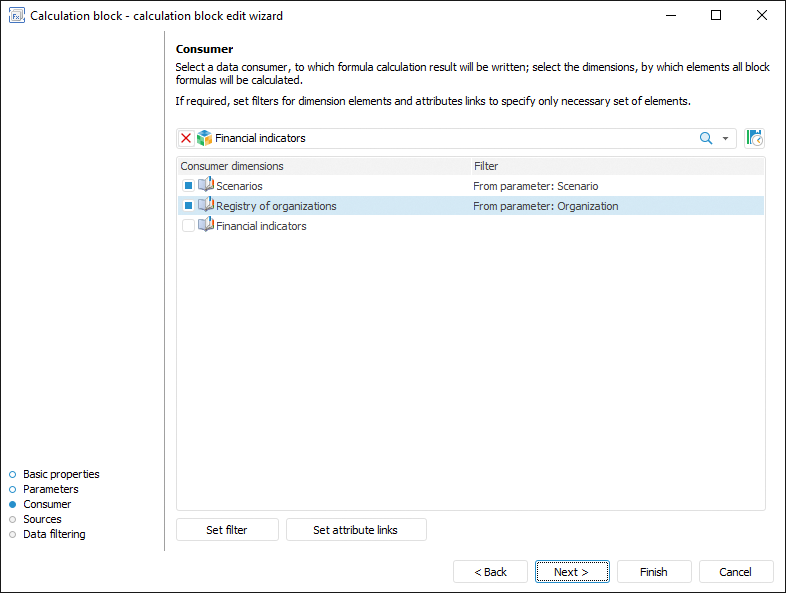
A data consumer can be selected and set up on the Consumer page in the calculation block editing wizard:
To select and set up a data consumer:
Select calendar role. By default calendar is considered as a calendar dimension and it cannot be used to set filtering or set up calculation formula. To work with calendar as a standard dimension, click the  button next to the drop-down list to select a data consumer. Calendar will be displayed in the consumer dimension list and it can be used a standard dimension. To work with calendar as calendar dimension, release the button.
NOTE. Calendar role can be changed if formulas are not set for calculation block.
Select checkboxes of the consumer dimensions, by which filtering by elements will be executed. Filtering enables the user to calculate only dimension elements. Filtered dimensions are also not used in creating block calculation formulas. Formulas are composed only for non-filtered dimensions.
If dimension selection is used in calculation formulas, the dialog box for operation confirmation opens after the checkbox is selected:
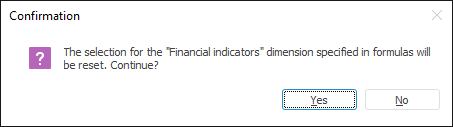
After the operation is confirmed, the dimension selection used in formulas and parameter management in corresponding operand dimensions are reset.
When the checkbox is deselected, the Fix Selection dialog box opens that is identical to the Delete Link dialog box. Set selection fixation and click the OK button. After the checkbox is deselected, dimension selection settings will be reset in terms.
NOTE. If selection fixation is selected later (if the Fix Later radio button is selected), the formula is edited manually.
Set up filtering by elements for the selected dimension:
Click the Set Filter button.
Double-click the dimension with the main mouse button.
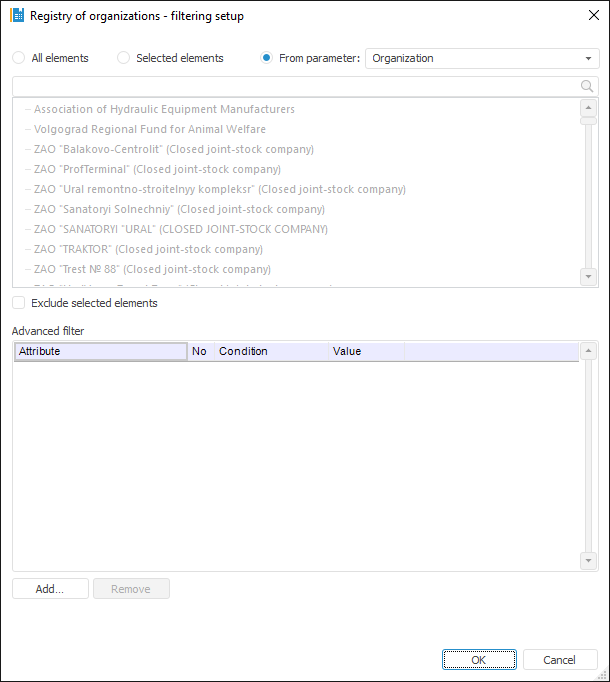
The Set Up Filtering dialog box opens, in which determine data consumer dimension filtering settings.
Set up filtering by attribute links for dimension. Filtering reduces the number of elements, by which calculation is executed, based on attribute links.
To apply this filtering type:
Select the dimension.
Click the Set Attribute Links button. The Filtering by Attribute Links dialog box opens, in which determine filtering settings. For details see the Setting Up Filtering by Attribute Links section.
As a result, the data consumer in the aggregation block will be set up.
Filtering enables the user to calculate only dimension elements. Filtered dimensions are also not used in creating block calculation formulas. Formulas are created only for non-filtered dimensions.
To select dimension elements, by which a block should be calculated, use the Set Up Filtering dialog box:
Setup order:
Select elements, by which a block should be calculated. Select one of the radio buttons:
All Elements. A block is calculated by all dimension elements.
Selected Elements. A block is calculated by dimension elements selected in this list.
From Parameter. A block is calculated by elements specified by a parameter. The option is available if a block contains parameters.
If it is required that a block is calculated by all the elements except for the selected ones, select the Exclude Selected Elements checkbox.
To set the conditions, with which element attributes must satisfy on block calculation, use the Advanced Filter group of parameters. Working with this group of parameters is similar to working with the Advanced Filter dialog box.
As a result, a block will be calculated only by elements corresponding to the filter.
See also: