
The selection of a formula and a base cell is determined by calculation formulas for the entire formula area.
Any cell in the sheet, both within the formula area borders, or outside them, can be specified as a base cell. If a base cell belongs to the formula area, this cell contains the source formula.
The examples the follow show the way formulas in the cells of the formulas area are modified.
The formula area (B7:D9) highlighted with gray color is created. The base cell is highlighted with a red border. The =D3 expression is entered as a formula in the Formula Area Parameters dialog box.
The base cell will contain this formula without any changes. The blue border shows the cells, which addresses have been assigned to the formula area cells.
The cell with the D3 address is highlighted with green:
The formula area (B7:D9) highlighted with gray color is created. The base cell is highlighted with a red border. The =F3 expression is entered as a formula in the Formula Area Parameters dialog box.
The blue border shows the cells, which addresses have been assigned to the formula area cells.
The F3 cell is highlighted with green:
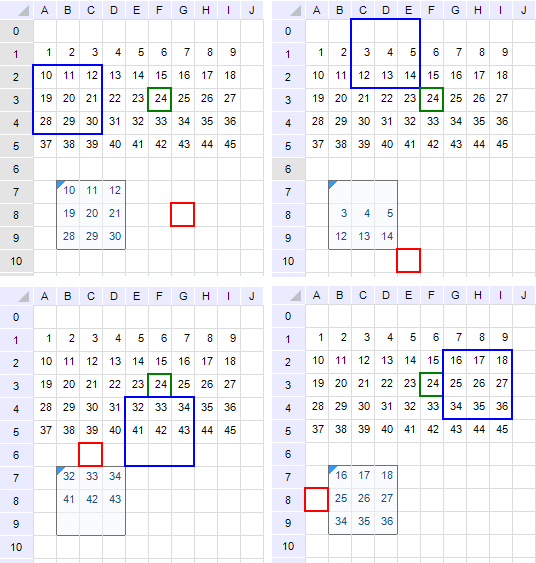
The examples given above show how the links in formulas change. If the link should not be changed, enter the dollar sign $ before the link part that should remain unchanged.
For example, if an absolute link should be created to the C1 cell, place the $ sign as follows =$C$1. After applying this formula, all the formula area cells are filled with the C1 cell contents regardless of where the basic cell is selected.
See also: