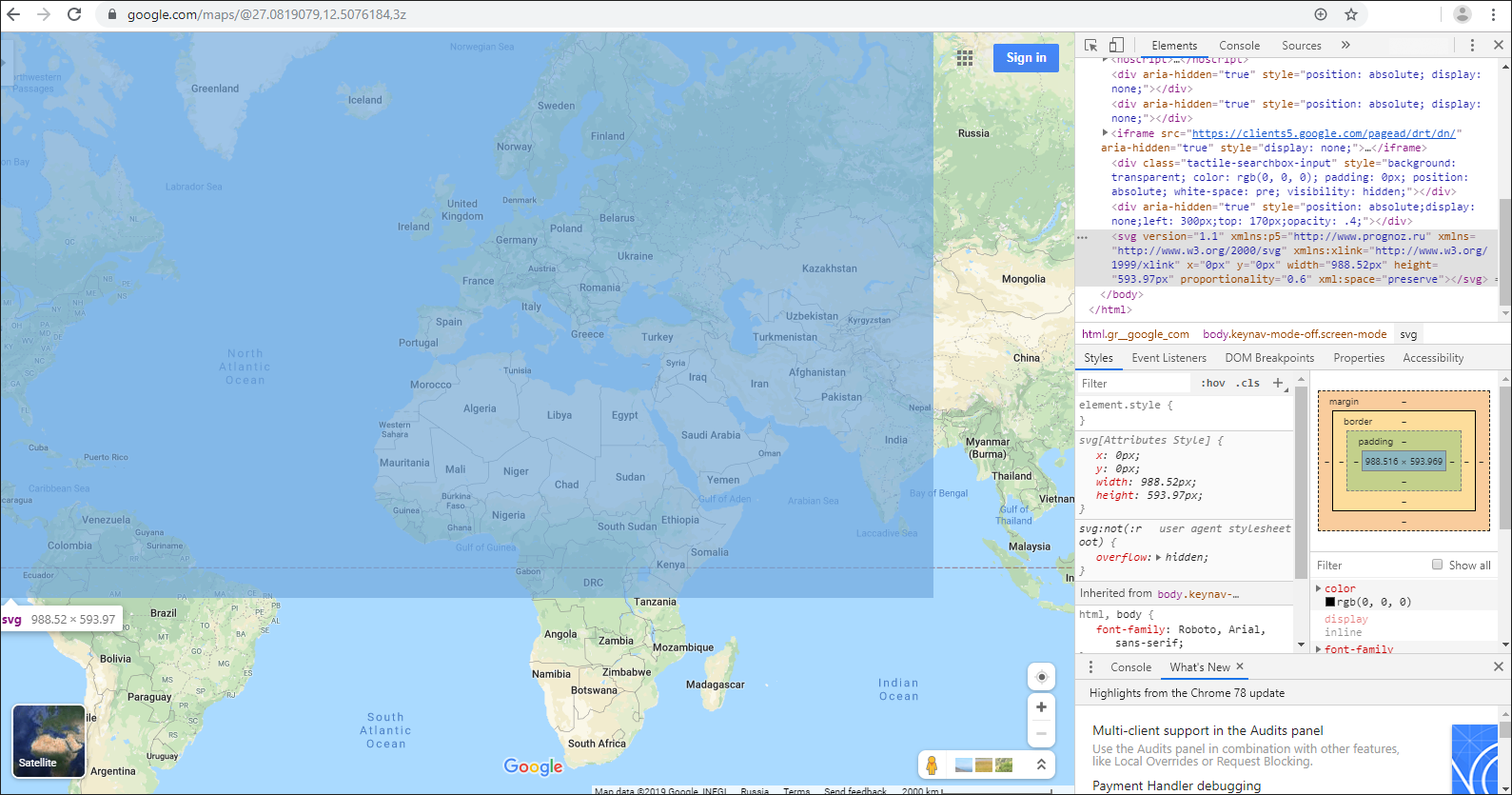
In web application on connecting external map services borders of overlapping maps can be not matched. The cause why coordinates do not match:
The incorrect value of the proportionality="0.67" attribute that is in the topobase header part.
There is topobase georeferencing or setting is incorrect:
<fs:Geo>
    <fs:GeoItem Latitude="83.608096" Longitude="-168.230659" X="0" Y="0"></fs:GeoItem>
    <fs:GeoItem Longitude="-56.586816" Longitude="-169.636909" X="1" Y="1"></fs:GeoItem>
</fs:Geo>
To set up georeferencing, follow the steps:
Download the contents of the topobase in use to the file:
Select an object that uses a map, in object navigator in the desktop application.
Open theObject Properties dialog box using the Properties context menu item.
Go to the Consists Of tab, select the map and click the Go Object button. The folder where the map in use opens.
Lod the map contents to SVG file to the local resource using the Save to File context menu item.
Open downloaded file with a text editor and change the proportionality attribute value to 0.6, for example:
<svg version="1.1" xmlns:fs="http://www.fsight.ru" xmlns="http://www.w3.org/2000/svg"
xmlns:xlink="http://www.w3.org/1999/xlink" x="0px" y="0px" width="988.52px" height="593.97px"
proportionality="0.6" xml:space="preserve">
NOTE. In some cases, to overlap borders, it is required to execute only two first steps. Save file with topobase, go to the step 9 and check how borders are displayed.
Copy file contents.
Open the https://www.google.com/maps or https://yandex.ru/maps/ service:
Go to the developer mode, for example in GoogleChrome, using CTRL+SHIFT+J.
In the Elements section go to the edit mode using the Edit as HTML context menu item.
Insert the copied contents of the file with map to the end of the <body> tag.
Exit the edit mode.
When the cursor is on the inserted text with the <svg> tag, the Google map or Yandex map displays the added map as a blue rectangle.
Select the <svg> tag, go to the Styles section and set styles of added map in the element.style section to display it with Google map or Yandex map in the background:
element.style {
    position: absolute;
    border: 1px solid red;
    left: 300px;
    top: 170px;
    opacity: .4;
}
Match territories of pasted map and Google map or Yandex map, manually moving Google map or Yandex map.
NOTE. Preliminary reduce the Google map or Yandex map to the minimum size. Deselect the Globus menu item for Google map.
Determine coordinates of the (0;0) and (1;1) points. To do it, click next to the top left and button right corners outside the selected map. Google map will immediately display point coordinates. To view coordinates on Yandex map, click right mouse button and select the What is Here? context menu item. Record coordinates to further insert them to topobase.
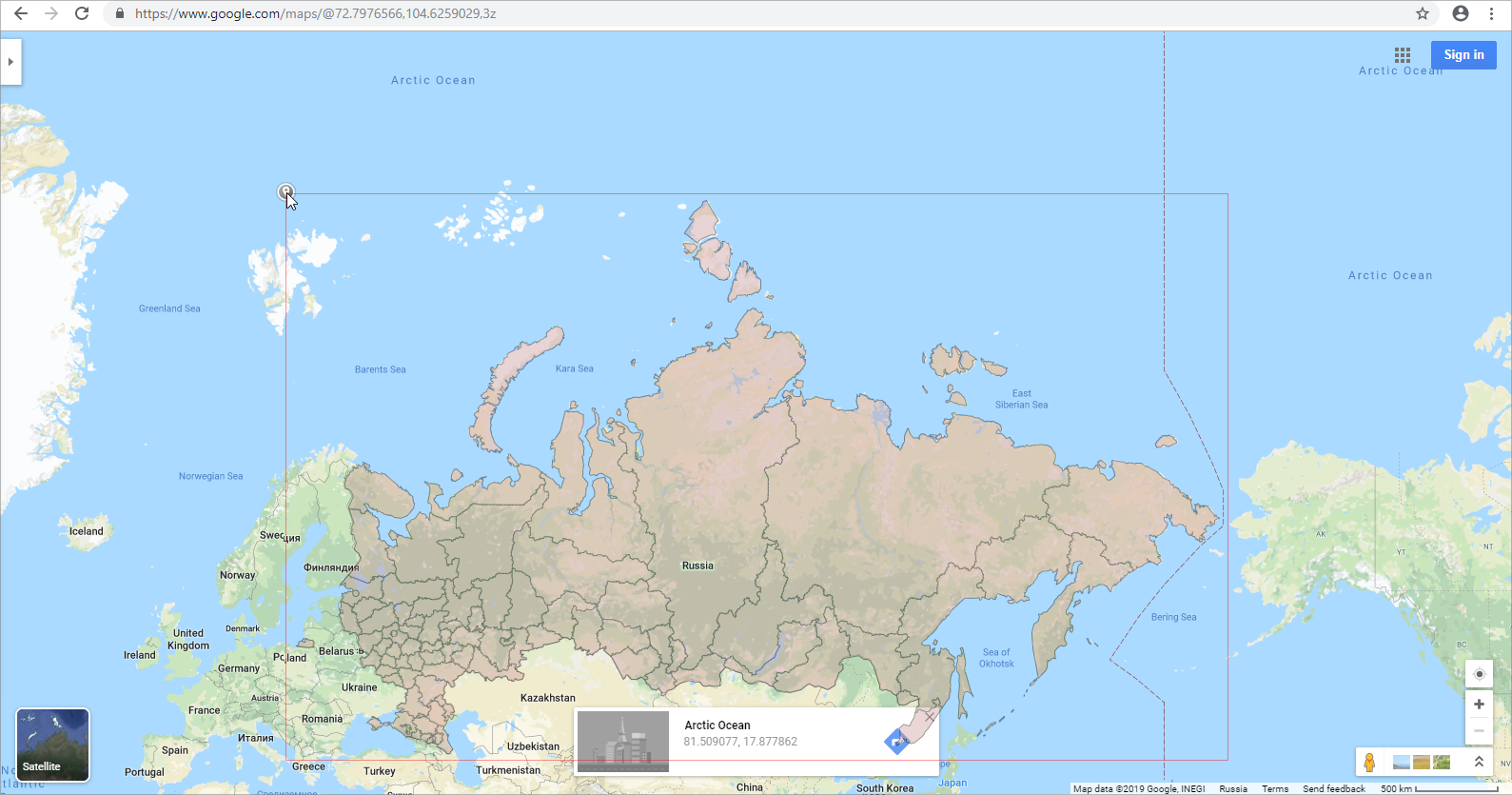
Insert obtained coordinates for the (0;0) and (1;1) points to the topobase file in the <p5:MetaInfo> section using text editor, for example:
<fs:MetaInfo>
    <fs:Geo>
        <fs:GeoItem Latitude="81.509077" Longitude="17.877862" X="0" Y="0"></fs:GeoItem>
        <fs:GeoItem Longitude="40.265518" Longitude="-168.445904" X="1" Y="1"></fs:GeoItem>
    </fs:Geo>
    ...
</fs:MetaInfo>
Load updated topobase to replace its data. To do it, select the Load from File topobase context menu item in the object navigator of desktop application.
Open web application and check the topobase and Google maps or Yandex maps borders match.
See also: