Debugging Calculation Algorithm
Debugging calculation algorithm is used to detect and correct errors and also enables the user to view intermediate values obtained during calculation. Viewing intermediate values is specially relevant if calculation uses intermediate cubes without data tables, that is, the cubes that cannot be used to view obtained values after algorithm calculation is finished.
To debug algorithm:
Set up calculation execution using the Set Up Calculation Execution dialog box.
If in different blocks different selection of the same source is used, select the Load Data Separately from the Rest checkbox in the context menu of the blocks in calculation tree. In this case, separate data loading is more quickly and decrease the total algorithm calculation time. The checkbox is available for all block types.
To debug the entire algorithm, click the  Calculate Algorithm button in the Debugging group.
To debug single blocks, select them in the working area or calculation tree. To do this, use the SHIFT key in the working area, and the CTRL or SHIFT key in the calculation tree. After selecting blocks click the  Calculate Selected button in the Debug group.
After calculation is started, data is loaded to algorithm. After loading is finished, the  Continue becomes available. Click it to go to the next calculation step.
The calculated block turns green in the working area. For example, left - the block before calculation, right - the block after calculation:
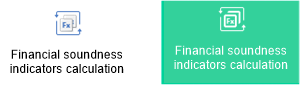
To go to the specific calculation step, select it in the drop-down menu of the Continue button. The menu contains all the steps that have not been yet executed.
To stop calculation, click the  Stop button in the Debug group.
All calculation algorithm objects can be read during debug. For example, the user can check calculation block settings or open block calculation results in the Analytical Queries (OLAP) tool.
After debug is finished, the dialog box with results opens. For example:
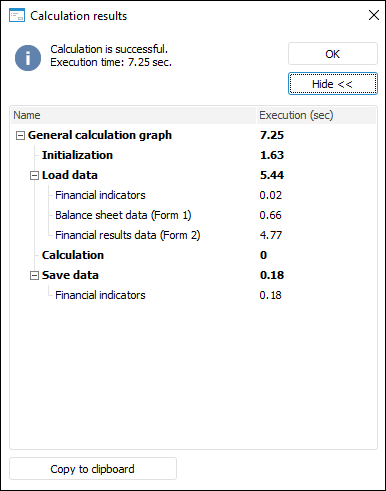
If an error occurred on calculation, the corresponding message is displayed.
Example of Calculation Algorithm Debug
The example presents a step-by-step calculation algorithm. Data consumer of one block will be opened before and during calculation.
See also:
Building Calculation Algorithm
 Save Values button in the Calculation Parameters group.