This article helps to set up domain/integrated domain authentication in the web application based on Internet Information Services. Before setting up the web application add domain users in the desktop application security manager and grant them necessary access permissions.
To set up authentication in Foresight Analytics Platform web application, execute the following steps:
Make sure that web server settings are determined:
If the repository, which is supposed to work with, is based on Oracle DBMS, execute additional setup of DBMS server and client computer. This step can be skipped for other DBMS.
Set up IIS.
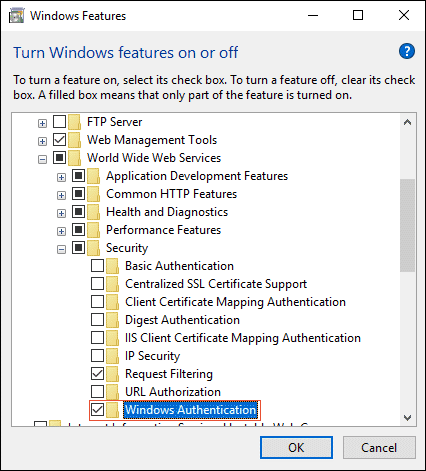
Make sure that Windows authentication is enabled in the services:
Determine the following settings for Internet Information Services:
For Internet Information Services version 6. In the virtual directory properties on the Directory Security tab in the Anonymous Access and Authentication group click the Edit button. In the dialog box that opens make sure that only the Integrated Windows Authentication checkbox is selected.
For Internet Information Services version 7 or later. Open the IIS services manager by executing the inetmgr command in the command line. In the Connections tree select the server connection (localhost). Next, in the functions list (to the right of the connections) select  Authentication and double-click to open it. The Enabled value should be set for the Windows Authentication item in the Status column.
Change the following parameters for the pool using the web application:
Load User Profile. Set the False value.
Certificate. Set the NetworkService value.
Set up web application. Depending on the selected authentication type, in the PP.xml file in the <metabase> section add the authentication attribute with the following values:
For domain authentication: authentication=”Domain”.
For integrated domain authentication: authentication=”IntegratedDomain”.
In the Connections tree for the web application in the functions list open Authentication. Enable the ASP.NET Impersonation and the Windows Authentication settings, the rest of the settings should be disabled. The user can enable the Basic Authentication setting instead of the Windows Authentication setting.
Check also that anonymous authentication is enabled for the Config folder. To do this, select the Config folder inside the web application and open Authentication in the functions list. If the Anonymous Authentication checkbox is deselected, select it by selecting the appropriate context menu item.
Setting up BI server:
For BI server application, open Authentication in the functions list, select the Windows Authentication checkbox and disable other settings.
Set up web server:
If the web server is located in a domain, the Trust Computer for Delegation item must be set. The Account is Sensitive and cannot be Delegated checkbox in the Active Directory must be deselected for user accounts.
NOTE. This setting is mandatory if integrated domain authentication works according to Kerberos protocol. To execute the setting, the user must have local net administrator permissions.
To log in to the system when domain authentication is used on the server with installed BI server and web application back end, the users must have the Interactive Logon privilege (LOGON32_LOGON_INTERACTIVE) on domain level.
Browser settings:
In browser settings include this server to the list of permitted nodes or local network.
NOTE. To connect to the site, use server name because Kerberos protocol does not support working with IP addresses. Kerberos works in with the following browsers: Microsoft Edge, Internet Explorer, Mozilla Firefox, Opera, Safari, Google Chrome and Sputnik.
Check web application performance.
See also:
Questions and Answers | Integrated Domain Authentication Using Service Reference