Algorithm calculation order:
Set calculation dates and parameter values on the parameters panel.
Select the Multithreaded Calculation checkbox in the Set Up Calculation Execution group on the Calculation ribbon tab to speed up calculation of calculation blocks and control blocks if the Multithreaded Calculation checkbox is selected in the calculation block or control block editing wizard. Aggregation blocks are calculated only using multithreaded calculation.
NOTE. Checkbox state is active only during algorithm calculation.
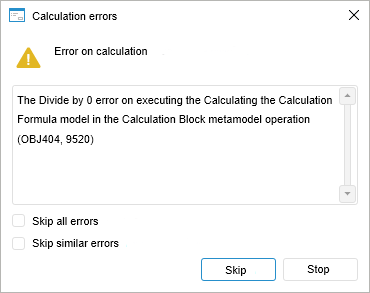
To check arithmetic operations used in calculation formulas, select the Check Arithmetic Operations checkbos in the Calculation Execution Setup group. If, on algorithm calculation, there is division by zero in the formula, the corresponding message displays specifying calculation formula and block:
To correct the specified formula, click the Sop button, after that algorithm calculation will be stopped. Manually edit the formula and recalculate the algorithm.
To skip the error, click the Skip button. After that calculated elements will be skipped and the calculation result is the empty value.
If the checkbox is deselected, arithmetic operations in formulas are not checked. If there is a division by zero, then calculated elements are skipped and the calculation result is the empty value.
NOTE. It is possible to not check arithmetic operations, if calculation formula is correct and the calculation result can contain empty values.
If in different blocks different selection of the same source is used, select the Load Data Separately from the Rest checkbox in the context menu of the blocks in calculation tree. In this case, separate data loading is more quickly and decrease the total algorithm calculation time.The checkbox is available for all block types.
Execute the entire algorithm or its blocks.
By default, calculation results are automatically saved.
To calculate the entire algorithm:
Click the  Calculate Algorithm button in the Start Calculation group on the Calculation ribbon tab.
Press F5.
Algorithm calculation is started. To stop algorithm calculation, click the  Stop button in the Start Calculation group on the Calculation ribbon tab.
TIP. If you want to deny algorithm calculation stop, see the How to Deny Calculation Algorithm Stop? section.
During calculation, all algorithm objects can be read. For example, the user can check calculation block settings or open block calculation results in the Analytical Queries (OLAP) tool.
After the calculation is completed, the dialog box containing results opens. For example:
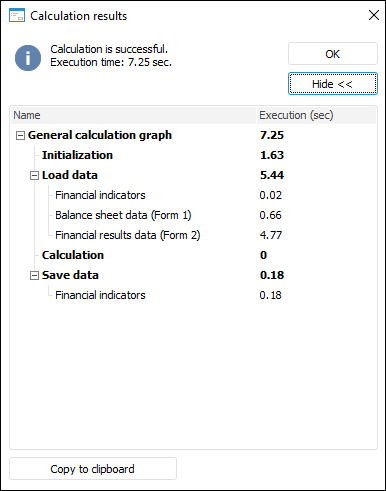
If an error occurred on calculation, the corresponding message is displayed.
To calculate only selected blocks:
Select the blocks to be calculated in the working area or calculation tree.
To select several blocks in the working area, use the SHIFT key, in the calculation tree - the CTRL or SHIFT key.
Click the  Calculate Selected button in the Start Calculation group on the Calculation ribbon tab.
After the calculation is completed, the dialog box containing results opens. If an error occurred on calculation, the corresponding message is displayed.
To calculate without saving data:
Select the Do not Save Result to Database checkbox in the Set Up Calculation Execution group on the Calculation ribbon tab.
Execute the entire algorithm or its blocks.
See also:
Working with Ready Calculation Algorithm