
 Contents of the tabSheetJSON.js file
setCellPictureSettings (row, col, settings);
row. Cell row index.
col. Cell column index.
settings. JSON object that contains image settings. This object has the following fields:
| Parameter name | Type | Brief description |
| hover | Integer | Index of the image to be shown in the cell on hovering. |
| normal | Integer | Index of the image to be shown in the cell. |
| hint | String | Text of image tooltip. |
| horAlignment | Integer | Horizontal alignment type:
|
| verAlignment | Integer | Vertical alignment type:
|
The setCellPictureSettings method defines settings for an image shown in table cell.
To ensure the method performance, JSON settings of the table data source must contain a list of images encoded in base64 (see Contents of the tabSheetJSON.js file).
To execute the example add links to the following files: PP.css, PP.js and PP.TabSheet.js. The tabSheetJSON.js file containing table data source settings must be available.
Contents of the tabSheetJSON.js file
Add a table that has an image set up for the cell under coordinates (0,0):
PP.ScriptManager.loadScripts(["tabSheetJSON.js"], tbsht);
function tbsht() {
    if (!data)
        return false;
    if (!PP.Ui.ExamplePrognozSyncDataSource) {
        PP.Ui.ExamplePrognozSyncDataSource = function (clear) {
            this.MeasuresLoaded = new PP.Delegate();
            this.RangeLoaded = new PP.Delegate();
        };
        // Create a table data source
        PP.initClass(PP.Ui.ExamplePrognozSyncDataSource, PP.Object, "PP.Ui.ExamplePrognozSyncDataSource", [PP.Ui.ITabSheetDataSource]);
        var esdsProto = PP.Ui.ExamplePrognozSyncDataSource.prototype;
        esdsProto.getIsAsync = function () {
            return false;
        };
        esdsProto.loadMeasures = function () {
            this.MeasuresLoaded.fire(this, {
                Data: data
            });
        };
        esdsProto.loadRanges = function (rangeArray) {
            this.RangeLoaded.fire(this, {
                Data: data,
                Ranges: rangeArray
            });
        };
        esdsProto = null;
    }
    // Create an instance of the PP.Ui.ExamplePrognozSyncDataSource class
    dataSource = new PP.Ui.ExamplePrognozSyncDataSource();
    component = new PP.Ui.TabSheet(   {
        ParentNode: container,
               DataSource: dataSource,
               IsEditable: true,
               Width: 400,
               Height: 250
    });
}
After executing the example a table with an image in the cell under coordinates (0,0) is placed in the page:
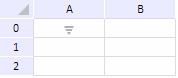
On hovering the cursor over the image, image appearance does not change and no tooltip is shown.
Set the image that will be shown on mouse over, set up a tooltip and change image alignment:
component.setCellPictureSettings(0, 0, {hover: 1, normal: 0, hint: "Sort", horAlignment: 1, verAlignment:2});
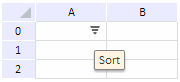
After executing the setCellPictureSettings method, horizontal alignment to the right edge and vertical alignment to the center is set for the image. On hovering the cursor over the page, image appearance changes (the image with the index 1 described in JSON settings is used), and a tooltip is shown:
See also: