EnableHTMLInCells: Boolean;
The EnableHTMLInCells property determines whether HTML markup can be used in table cells.
Use JSON or the setEnableHTMLInCells method to set the property value, and the getEnableHTMLInCells method to get the property value.
Default property value is value.
Available Values:
true. Use of HTML markup in table cells is enabled.
false. Use of HTML markup in table cells is disabled (default).
To execute the example, the HTML page must contain the DataGrid named grid (see Example of Creating the DataGrid Component). Set a new value containing HTML tags in one of the table cells:
// Set a new cell value containing HTML tags
grid.getData().Rows.Row[0].Cells.country.CellData["@FT"] = "<b>RF</b>";
grid.getData().Rows.Row[0].Cells.country.CellData["@V"] = "<b>RF</b>";
// Refresh table
grid.refresh();
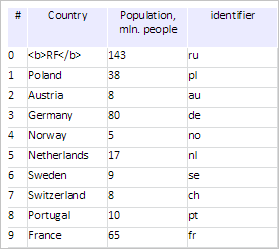
After executing the example a new value containing HTML tags is set for one of the table cells, the tags are interpreted as normal strings:
Enable use of HTML markup in table cells:
// Set whether HTML markup is enabled in table cells
grid.setEnableHTMLInCells(True);
// Refresh table
grid.refresh();
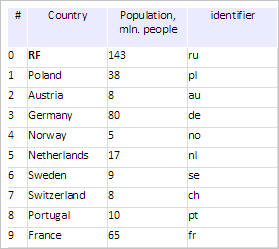
After this action HTML tags in cells are interpreted according to their functional purposes. The bold font is applied for the text in the cell with a new value:
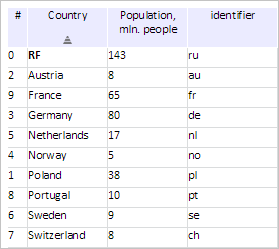
Click the Country column. After this action table rows are sorted by value of rows in the Country column considering HTML tags:
Enable deleting of HTML tags from cells on sorting:
// Set whether HTMLS tags are deleted from cell values on sorting
grid.setRemoveHtmlWhenSort(True);
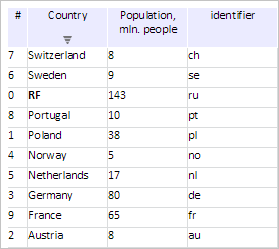
Click again on the Country column. After this action table cells are sorted in descending order by means of row values in the Country column without considering HTML tags:
See also: