Toolbars
A toolbar is a set of buttons located either under the main menu or in a separate interface element:
The toolbar is displayed if the checkbox next to its name is selected in the toolbar area menu's context menu. Click this menu item to select or deselect the checkbox.
To display the toolbar in a separate window, double-click the  sign located to the left from the corresponding panel, or use the drag-and-drop mechanism, holding the sign, drag the panel to the required area.
An available panel may be:
There are several toolbars, as described below.
Home
The Home toolbar looks as follows:

The Home toolbar includes the commands of the main menu that are used most frequently:
| |
Command |
Brief description |
 |
Open |
Opens the saved unit, form, or assembly. |
 |
Save |
Saves changes to the active unit or form. |
 |
Save All |
Saves changes to all active units and forms. |
 |
Cut |
Cuts the selected element to the clipboard. |
 |
Copy |
Copies the selected element to the clipboard. |
 |
Paste |
Pastes element from the clipboard. |
 |
Undo |
Undoes the last operation. |
 |
Redo |
Redoes the last canceled operation. |
| |
Compile Method |
Selects compile method. |
Debug
The Debug toolbar looks as follows:
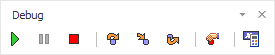
The Debug toolbar includes commands that are used to debug macro.
| |
Command |
Brief description |
 |
Run |
Starts the current unit or form. |
 |
Pause |
Stops execution with the ability to resume from the current position. |
 |
Stop Execution |
Stops execution without the ability to resume from the current position. |
 |
Step Over |
Executes unit step-by-step ignoring subroutines. |
 |
Trace Into |
Executes unit step-by-step including subroutines. |
 |
Run until Return |
Executes the unit until the action after the current subroutine. |
 |
Toggle Breakpoint |
Sets or toggles breakpoint in the current line. |
 |
Evaluate Expression… |
Opens the expression evaluator. |
Panels
The Panels toolbar looks as follows:
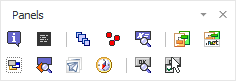
The Panels toolbar is used to move between development environment windows and contains the following commands:
History
The History toolbar looks as follows:
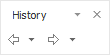
The History toolbar is used to navigate the tabs and includes the following commands:
| |
Command |
Brief description |
 |
Back |
Returns to the previous tab (tab selection is available). |
 |
Forward |
Moves to the next tab (tab selection is available). |
See also:
Main Menu | Setting Up Toolbars


