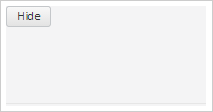
To execute the example, the HTML page must contain links to the PP.js script file and the PP.css styles file in the <body> tag of the <div> item with the spoiler identifier. In the onload event of the <body> tag it is necessary to add the call of the createSpoiler() function. Add a drop-down panel on the page and place the button on it:
function createSpoiler() {
    // Create a panel
    spoiler = new PP.Ui.Spoiler({
        // Set a parent item
        ParentNode: document.getElementById("spoiler"),
        // Set direction of the panel disclosure
        Position: PP.Ui.SpoilerPosition.Top,
        // Set panel minimum size
        MinPanelSize: 50,
        // Set panel maximum size
        MaxPanelSize: 250,
        // Set panel sizes
        Height: 100,
        Width: 200,
        // Set sizes of the object used to change panel sizes
        DefaultResizerSize: 5,
        // Set contents margin from the panel border
        DefaultContentMargin: 0,
        // Set title
        Title: "Disclose",
        // Enable panel size change
        EnableResize: true,
        // Enable panel collapse
        EnableCollapse: true,
        // Add a handler of the panel collapse event
        Collapsed: function (sender, args) {
            console.log("Panel is collapsed");
        },
        // Add a handler of the panel expanding
        Expanded: function (sender, args) {
        console.log("Panel is expanded");
    }
    });
    // Add the button
    spoiler.setContent(new PP.Ui.Button({
        Content: "Hide",
        Click: function (sender, args) {
            // Collapse the panel on the button clicking
            spoiler.setIsExpanded(false);
        }
    }));
}
As a result a drop-down panel with button is added to the page:
After clicking the button the panel is collapsed:
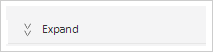
The panel collapsing message is displayed in the console:
Panel is collapsed
After clicking the button with the >> contents, the panel is expanded. The panel expanding message is displayed in the console:
Panel is expanded
See also: