To execute the example, create an HTML page and perform the following operations:
1. Add links to the styles files: PP.css, PP.Metabase.css, PP.Ufe.css.
Also, add links to the scenarios files: PP.js, PP.Metabase.js, PP.Ufe.js.
2. In the <body> tag add two <div> elements with the TE (formula editor container) and get_terms_btn (button container) identifiers, the <textArea> element (text box that shows result of executing the get_terms function):
<!-- Formula editor -->
<div id="TE">
<br/>
<!-- Text area -->
<textarea id="res" cols="30" rows="9"></textarea>
<br/>
<!-- Button -->
<div id="get_terms_btn"></div>
3. Then add a script that creates the TermEdit component:
// Create the TermEdit component
var termEdit = new PP.Ufe.Ui.TermEdit({
    ParentNode: "TE",
    Width: 200,
    Height: 100,
    // Terms list
    Terms: [{  // Term text
        Content: "(",
          // Term formula
         Formula: "(",
    }, {
        Content: "Year",
         Formula: "Year",
    }, {
        Content: "+",
         Formula: "+",
    }, {
        Content: "Day",
         Formula: "Day",
    }, {
        Content: ")",
         Formula: ")",
    }, {
        Content: "*",
         Formula: "*",
    }, {
        Content: "Dimension",
         Formula: "Dimension",
    }]
});
// Create a function that places terms in the text area
function get_terms() {
    var terms = termEdit.getTerms(); //returns the terms list
    var resArea = document.getElementById("res"); //text area
    resArea.value = "";
    for (var i = 0; i < terms.length; i++)  {
        // Text area value
        resArea.value += terms[i] + "\n"; //
    }
}
// Create a button clicking which performs the get_terms function
var get_terms_btn = new PP.Ui.Button({
    Content: "Get terms",
    ParentNode: document.getElementById("get_terms_btn"),
    Click: get_terms
});
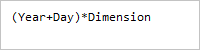
After executing the example the HTML page will contain the TermEdit component that looks as follows:
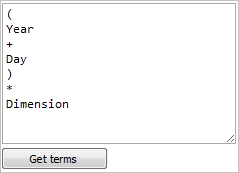
A text area located below is filled with the terms list after clicking the Get Terms button:
See also: