To execute the example, in the HEAD tag of the HTML page specify links to the following CSS and JS files:
PP.js.
PP.Metabase.js.
PP.Express.js.
PP.TS.js.
PP.Express.css.
PP.TS.css.
PP.Metabase.css.
PP.App.css.
PP.css.
This example requires a time series database with the 1334 key.
In the <body> tag as the value of the onLoad attribute specify name of the function executed after page body loading is finished:
<body onselectstart="return false" class="PPNoSelect" onload="Ready()">
	<div id='example'></div>
</body>
At the end of the document insert a code that sets styles corresponding to client's operating system, to the document.body node:
<script type="text/javascript">
	PP.initOS(document.body);
</script>
In the SCRIPT tag add the following script:
<script type="text/javascript">
		//Resources folder
        PP.resourceManager.setRootResourcesFolder("../resources/");
        //List of used resources
        PP.resourceManager.setResourceList(['PP', 'Metabase', 'Ts', 'Express', 'TabSheetMaster', 'ChartMaster', 'TreeChartMaster', 'MapMaster', 'GaugeMaster']);
        // Determine language settings for resources
		PP.setCurrentCulture(PP.Cultures.ru);
		// Declare constants
		var KEY = 1334; //document key
		var IMG_PATH = "../build/img/";  //path to icons folder
		// Declare variables
		var waiter, metabase, hieService, hier, attrId, navBreadcrumb, navBreadcrumbItem;
		//Function for getting handler functions
		//It gets additional information output to the console as a parameter on calling a handler.
		//It can be, for example, a string that contains class and event name
		function onDummyActionFactory(actionCaption){
			return function (sender, args){
				console.log(actionCaption);
				console.log(sender);
				console.log(args);
			};
		}
		function Ready(){ //body loading event handler
			// Create loading indicator
			waiter = new PP.Ui.Waiter();
			// Create a repository connection
			metabase = new PP.Mb.Metabase({
				Id: "PPRepository",
				UserCreds: { UserName: "user", Password: "password" },
				StartRequest: function(){waiter.show();},
				EndRequest: function(){waiter.hide();},
				Error: function (sender, args){alert(args.ResponseText);}
			});
			// Open repository connection
			metabase.open();
			// Create a service used to work with time series database hierarchy
			hieService = new PP.TS.HieService({ Metabase: metabase });
			// Sends request for opening workbook hierarchy by the KEY key of factor directory
			hier = hieService.openFromRubKey(KEY, null, onHieOpened);
			//operation execution end handler
			function onHieOpened(sender, args)
			{
				console.log("Get hierarchy attributes")
				attrs = hier.getAttributes();
				console.log("Get identifier by attribute the 0 index");
				attrId = attrs[0].id;
				console.log(attrId);
				// Create an instance of class component for displaying and controlling workbook attributes
				navBreadcrumb = new PP.TS.Ui.NavBreadcrumb({
					ImagePath: IMG_PATH, //path to icons folder
					Source: hier, //source(view property)
					Width: 302, //height
					Height: 500, //width
					ParentNode: "example" //DOM parent node
				});
				// Get hierarchy
				console.log("Refresh the entire component according to metadata");
				navBreadcrumb.refreshAll();
				console.log("Refresh selection in dimension trees of all all attributes");
				navBreadcrumb.refreshSelections();
				console.log("Refresh element text of the NavBreadcrumb component according to attribute");
				navBreadcrumb.updateItemContent(attrId);
				// Link view event handlers
				navBreadcrumb.AltHierarchyChanged.add(onDummyActionFactory("Event of view of server alternative hierarchy change occurred"));
				navBreadcrumb.AttributeFilterChanged.add(onDummyActionFactory("Event of view of enable or disable attribute filter occurred"));
				navBreadcrumb.AttributeSortChanged.add(onDummyActionFactory("Event of view of changing dimension tree sorting occurred"));
				navBreadcrumb.DimSelectionChanged.add(onDummyActionFactory("Event of view of changing server selection change occurred"));
				navBreadcrumb.RequestMetadata.add(onDummyActionFactory("Event of view of metadata request occurred"));
				navBreadcrumb.RequestSelectedItemsChanged.add(onDummyActionFactory("Event of view of moving attributes in the NavBreadcrumb component occurred"));
				navBreadcrumb.TreeNameAttrChanged.add(onDummyActionFactory("Event of view of changing level name attribute occurred"));
				console.log("Add a new component for displaying and controlling workbook attributes");
				addNewItem();
			}
		}
		// Function of adding a new component for displaying and controlling workbook attributes
		function addNewItem()
		{
			// Class thet implements panels with attribute dimension tree
			// in the component for displaying and controlling workbook attributes
			navBreadcrumbItem = new PP.TS.Ui.NavBreadcrumbItem({
				Source: hier.getDim(hier.getAttributes()[0].k), //source (dimension)
				ViewType: PP.Ui.NavigationItem,
				Title: "New element", //title
				Tag: hier.getAttributes()[0].id,
				OwnerMaster: navBreadcrumb,
				ImageList: navBreadcrumb._ImageList
			});
			//add panel to wizard
			navBreadcrumb.addMasterPanel(navBreadcrumbItem);
			//expand panel
			navBreadcrumbItem.expand();
			console.log("Get position index which contains dimension");
			var iPos = navBreadcrumbItem.getIndexPosition();
			console.log(iPos);
			console.log("Get whether attribute is selected");
			var isSelected = navBreadcrumbItem.getSelected();
			console.log(isSelected);
			console.log("Get attribute dimension attribute located in the panel (PP.Mb.Ui.DimensionTree)");
			var dimTreeView = navBreadcrumbItem.getDimTreeView();
			console.log(dimTreeView);
		}
	</script>
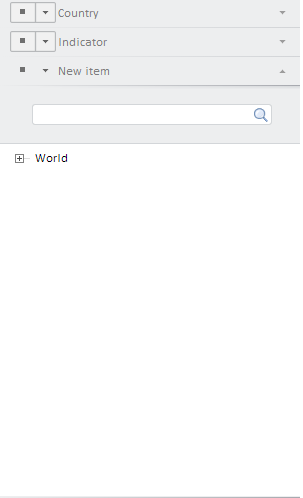
After executing the example the NavBreadcrumb component is placed in the HTML page. This component looks as follows:
On firing the events listed below:
the browser console will show the following messages:
Get hierarchy attributes
Get ID by attribute index 0
DL
Refresh the component in accordance with metadata
Refresh selection in dimension trees of all attributes
Refresh text in the NavBreadcrumb component in accordance with the attribute
Add a new component to show and manage workbook attributes
Get index of dimension position
undefined
Get if the attribute is selected
false
Get attribute dimension tree shown in a panel (PP.Mb.Ui.DimensionTree)
PP.Mb.Ui.DimensionTree
A new panel named PP.Mb.Ui.DimensionTree is added to the component.