To execute this example, create an HTML page and perform the following operations:
1. Add links to css files PP.css and PP.Rds.css.
Also, add links to the following JS files: PP.js, PP.Metabase.js, PP.Rds.js, and resources.ru.js.
2. Then in the <head> tag add a script that creates a tree of MDM dictionary elements, parameters container, and the container used to search for dictionary elements. The repository must contain an MDM dictionary with the 8093 key:
<script type="text/javascript">
    var dictionaryTree; // Tree of MDM dictionary elements
    PP.ImagePath = "../../build/img/"; // Specify path to images folder
    PP.ScriptPath = "../../build/"; // Specify path to scenarios folder
    PP.CSSPath = "../../build/"; // Specify path to the styles folder
    var dictionaryKey = 8093; // Dictionary key
    function Ready() {
        // Specify path to the root folder that contains resources files
        PP.resourceManager.setRootResourcesFolder("../resources/");
        // Set resources culture
        PP.setCurrentCulture(PP.Cultures.ru);
        var waiter = new PP.Ui.Waiter();
        // Create a connection to repository
        var metabase = new PP.Mb.Metabase({
            PPServiceUrl: "PPService.axd?action=proxy",
            Id: "PROGNOZPLATFORM7",
            UserCreds: {
                UserName: "user",
                Password: "password"
            },
            StartRequest: function () {
                // On metadata request show a PP.Ui.Waiter component
                waiter.show();
            },
            EndRequest: function (sender, args) {
                // Hide the PP.Ui.Waiter component
                waiter.hide();
            },
            Error: function (sender, args) {
                // Show error description
                console.log(args.ResponseText);
            }
        });
        // Open repository connection
        metabase.open();
        var rdsService = new PP.Rds.RdsService({
            Metabase: metabase
        });
        // Open MDM dictionary with the specified key
        var dictionary = rdsService.openRds(dictionaryKey, null);
        // Create a tree of MDM dictionary elements
        dictionaryTree = new PP.Rds.Ui.DictionaryTree({
            ParentNode: "dictionaryTree",
            Source: dictionary, // Data source
            ImagePath: PP.ImagePath, // Path to the images folder
            Width: 600, // Tree width
            Height: 120 // Height
        });
        // Create a container used to search for dictionary elements
        findBox = new PP.Rds.Ui.FindBox({
            Source: dictionary, // Data source
            ImagePath: PP.ImagePath, // Path to the images folder
            Width: 200,
            Height: 70,
            FindChanged: function (sender, args) {
                // Run search
                dictionaryTree.setFilter(args.Filter);
            }
        });
        // Create a container of dictionary parameters
        paramsBox = new PP.Rds.Ui.ParamsBox({
            Source: dictionary, // Data source
            ImagePath: PP.ImagePath, // Path to the icons folder
            Width: 200,
            Height: 50,
        });
        // Create a table for components layout
        layoutGrid = new PP.Ui.GridPanel({
            Class: "PPRdsDataAreaGrid",
            ParentNode: "layoutGrid"
        });
        // Add to the table
        layoutGrid.add(paramsBox, 0, 0);
        layoutGrid.add(findBox, 0, 1);
        layoutGrid.add(dictionaryTree, 0, 1);
    }
</script>
3. In the <body> tag add the layoutGrid block to store the table that will contain the tree of MDM dictionary elements, parameters container and the container used to search for dictionary elements:
<body onload="Ready()">
    <div id="dictionaryTree" style="border: 1px #C3C3C3 solid; width: 600px"></div>
</body>
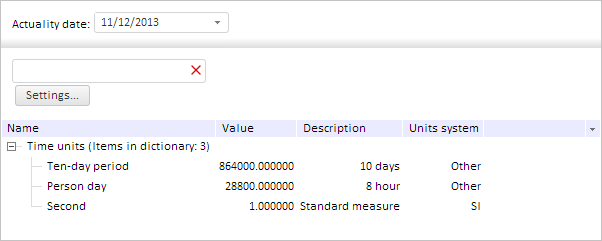
After executing the example the DictionaryTree, ParamsBox and FindBox components will be placed In the HTML page:
See also: