To execute this example, add links to the following *.js and *.css files in the HEAD tag of the HTML page:
PP.js.
PP.css
PP.Metabase.js.
PP.Metabase.css.
PP.Navigator.js.
PP.Navigator.css.
In the BODY tag add the following code:
<body onload="onLoad();" style ="height:600px">
</body>
Add component creation code in the SCRIPT tag:
<script type="text/javascript">
	var searchDialog, mb, waiter;
	function onLoad() {
	   waiter = new PP.Ui.Waiter();
	   PP.resourceManager.setRootResourcesFolder("resources/");
	   PP.resourceManager.setResourceList(['PP', 'Metabase']);
	   mb = new PP.Mb.Metabase({
	      PPServiceUrl: "PPService.axd?action=proxy",
	      Id: "PrognozPlatform7_systest",
	      UserCreds: {
	         UserName: "sa",
	         Password: "Qwerty1"
	      },
	      EndRequest: function () {
	         waiter.hide();
	      },
	      Opened: function () {
	         // After opening a repository load resources and after their loading display a dialog
	         PP.setCurrentCulture(PP.Cultures.ru);
	         PP.resourceManager.ResourcesLoaded.add(onResLoaded, this);
	         waiter.hide();
	      },
	      StartRequest: function () {
	         waiter.show();
	      },
	      Error: function (sender, args) {
	         waiter.hide();
	         alert(args.ResponseText);
	      }
	   });
	   mb.open();
	}
	function onResLoaded(sender, arg) {
	   searchDialog = new PP.Ui.SearchDialog({
	      ImagePath: "build/img/",
	      ObjectClassId: 2562, //Type of searched objects - regular report
	      ShowDetails: True, // Search options are expanded
	      Metabase: mb,
	   });
	   searchDialog.FindAll.add(PP.Delegate(onFindAll), this)
	   searchDialog.Find.add(PP.Delegate(onFind), this)
	   searchDialog.show();
	};
	 //On clicking the Find All button
	function onFindAll(sender, args) {
	   //Array of found objects
	   var objs = args.Objects;
	   //Output properties of found objects to the browser console
	   for (var i = 0, len = objs.length; i & lt len; i++) {
	      console.log("Object #" + (i + 1));
	      for (var p in objs[i]) {
	         console.log("    " + p + " : " + objs[i][p]);
	      }
	   }
	};
	 //On clicking the Find All button
	function onFind(sender, args) {
	   // Output all obtained properties of the found object
	   console.log("Object #" + args.Index)
	   for (var p in args.Object) {
	      console.log("    " + p + " : " + args.Object[p]);
	   }
	};
</script>
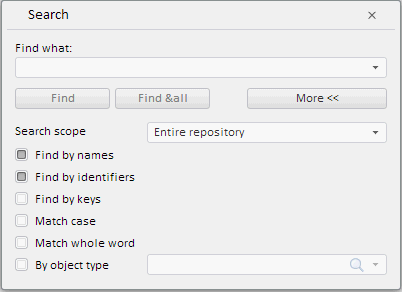
After executing the example the SearchDialog component that looks as follows is located on the HTML page:
Enter the text to the search box to find repository objects. On clicking the Find button the console displays name, number and properties of the found object. On clicking the Find All button the console displays names, numbers and properties of the found objects. For example:
Object #0
@ts : 2011-07-19T15:43:23.000
@isShortcut : false
@isLink : false
@hf : false
i : OBJ3557
n : World Indicators
k : 3557
c : 0
p : 4294967295
h : false
See also: