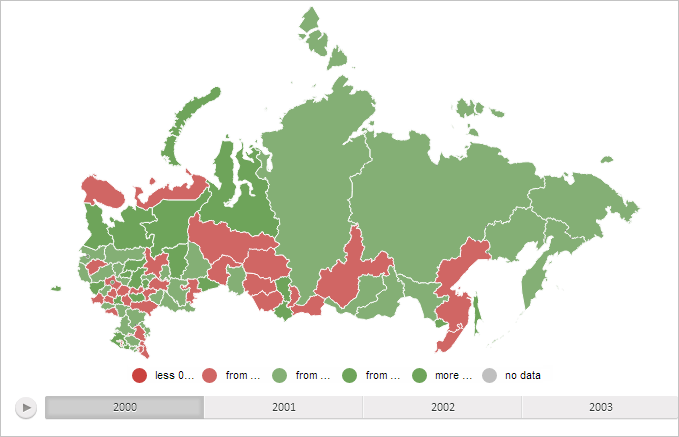
To execute this example, create an HTML page and perform the following operations:
1. Add a link to the PP.css file.
Also add links to the following JS files:
PP.js.
PP.GraphicsBase.js.
PP.MapChart.js.
PP.BaseMaster.js.
PP.MapMaster.js.
resources.ru.js.
2. The following folders must be created in the project root folder:
Json. The JSON folder contains files with names of the following format: MapExample_<Territory code>.js. Executing the example requires the MapExample_Russia.js and MapExample_World.js files.
png. The png folder contains files with icons whose name correspond to the format Yahoo_Weather_<Icon number>.png. To correctly execute this example the folder must contain seven files with numbers ranging from 001 to 007, such as Yahoo_Weather_003.png.
Topobase. The folder contains two more folders:
SVG. Contains files for SVG topobases. The Russia.svg file is mandatory.
WebGL. The folder contains files for WebGL and Sphere topobases. Russia.tr and World.trsp files must be available.
3. In the <body> tag place a block with the MapType ID to store the panel for selecting map topobase, and the "map" block to store the map:
<body>
    <!-- Container for a panel of map topobase choice -->
    <div id="MapType" style="float: right;"></div>
    <!-- Container for a master -->
    <div id="mapMaster" style="float: left;"></div>
    <!-- Container for a map -->
    <div id="map"style="float: left;"></div>
</body>
3. Add a script creating a map:
(function() {
    // Create a variable that contains map
    map = null;
    // Specify path to the root folder containing resources files
    PP.resourceManager.setRootResourcesFolder("../../../resources/");
    // Determine language settings for resources
    PP.setCurrentCulture(PP.Cultures.ru)
    // Determine default map type
    type = PP.MapChartType.SVG;
    // By default load topobase from the Russia.svg file in the SVG folder
    var topobase = "Russia";
    var dir = "SVG";
    var ext = "svg";
    // Determine folder with map settings
    var settingsDir = "Json/";
    // Determine file with map settings
    var currentUrl = "MapExample_Russia.js";
    // Function for creating map
    function createMap(mapData) {
        if (map) map.dispose();
        var mapContent = document.getElementById("map-content");
        // Get map JSON settings
        var settings = JSON.parse(mapData);
        // Determine path to required file depending on topobase type
        switch (type) {
            case 'SVG':
                dir = "Topobase/SVG";
                topobase = "Russia";
                ext = "svg";
                break;
            case 'WebGL':
                dir = 'Topobase/WebGL';
                topobase = "Russia";
                ext = 'tr';
                break;
            case 'Sphere':
                dir = 'Topobase/WebGL';
                topobase = 'World';
                ext = 'trsp';
                break;
            default:
                settings.MapChart.Mode = "Drawing2D";
        };
        // Change map type
        settings.MapChart.Type = type;
        // Disable rendering of map elements on canvas
        settings.MapChart.RenderToCanvas = false;
        // Determine topobase
        settings.MapChart.Topobase = dir + "/" + topobase + "." + ext;
        settings.MapChart.ParentNode = document.getElementById("map");
        // Determine path to images folder
        settings.MapChart.ImagePath = "../../../build/img/";
        PP.ImagePath = settings.MapChart.ImagePath;
        // Create a map
        map = new PP.MapChart(settings.MapChart ? settings.MapChart : settings);
        // Rerender map sizes
        updateSize();
    };
    // Executes Ajax query to get a file with map JSON settings
    function getRequest(dataURL) {
        var Request = new PP.Ajax({
            Url: dataURL,
            Success: function(sender, args) {
                createMap(args.ResponseText); // Create a map
                Request.dispose();
            }
        });
        Request.send(); // Send query
    }
    var idTime;
    // Refreshes map sizes and deletes unnecessary layers
    function updateSize() {
        if (idTime) clearTimeout(idTime);
        idTime = setTimeout(function() {
            if (map) {
                if (map.getMapTerritoryTranscript()) {
                    map.getMapTerritoryTranscript().hide();
                };
                map.getMilestoneLayer().remove();
                map.getArrowLayer().remove();
            }
        }, 100);
    }
    // Loads map
    function loadMapChart() {
        getRequest(settingsDir + currentUrl);
        createToolBar(); // Create a button panel for toggling map type
    }
    // Creates a button panel for toggling map topobase type
    function createToolBar() {
        MapType = new PP.Ui.ToolBar({
            ParentNode: "MapType",
            Items: [{
                Content: 'SVG',
                Id: 'SVG',
                IsChecked: true,
                GroupName: 'mode'
            }, {
                Content: 'WebGL',
                Id: 'WebGL',
                GroupName: 'mode',
                IsVisible: !PP.IsIE
            }, {
                Content: 'Sphere',
                Id: 'Sphere',
                GroupName: 'mode',
                IsVisible: !PP.IsIE
            }],
            IsVisible: false // Hide toolbar
        });
        MapType.Click.add(changeType);
    }
    /* Processes clicking of buttons located on selection panel
    of map topobase type */
    function changeType(s, a) {
        if (a.Item) {
            var aa = a.Item;
            if (aa instanceof PP.Ui.ToolBarButton) {
                changeMapType(a.Item.getContent());
            }
        }
    }
    // Changes map type
    changeMapType = function(type) {
        this.type = type;
        switch (type) {
            case 'SVG':
            case 'WebGL':
                currentUrl = "MapExample_Russia.js";
                getRequest(settingsDir + currentUrl);
                break;
            case 'Sphere':
                currentUrl = "MapExample_World.js";
                getRequest(settingsDir + currentUrl);
                break;
            default:
                map.setType(type);
        }
    }
    // Creates a minimap zoom panel
    function createMiniMap() {
            var miniMap = new PP.Ui.MiniMap({
                // Set zoom panel width
                Width: 100,
                // Set whether map is displayed
                ShowMap: true,
                // Set whether zoom buttons are displayed
                ShowButtons: true,
                // Set whether map proportions are changed on resize
                KeepProportions: false,
                // Set whether initial borders are kept
                KeepInitialBounds: true,
                // Set height of zoom buttons
                ButtonsHeight: 20,
                FrameStyle: new PP.Style({
                    Background: new PP.SolidColorBrush({
                        Color: PP.Color.Colors.lightgreen
                    })
                })
            });
            // Add a zoom panel to map
            map.setMiniMap(miniMap);
            // Set control on zoom panel
            miniMap._Control = map;
            // Display zoo panel on map
            map.setMiniMapEnabled(true, false);
            // Remove weather icons
            map._MilestoneLayer.remove();
        }
        // Load map
    loadMapChart();
})();
NOTE. User can define his own paths to script, resource and image files.
4. To show a sphere, it is necessary to add following item inside the <staticContent> element in the web.config configuration file of the web application:
<mimemap fileextension=".trsp" mimetype="application/x-trsp">
To execute custom scripts for the map, including the examples given in the pages that contain descriptions of properties, methods and events of this component and its constituent parts, place the code after the script specified above or in the browser console.
After executing the example the PP.MapChart component is placed on the HTML page:
See also: